
If holding Home and OK isn’t pairing your TCL Android TV remote, the cause is usually weak batteries, standing too far from the TV, leftover Bluetooth data on the TV, or a remote that doesn’t support Bluetooth pairing at all. Put in fresh batteries, unplug the TV for 60 seconds, then hold Home + OK within 3 feet of the screen until the pairing prompt appears. That fixes most cases.
If it still won’t pair, the steps below walk you through every other fix, from the TV’s Bluetooth menu to phone remote apps, so you can figure out whether the problem is the remote, the TV, or simply the wrong button combo for your model.
Quick Overview
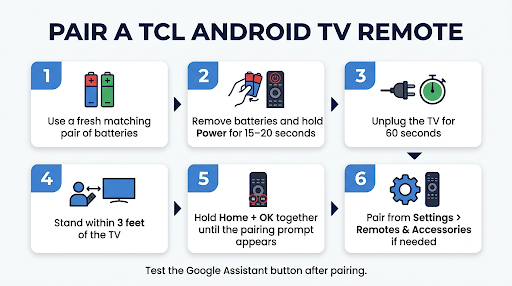
- Swap the batteries for a brand-new matching pair. Weak batteries are the most common reason pairing fails.
- Drain the remote: remove the batteries and hold the Power button for 15 to 20 seconds.
- Power cycle the TV: unplug it from the wall for 60 seconds, then plug it back in.
- Re-pair up close: stand within 3 feet (1 meter), press and hold Home + OK together, and keep holding until the pairing prompt or animation shows up.
- Use the menu if buttons fail: go to Settings > Remotes & Accessories > Add Accessory using the TV’s own button, a USB keyboard, or a phone remote app.
- Test the IR signal with your phone camera. If nothing lights up and nothing pairs, the remote is likely faulty.
Why Is My TCL Android TV Remote Not Pairing With Home and OK?
The Home + OK combo only starts Bluetooth pairing. If the TV never sees that Bluetooth signal, nothing happens on screen. Here are the usual reasons:
- Low or mismatched batteries. A remote can still send basic IR commands like Power on weak batteries, but Bluetooth pairing needs more power.
- Too much distance. TCL recommends keeping the remote within 3 feet of the TV during pairing.
- Bluetooth interference. Headphones, soundbars, game controllers, and other Bluetooth gear near the TV can get in the way.
- A frozen or glitched TV. After an update, power outage, or long standby, the TV’s Bluetooth service can hang until you fully power cycle it.
- Too many paired accessories. Old remotes and devices still listed on the TV can block a new connection.
- Wrong remote type. Some basic TCL remotes are IR-only. They have no microphone or Google Assistant button, so there is nothing to pair.
- Different TV platform. TCL also sells Roku TV and Fire TV models. Those use different pairing methods, so Home + OK won’t do anything on them.
- A faulty remote. Drops, spills, or corroded battery contacts can kill the Bluetooth chip while IR still works.
How Do You Know Your TCL Remote Actually Needs Pairing?
Your TCL Android TV voice remote (such as the RC802V) talks to the TV in two ways: an infrared (IR) signal for basic buttons and Bluetooth for voice and full navigation. That’s why the symptoms can be confusing.
| What You Notice | What It Usually Means |
| Power and volume work, but the Google Assistant button does nothing | IR works, Bluetooth isn’t paired. Re-pair with Home + OK. |
| Remote only works when pointed straight at the TV | The remote is running on IR only. Bluetooth needs re-pairing. |
| Nothing works at all, even Power | Dead batteries, a blocked IR sensor, a frozen TV, or a faulty remote. |
| Setup screen keeps asking you to pair the remote after a reset | Pairing is required before the remote fully works. Follow the on-screen combo. |
| Remote signal shows on a phone camera, but the TV ignores it | The remote is fine. The problem is likely on the TV side. |
If your remote seems to send a signal but the screen never reacts, check out our guide on what to do when your TCL TV remote works but the TV does not respond, since that points to a different set of fixes.
How Do You Pair a TCL Android TV Remote Using Home and OK?
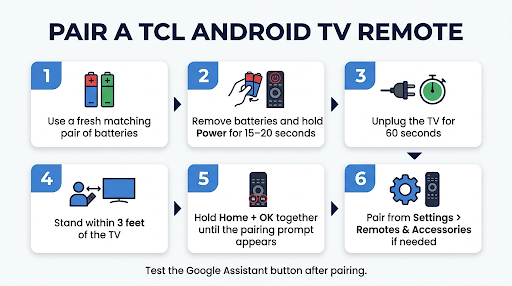
Turn on the TV, stand within 3 feet of it, and press and hold Home + OK at the same time until a pairing prompt or animation appears. Here is the full process done the right way:
- Turn on your TCL Android TV. If the remote can’t do it, use the power button on the TV itself.
- Stand within 3 feet (1 meter) of the TV and point the remote at the screen.
- Press Home and OK at the exact same time. Pressing one slightly before the other can open the home screen or select something instead.
- Keep holding both buttons until you see the pairing prompt or confirmation on screen. This often takes a few seconds, so give it up to about 10 seconds before letting go.
- Release the buttons and wait for the “paired” or “connected” message.
- Press the Google Assistant button to test it. If the voice prompt opens, Bluetooth pairing worked.
Pro Tip! Don’t stop at the first flash of the remote light. Many people let go too early. Keep holding until the TV shows something on screen.
What Should You Do If Home and OK Still Won’t Pair?
Work through these fixes in order. Each one clears a different cause, so don’t skip ahead.
1. Put In Fresh, Matching Batteries
Remove the batteries, wait about 10 seconds, and put in a new matching pair. TCL says weak batteries are the most common cause of pairing failures. Use fresh alkaline batteries if you can, and don’t mix an old battery with a new one.
While the cover is off, look at the battery contacts. White or green crust is corrosion. Gently clean it with a dry cotton swab or a little isopropyl alcohol and let it dry fully.
2. Drain the Remote’s Leftover Power
With the batteries out, press and hold the Power button for 15 to 20 seconds. Then press every other button once. This clears any residual charge and can unstick a remote that’s frozen in a bad state. Put the batteries back in afterward.
3. Cold Boot (Power Cycle) the TV
A normal “off” only puts the TV into standby. A true restart clears its Bluetooth cache.
- Unplug the TV’s power cord from the wall outlet.
- Wait 60 seconds.
- Plug it back in and turn it on.
- Once the home screen loads, try Home + OK again.
If your remote works enough to move around the menu, you can also restart from Settings > More Settings > Device Preferences > About > Restart. TCL suggests removing the remote batteries, restarting, and putting them back in once the TCL logo appears.
4. Remove Bluetooth Interference
Turn off or move away Bluetooth headphones, speakers, game controllers, and phones near the TV during pairing. A soundbar or decor sitting in front of the TV can also block the IR sensor, which matters when you’re testing basic buttons.
Important Point to be Considered! If you have two TCL TVs in the same room or nearby, unplug the other one while pairing. The remote can try to connect to the wrong TV.
5. Pair Through the TV’s Bluetooth Menu
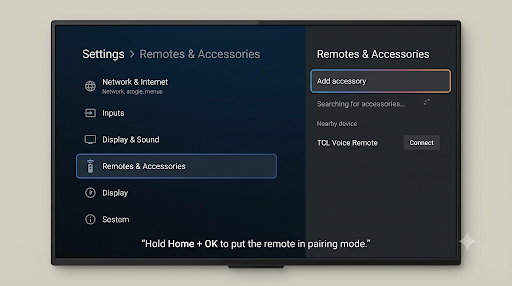
If you can get around the menu with another remote, a USB keyboard, the TV’s physical button, or a phone app, you can start pairing from the TV side:
- Press Home (or use your workaround) and open Settings.
- Go to Remotes & Accessories (on some models it’s listed as Remote and Accessories).
- Select Add Accessory. The TV starts searching for nearby Bluetooth devices.
- Now press and hold Home + OK on the remote to put it in pairing mode.
- Select the remote when it appears in the list and confirm.
While you’re in this menu, remove old or unused remotes and accessories from the list. That frees up space for a clean new connection.
6. Try the Combo Shown on Your Setup Screen
Home + OK is TCL’s standard combo for Android TV and Google TV. However, if your TV is on the initial setup screen and shows a different combo, such as Home + Back, follow what the screen says. Setup prompts can vary by software version and region, and the on-screen instruction is the one your TV is waiting for.
7. Test the Remote With Your Phone Camera
Open your phone’s camera, point the remote at the lens, and press a button like Power or Volume. If you see a flashing light on the phone screen, the remote’s IR is working.
Keep in mind this only checks IR, not Bluetooth. Some phone cameras also filter IR light, so if you see nothing, try the front camera before assuming the remote is dead.
8. Factory Reset the TV as a Last Resort
If nothing else works and you can reach the menu, a factory reset clears every pairing and setting. On most TCL Android TVs it’s under Settings > More Settings > Device Preferences > Reset. You’ll need to sign back into your Google account and apps afterward, and the setup wizard will ask you to pair the remote again.
Important Point to be Considered! Don’t reset unless you have a way to finish setup. If the remote can’t pair, you may get stuck on the setup screen. Have a USB keyboard or a working remote ready first.
How Can You Control a TCL Android TV Without a Working Remote?
Use your phone as a remote, a USB or Bluetooth keyboard, or the TV’s built-in power button. This lets you reach Settings and pair the physical remote from the menu.
- Google TV app remote: Google retired the old Android TV Remote Control app and moved the remote into the Google TV app on Android. On Android phones, you can also add the TV Remote tile to Quick Settings. iPhone users can find the TV remote in the Google TV app or the Google Home app, depending on the version. Your phone and TV must be on the same Wi-Fi network.
- TCL Home app: TCL’s own app can also control many TCL TVs over Wi-Fi.
- USB keyboard: Plug a wired keyboard into the TV’s USB port. Arrow keys and Enter let you move through menus.
- TV power button: Most TCL Android TVs have a multi-function button underneath the screen. Press it to cycle options and press and hold to select.
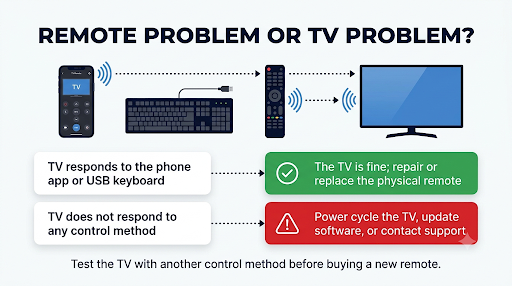
TCL’s FAQ also shares a useful test. If the TV responds to the app but not the remote, the remote is likely defective. If the TV doesn’t respond to the app either, the problem may be the TV’s sensor or software.
Are You Sure Your TCL TV Runs Android TV?
TCL makes TVs on several platforms, and only Android TV and Google TV models use the Home + OK pairing combo. Check the home screen or the label on the back of the TV.
| TCL TV Platform | How to Tell | Pairing Method |
| Android TV | Android TV home screen with app rows, Google Assistant button on remote | Hold Home + OK |
| Google TV | “For you” tab and profile icon at the top right | Hold Home + OK, or Settings > Remote & Accessories > Pair remote or accessory |
| Roku TV | Purple Roku home screen, Roku remote | Roku-specific pairing button or menu |
| Fire TV | Fire TV home screen, Alexa voice remote | Hold the Home button during setup |
If you own a TCL Roku TV, read our guide to fixing a TCL Roku TV remote that won’t pair. And if the little light on your Roku remote never blinks during pairing, our walkthrough on the TCL Roku TV remote light not flashing when pairing covers that exact problem. For Fire TV models, see how to fix a TCL Fire TV remote that will not pair during setup.
Does a Replacement or Universal Remote Pair With Home and OK?
Only if it’s a Bluetooth voice remote built for your TCL Android TV model. Many cheap replacements and universal remotes are IR-only. They can turn the TV on, change volume, and move through menus, but they will never show a pairing prompt because they don’t use Bluetooth.
Before buying a replacement, check the model number inside the battery cover of your original remote, such as RC802V. Look for a replacement that lists your exact TV model and says it supports voice or Bluetooth. TCL also notes that replacement or universal remotes may not support every feature.
Pro Tip! If a universal remote stops responding, try another setup code for your TV brand or run the auto code search again. That’s a code issue, not a pairing issue.
Common Mistakes That Stop Home and OK Pairing
- Letting go too soon. Keep holding until the TV shows the prompt.
- Pressing the buttons one after the other. Press them together, or the TV just goes to the home screen.
- Pairing from the couch. Stand within 3 feet during pairing, then go back to normal distance.
- Using old or mixed batteries. New batteries from the same pack work best.
- Turning the TV off instead of unplugging it. Standby doesn’t clear the Bluetooth glitch.
- Trying Home + OK on a Roku or Fire TV model. It’s the wrong method for those platforms.
When Should You Contact TCL Support?
Contact TCL if you’ve tried fresh batteries, a 60-second power cycle, pairing from the Bluetooth menu, and a phone camera test, and the remote still won’t pair. Have your TV model number and remote model number ready. If the TV doesn’t respond to the remote or the TCL Home app, the TV’s remote sensor may need service, which can be covered under warranty.
You can also review TCL’s official steps for pairing a remote with a TCL Android TV and its Android TV remote troubleshooting guide.
FAQs
How long should I hold Home and OK on a TCL remote?
Hold both buttons until the pairing prompt or animation appears on screen. That’s usually a few seconds. If nothing shows after about 10 seconds, let go, check the batteries and distance, and try again.
Why does my TCL remote pair but disconnect later?
Weak batteries are the usual cause, followed by interference from nearby Bluetooth devices. Replace the batteries, remove unused accessories under Remotes & Accessories, and check for a TV software update under Device Preferences.
Why is the TCL remote not pairing after a factory reset?
After a reset, the TV forgets all paired remotes and asks you to pair during setup. Follow the exact combo shown on the setup screen, stay close to the TV, and use fresh batteries. If the setup screen won’t respond, plug in a USB keyboard to move forward.
Do I need to pair my TCL remote to use basic buttons?
No. Basic commands like Power and Volume often work over IR without pairing. Pairing is needed for the Google Assistant button and full Bluetooth control without pointing at the TV.
Can I pair a TCL Android TV remote without the Home and OK buttons?
Yes, if you can reach the menu another way. Go to Settings > Remotes & Accessories > Add Accessory using a phone app, USB keyboard, or the TV’s button, then select the remote from the list. The remote still has to be in pairing mode for the TV to find it.
Is my TCL remote broken if Home and OK do nothing?
Not necessarily. Test it with fresh batteries and your phone camera first. If the camera shows a light and basic buttons work, the remote is alive and the issue is pairing or the TV. If there’s no light with new batteries, the remote is probably faulty.
Final Recommendation
Start simple. Put in new batteries, unplug the TV for a full 60 seconds, and hold Home + OK within 3 feet until the prompt appears. If that fails, pair from Settings > Remotes & Accessories using a phone app or USB keyboard, and clear out old accessories while you’re there. Still stuck after a camera test? Your remote is likely faulty, so get a genuine Bluetooth voice remote for your exact TV model or contact TCL support with your model numbers ready.