
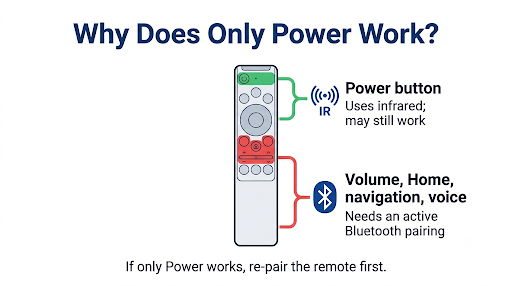
If your Samsung BN59 remote turns the TV on but nothing else works, the most likely cause is a lost Bluetooth pairing between the remote and the TV. The Power button can still send a basic infrared (IR) signal, while volume, navigation, Home, and most other buttons on a Smart Remote need an active wireless connection. Re-pairing the remote by holding Return + Play/Pause for about 5 seconds near the TV fixes this in most cases.
If that doesn’t work, the problem is usually a frozen remote, a weak battery, a stuck button, or a TV that needs a full power cycle. This guide walks you through each fix in the order that solves the problem fastest.
Quick Overview
- Re-pair the remote: Stand within 1 foot of the TV and hold Return + Play/Pause for at least 5 seconds until a “connected” message appears.
- Reset the remote: Smart/SolarCell remotes: hold Return + Enter (center button) for 10 seconds, then pair again. Battery IR remotes: remove the batteries and hold Power for 8 seconds.
- Check power: Charge a SolarCell remote with a USB-C cable or put fresh batteries in a battery model.
- Power cycle the TV: Unplug it for 30 to 60 seconds, then plug it back in.
- Test the IR signal: Point the remote at a phone camera and press a button. No flash usually means a hardware fault.
- Clean or replace: Stuck buttons or worn contacts may need cleaning. If nothing works, use the SmartThings app until a replacement arrives.
Why Does My Samsung Remote Only Turn the TV On?
Your remote is sending a signal for Power but not for the other buttons, which almost always points to a connection problem, not a dead remote.
Most Samsung Smart Remotes work in two ways at once. The Power button can use infrared, the same old-school signal TV remotes have used for decades. Everything else, like volume, the D-pad, Home, voice, and app shortcuts, travels over a paired Bluetooth link. When that pairing drops, the remote falls back to IR-only behavior. Power still works. The rest goes quiet.
Here are the most common causes:
- Lost pairing: Common after a power outage, a TV software update, a battery swap, or a remote reset.
- Low battery: Samsung notes that a low battery can make a remote respond slowly or not function properly, even before it dies completely.
- Frozen remote firmware: The remote’s internal controller can glitch and stop sending commands until it’s reset.
- A stuck button: If one button is held down internally, the remote may ignore every other press.
- TV-side glitch: The TV’s receiver or software can stop registering commands until it’s fully restarted.
- Worn or dirty contact pads: Older remotes, especially well-used ones, can lose contact under specific buttons.
What Does “BN59” Mean on a Samsung Remote?
BN59 is simply the prefix Samsung uses for its remote control part numbers, so it doesn’t tell you on its own which type of remote you have. The full model number after it does.
That matters because the fix depends on the remote type. Flip your remote over or open the battery cover to find the full code, then match it to one of these groups:
| Remote Type | How to Recognize It | How It Talks to the TV | Example Part Numbers |
| Standard IR remote | Full number pad, lots of buttons, AA or AAA batteries | Infrared only | BN59-01199F and similar |
| Smart Remote (battery) | Slim, few buttons, microphone button, AAA batteries | Bluetooth plus IR | Many 2016 to 2020 models |
| SolarCell Smart Remote | Solar panel on the back, USB-C port on the bottom | Bluetooth plus IR | BN59-01357 series, BN59-01455A and newer |
Key point: if a Smart Remote or SolarCell remote only turns the TV on, think pairing first. If a standard IR remote only turns the TV on, think stuck buttons, worn contacts, or batteries first, because there’s no pairing to lose.
How Do You Re-Pair a Samsung Smart Remote?
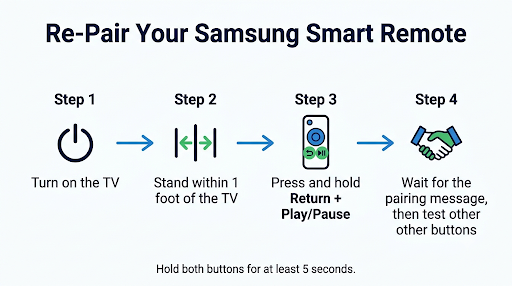
Turn the TV on, stand close to it, and hold Return and Play/Pause together until the TV confirms the connection. This is the fix that works most often.
- Turn the TV on. If the remote’s Power button works, use that. If not, use the physical control button on the TV (usually under the center of the bottom edge or on the back).
- Stand within about 1 foot (30 cm) of the TV and point the remote at the bottom center of the screen.
- Press and hold Return (the back arrow) and Play/Pause at the same time.
- Keep holding for at least 5 seconds, or until a pairing message or Bluetooth animation appears on screen.
- Release both buttons and test volume, Home, and the D-pad.
Some remotes have a combined Play/Pause key, while others label it with a small play and pause icon. If you can’t find it, check the area just below the navigation ring.
Common mistake: letting go too early. Many people release the buttons after a second or two, see nothing happen, and assume the remote is broken. Hold them until the message appears.
If the remote pairs but drops the connection again after a few hours or days, the cause is often interference, low battery, or TV software. That’s a slightly different problem, and our guide on why a Samsung Smart TV remote keeps disconnecting covers those fixes in detail.
How Do You Reset a Samsung BN59 Remote?
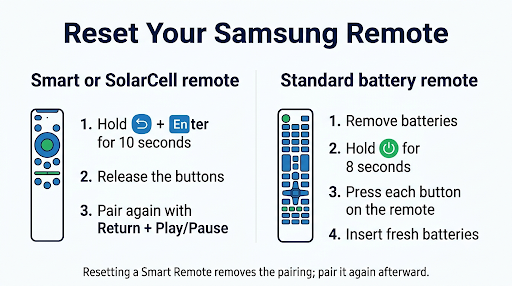
Smart and SolarCell remotes reset by holding Return + Enter for 10 seconds. Standard battery remotes reset by removing the batteries and holding Power for 8 seconds. After a Smart Remote reset, you must pair it again.
Reset a Smart Remote or SolarCell Remote
- Press and hold Return and Enter (the center button of the navigation ring) at the same time.
- Hold for about 10 seconds.
- Release, then pair the remote again using Return + Play/Pause as shown above.
On some Samsung regional support pages, the reset combo is listed as Return plus the button diagonally up and to the right of it (often the button with four colored dots). If Return + Enter does nothing on your model, try that combination instead.
Reset a Standard Battery Remote
- Remove both batteries.
- Press and hold the Power button for 8 seconds. Many technicians suggest holding it a bit longer, up to 30 seconds, to fully drain leftover charge.
- While the batteries are still out, press every button on the remote once or twice. This can free a button that’s stuck down internally.
- Insert fresh batteries, making sure the + and − ends match the markings.
- Test the remote.
If your buttons stopped responding right after you swapped batteries, the issue might not be the batteries at all. Our post on fixing a Samsung TV remote that won’t pair after a battery change explains why that happens and how to get the connection back.
Could a Weak Battery Be the Problem?
Yes. A battery that’s almost empty can still power a quick IR burst for the Power button but not keep a stable Bluetooth connection for everything else.
For SolarCell Remotes
- Plug a USB-C cable into the port on the bottom of the remote. A red LED lights up while it charges and turns off when it’s done.
- Avoid using the remote while it charges if you want the fastest charge.
- Light charging through the solar panel extends battery life, but Samsung recommends USB-C for actual charging.
- To check the battery level, go to Settings > All Settings > General & Privacy > Remote Control on newer TVs. On older models, look under General > Power and Energy Saving > Available Remote Battery.
One catch: the Remote Control menu only shows up when the remote is paired. If you can’t find it, that itself is a clue that the pairing is gone.
Brand-new SolarCell remote? Check whether a thin plastic film is still inserted at the bottom. Samsung says it must be removed for the remote to work properly.
For Battery Remotes
- Use a fresh pair from a new pack, not batteries pulled from another device.
- Check the battery contacts for white or green corrosion. Clean them gently with a cotton swab and a little isopropyl alcohol.
- Don’t mix old and new batteries or different brands.
How Do You Power Cycle a Samsung TV?
Unplug the TV from the wall for 30 to 60 seconds, then plug it back in. This clears temporary glitches that stop the TV from listening to the remote.
Turning the TV off with the remote isn’t the same thing. Samsung TVs go into a standby mode instead of fully shutting down, so a software hiccup can survive dozens of on/off cycles. A true power cycle forces a clean restart.
- With the TV on, unplug the power cord from the wall outlet (not just the back of the TV).
- Wait 30 to 60 seconds.
- Optional: press and hold the physical power button on the TV for about 30 seconds while it’s unplugged to drain any leftover power.
- Plug the TV back in, turn it on, and test the remote.
- If the remote still only powers the TV on, re-pair it now. A fresh restart often helps the pairing stick.
You can also restart from the remote on many Samsung TVs by holding the Power button until the TV turns off and back on with the Samsung logo. That only helps if the Power button is working, which in your case it is.
How Can You Tell If the Remote Itself Is Broken?
Use your phone camera to check the infrared signal. If you see a flash when you press a button, the remote is transmitting and the problem is pairing or the TV. If you see nothing, the remote likely has a hardware fault.
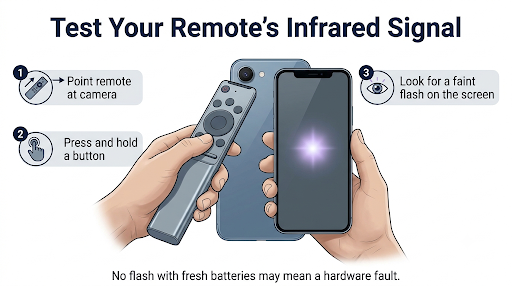
- Open your phone’s camera app.
- Point the top tip of the remote at the camera lens.
- Press and hold a button, like Volume Up.
- Watch the screen for a faint purple or white flicker.
Tip: some phone rear cameras filter out infrared. If you see nothing, switch to the front-facing (selfie) camera and try again before deciding the remote is dead.
Here’s how to read the results:
| What You See | What It Usually Means | What to Do Next |
| Power flashes, other buttons flash too | Remote is fine. Pairing or TV issue. | Re-pair, power cycle the TV, update the TV software |
| Power flashes, other buttons don’t | Normal for many Smart Remotes, which use Bluetooth for those buttons | Re-pair and check the battery |
| Nothing flashes at all | Dead battery or failed IR emitter | Charge or replace batteries, then consider a replacement |
| Some buttons flash, a few never do | Worn or dirty contact pads under those buttons | Clean the buttons or replace the remote |
Many Samsung remotes also have a small red LED at the top that blinks when you press a button. If it blinks but the TV ignores the command, the remote is sending. If it doesn’t blink at all, focus on power and hardware.
What If Only Some Buttons Don’t Work?
When only certain buttons fail, like volume or the D-pad, the cause is usually dirt, a stuck key, or a setting on the TV, not pairing.
Stuck or Dirty Buttons
Spilled drinks, crumbs, and everyday hand oils can build up under rubber keys. A key stuck in the “pressed” position can block other buttons entirely.
- Remove the batteries first.
- Press firmly around each button, especially any that feel mushy or sticky.
- Use compressed air around the edges of the keys.
- Wipe the surface with a cloth lightly dampened with isopropyl alcohol. Don’t soak the remote.
Opening the case to clean the contact pads is an option for older IR remotes. It can fix worn contacts, but plastic clips break easily and you may void any warranty, so treat it as a last resort.
Volume Buttons Not Working With a Soundbar
If volume is the only thing that doesn’t respond, check whether your TV is sending audio to a soundbar or receiver. In that setup, the TV hands volume control to the external device through HDMI-CEC (Samsung calls it Anynet+). When that link breaks, volume stops working even though everything else is fine. Our guide on a Samsung TV remote not controlling a soundbar covers the CEC and audio output settings to check.
Voice Button Not Responding
The microphone button relies entirely on Bluetooth and on voice assistant settings inside the TV. It can fail even when every other button works. If that’s the only key giving you trouble, see our walkthrough on fixing a Samsung TV remote voice button that’s not working.
Should You Update the TV Software?
Yes, once you can control the TV again. Outdated TV software is a known cause of remote connection problems, and updates often include Bluetooth and remote compatibility fixes.
You can’t easily navigate menus with a half-working remote, so use one of these workarounds first:
- SmartThings app: Install the free Samsung SmartThings app on your phone, connect it to the same Wi-Fi as your TV, and use its built-in remote to navigate menus.
- TV control button: The physical control stick or button on the TV can open a basic menu for input, volume, and settings.
Then go to Settings > Support > Software Update > Update Now. Menu names can vary slightly by model year, so if you don’t see that exact path, look for Software Update under Support.
What Else Can Block the Remote Signal?
Physical obstacles and interference can weaken the signal enough that only short IR commands get through.
- Objects in front of the sensor: Soundbars, decorations, or the TV stand can cover the IR receiver at the bottom center of the TV.
- Bright light: Direct sunlight or strong lamps near the TV sensor can interfere with infrared.
- Wireless clutter: Wi-Fi routers, Bluetooth speakers, and other wireless devices placed right next to the TV can disrupt the Bluetooth link.
- Distance: Samsung recommends using a Smart Remote within about 20 feet (6 meters) of the TV. Range can drop depending on the room.
A quick test: move closer, clear anything in front of the TV’s bottom edge, and try again. If it suddenly works, you’ve found your culprit.
When Should You Replace Your Samsung Remote?
Replace the remote if it shows no IR signal on a camera with fresh power, refuses to pair after a reset, or has buttons that stay dead after cleaning.
Before you buy, keep these points in mind:
- Match the part number: Use the BN59 number from your old remote or your TV’s model number to find a compatible replacement. Samsung sells genuine remotes through its official parts store.
- Check your warranty: If your TV is still under warranty, Samsung support may replace a faulty remote.
- Know the trade-offs of generic remotes: Cheap IR-only replacements usually control basic functions but may not support voice, app buttons, or Bluetooth features.
In the meantime, the SmartThings app works as a full remote for most Samsung Smart TVs, so you won’t be stuck.
Frequently Asked Questions
Why does my Samsung remote power button work but nothing else after a power outage?
Power outages often break the Bluetooth pairing between a Smart Remote and the TV. The TV restarts, but the remote isn’t reconnected automatically. Hold Return + Play/Pause near the TV for about 5 seconds to pair it again.
My Samsung remote red light blinks, but the TV doesn’t respond. What does that mean?
A blinking red light means the remote has power and is sending a signal. The TV just isn’t accepting it. That points to lost pairing, a TV software glitch, or something blocking the sensor. Power cycle the TV and re-pair the remote before assuming it’s broken.
Can I use my phone as a Samsung TV remote?
Yes. The free SmartThings app for Android and iPhone has a built-in remote for Samsung Smart TVs. Your phone and TV need to be on the same Wi-Fi network, and you’ll sign in with a Samsung account to add the TV.
Does a Samsung remote work with any Samsung TV?
Not always. Basic IR remotes work with most Samsung TVs for core functions. Smart Remotes are tied to specific model years, and an older Smart Remote may not pair fully with a newer TV, or vice versa. Check the part number compatibility before swapping remotes between TVs.
How long does a Samsung SolarCell remote battery last?
Samsung says a full charge can last up to two years, depending on how much you use it. Heavy daily use, voice commands, and keeping it in a dark drawer will shorten that. Leaving it face up in a well-lit room helps keep it topped off.
Why do my Samsung TV’s own buttons also not work?
If both the remote and the TV’s physical button stop responding, the issue is likely inside the TV, not the remote. Unplug the TV for at least a minute and try again. If nothing changes, contact Samsung support, since the TV may have a board or software fault.
Final Recommendation
Start with the simplest fix: hold Return + Play/Pause for 5 seconds right in front of the TV. That solves most cases where a Samsung BN59 remote turns the TV on but nothing else works. If it doesn’t, reset the remote, charge it or swap in fresh batteries, and unplug the TV for a full minute before pairing again.
Still stuck? Run the phone camera test. A visible IR flash means the remote is fine and you should focus on the TV and its software. No flash with fresh power means it’s time for a replacement, and the SmartThings app will cover you until it arrives. For official steps specific to your model, check Samsung’s remote troubleshooting guide and the Samsung SolarCell Remote guide.