
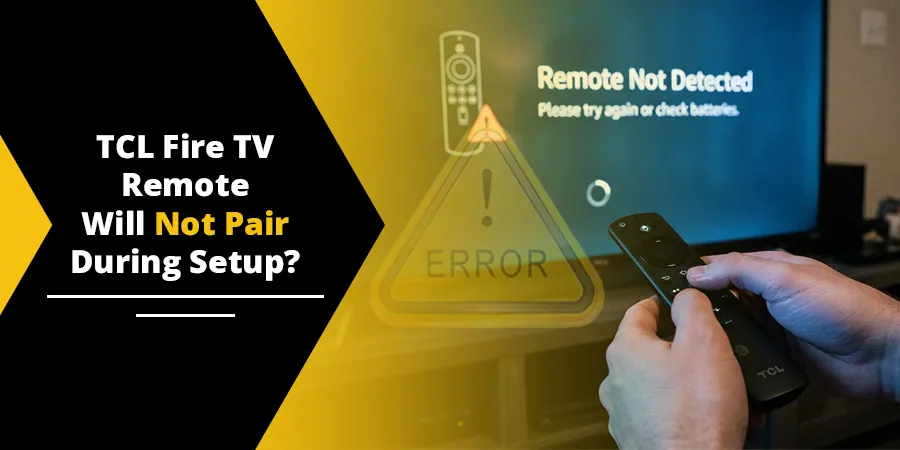
If your TCL Fire TV remote will not pair during setup, move within 10 feet of the TV and press and hold the Home button for about 10 seconds until “Press Play/Pause to start” appears. Then press Play/Pause to continue. If nothing happens, put in fresh batteries, restart the TV, and reset the remote with the Left + Menu + Back button combo.
Most pairing failures on a new TCL Fire TV come down to weak batteries, standing too far away, or letting go of the Home button too early. The fixes below go from the fastest to the most thorough, so you can get past the setup screen and start watching.
Quick Overview
- Get close: Stand within 10 feet (3 meters) of the TV with nothing blocking the front of it.
- Hold Home for 10 seconds: Release it when “Press Play/Pause to start” shows up, then press Play/Pause.
- Reseat or replace the batteries: Remove them, wait 30 seconds, put them back with + and – matched, or use a fresh alkaline pair.
- Restart the TV: Unplug it for 60 seconds, plug it back in, and hold Home again on the setup screen.
- Reset the remote: With the TV unplugged, hold Left + Menu + Back for 12 seconds, then re-pair.
- Still stuck? Use the remote’s troubleshooting light, test the IR signal with your phone camera, and contact TCL if the remote looks faulty.
Why Won’t My TCL Fire TV Remote Pair During Setup?
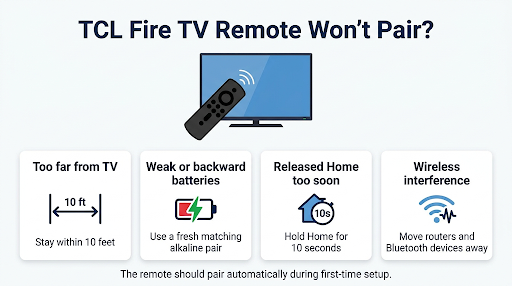
Your remote is supposed to pair on its own. Amazon says a Fire TV remote pairs automatically during initial setup once the batteries are in and the TV is on. When it doesn’t, one of these is usually the reason:
- Weak or backward batteries. The batteries that ship in the box have sometimes been sitting in a warehouse for months. A remote can have enough power to light up but not enough to finish a wireless handshake.
- Too much distance. TCL and Amazon both say to stay within 10 feet during pairing. Setting up a 75-inch TV from across a big living room is a common mistake.
- Letting go of Home too soon. A quick press does nothing on the pairing screen. You need to hold it for the full 10 seconds or so.
- Wireless interference. Routers, soundbars, Bluetooth speakers, and game controllers sitting right next to the TV can get in the way.
- A stuck remote or a frozen setup screen. Sometimes the TV or the remote just needs a clean restart.
- The wrong remote. A remote from another TV, an old Fire TV Stick, or a cheap “universal” replacement may not pair with your TCL model at all.
Which TCL Fire TV Remote Do You Have?
It helps to know, because button layouts and reset steps can differ by remote type. TCL notes that its Fire TV remotes come in different styles depending on the year your TV was made.
| TV year | Common U.S. models | Remote that usually comes in the box |
| 2023 | TCL S3, S4, and Q6 Class with Fire TV (for example, Q650F) | Amazon’s Alexa Voice Remote Enhanced |
| 2024 and newer | TCL S5 and Q6 Class with Fire TV (for example, 55S551F, 65Q651F, 75Q691F) | TCL’s own Fire TV voice remote, which adds an Input button and six app shortcut buttons |
Your exact model number is printed on the sticker on the back of the TV. If the model ends in “F,” it’s a Fire TV model. If your TCL TV runs Roku or Google TV instead, the pairing steps in this guide won’t apply. In that case, see our guide on fixing a TCL Roku TV remote that won’t pair, or our walkthrough on TCL Android and Google TV remotes when Home + OK pairing fails.
How Do You Pair a TCL Fire TV Remote During Setup?
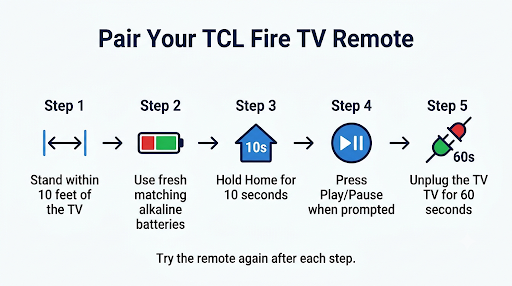
Hold the Home button for about 10 seconds while the setup screen is showing. Here’s the full process TCL recommends:
- Turn on the TV and wait for the setup screen or the “remote not detected” message.
- Stand within 10 feet of the TV and point the remote at it.
- Press and hold the Home button (the house icon).
- Keep holding until the screen changes and you see “Press Play/Pause to start.”
- Release Home and press Play/Pause to continue setup.
Tip: Count slowly to 10, or watch the clock. People often give up at 5 or 6 seconds and assume the remote is broken. If the remote has an LED, it blinks blue when it pairs successfully.
What Should You Do If Holding Home Doesn’t Work?
Work through these fixes in order. Try the Home button again after each step before moving on.
1. Fix the Batteries First
Weak or incorrectly installed batteries are the most common cause of a remote that won’t pair. TCL’s official guide for this exact problem lists them early for a reason.
- Remove both batteries.
- With the batteries out, press and hold the remote’s Power button for a few seconds. TCL suggests this to drain any leftover charge so the remote starts fresh.
- Wait 30 seconds.
- Put the batteries back in, matching the + and – markings inside the compartment.
- Hold Home for 10 seconds again.
If it still won’t pair, swap in a brand-new pair of alkaline AAA batteries. Don’t mix an old battery with a new one, and skip rechargeables for now. Some rechargeable batteries run at a slightly lower voltage, which can cause flaky pairing.
2. Clear the Path and Cut Interference
- Stay within 10 feet of the TV. Closer is better during setup.
- Remove anything sitting in front of the bottom of the TV, like a soundbar, decor, or a box.
- Don’t stand behind or beside the TV while pairing.
- If your Wi-Fi router, a Bluetooth speaker, or a game console sits right next to the TV, move it a few feet away or switch it off for a minute.
3. Restart the TV the Right Way
The TV’s power button only puts it in standby. A real restart means pulling the plug.
- Unplug the TV from the wall outlet (not just the power strip switch).
- Wait a full 60 seconds.
- Plug it back in and wait for the setup screen.
- Hold Home for about 10 seconds, then press Play/Pause when prompted.
4. Reset the TCL Fire TV Remote
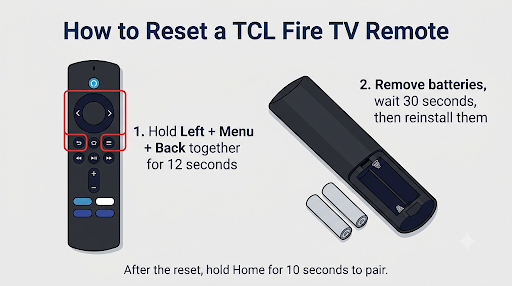
A reset clears the remote’s old pairing data. This combo works on most Fire TV remotes, including the ones TCL ships, though TCL notes that steps can vary by remote type.
- Unplug the TV and wait 60 seconds.
- On the remote, press and hold Left (on the navigation ring), Menu (three lines), and Back together for 12 seconds.
- Release the buttons and wait 5 seconds.
- Remove the batteries from the remote.
- Plug the TV back in and wait for the setup screen or the “remote can’t be detected” message.
- Put the batteries back in and press Home.
- If it doesn’t pair right away, hold Home for 10 seconds.
Common mistake: Letting go at 8 or 10 seconds. Hold all three buttons for the full 12 seconds. Pressing them one after another also won’t work. They need to be held at the same time.
What Do the Fire TV Remote Light Colors Mean?
Many newer Fire TV remotes have a hidden troubleshooting mode that tells you what’s wrong with a colored light. To check whether yours has it, press the Alexa (microphone) button. If the small LED at the top flashes, the mode is available.
- Press and hold Rewind and Right together for 3 seconds.
- Press Menu. The LED turns green.
- Press any button and watch the LED color.
| LED color | What it means | What to do |
| Orange | The remote isn’t paired to a Fire TV | Repeat the Home button pairing or reset the remote |
| White | The TV may be off | Make sure the TV is on and showing the setup screen |
| Blue | No problem found with the remote | Restart the TV by unplugging it for 60 seconds |
| Red, blinking fast | General error | Replace the batteries and reset the remote |
To leave troubleshooting mode, hold Play/Pause and Up for 3 seconds, press Menu, then take the batteries out and put them back in. Amazon explains the full process in its Fire TV remote troubleshooting guide.
How Can You Tell If the Remote Is Dead or Faulty?
Use your phone camera for a quick signal test. Phone cameras can see infrared light that your eyes can’t.
- Open your phone’s camera app. On some phones, the front-facing camera works better for this.
- Point the top of the remote at the camera lens.
- Press and hold the remote’s Power button while watching the screen.
If you see a small flashing light, the remote has power and is sending a signal. If you see nothing even with new batteries, the remote is likely faulty. A brand-new TV is covered by warranty, so this is the point to contact TCL instead of buying a replacement right away.
Also confirm you’re using the remote that came with your TCL Fire TV. TCL’s support team recommends this during setup. An older Fire TV Stick remote or a generic replacement may not pair with every TCL model.
Can You Finish TCL Fire TV Setup Without a Working Remote?
Sometimes, but it’s not reliable on a brand-new TV. Here’s what you should know about each workaround:
- Fire TV app on your phone: TCL says the free app can control the TV, but your phone and TV must be on the same Wi-Fi network. During first-time setup, the TV usually isn’t on Wi-Fi yet, so the app often can’t find it. This works much better after setup, for example when your remote stops working later.
- USB keyboard or mouse: Some owners plug a wired USB keyboard or mouse into the TV’s USB port to get through setup screens. Results vary by model and software version, but it costs nothing to try if you have one lying around.
- A second Fire TV remote: If you have another compatible Fire TV remote, try pairing it. If the second one works, your original remote is the problem.
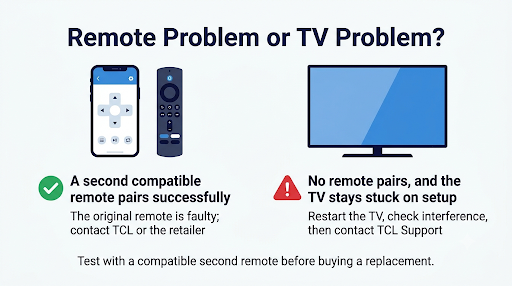
Don’t spend hours on workarounds with a new TV. If the included remote won’t pair after a reset and fresh batteries, TCL support or the store you bought from is the faster fix.
What If the Remote Pairs but the TV Still Won’t Respond?
If you made it through setup but some buttons do nothing, the issue is usually different. Volume and power buttons often rely on infrared and Equipment Control settings, while navigation uses the wireless connection. A remote can be “paired” and still fail to control power or volume. Our guide on what to do when your TCL TV remote works but the TV does not respond covers those fixes.
Also keep in mind that a Fire TV can hold up to seven paired controllers. If you’ve connected several game controllers or extra remotes, remove one in Settings > Controllers & Bluetooth Devices before pairing another.
Frequently Asked Questions
How long do I hold the Home button to pair a TCL Fire TV remote?
Hold it for about 10 seconds, until “Press Play/Pause to start” appears. Some owners report that it can take a little longer on the first try, so keep holding a few extra seconds if the message hasn’t appeared yet.
Why is my TCL Fire TV remote blinking orange?
An orange light usually means the remote is in pairing mode or isn’t connected to the TV. Stay close to the TV and keep holding Home. If it keeps blinking orange and never connects, reset the remote with Left + Menu + Back for 12 seconds.
Does a TCL Fire TV remote have a pairing button?
No. Unlike many TCL Roku remotes, there is no separate pairing button inside the battery compartment. The Home button handles pairing on TCL Fire TV remotes.
My TCL Fire TV remote won’t pair after a factory reset. Is that the same fix?
Yes. A factory reset sends the TV back to the first setup screen, so the same steps apply. Hold Home for 10 seconds, and if that fails, use the battery and remote reset steps above.
Can I use a Fire TV Stick remote with a TCL Fire TV?
Many Amazon Fire TV remotes can pair with Fire TV smart TVs, but compatibility depends on the remote generation and your TV model. Some replacement remotes sold for TCL Fire TVs are also made only for TCL TVs. Check the product listing for your exact TCL model number before you buy.
How do I pair an Xfinity remote with my TCL Fire TV?
Finish setup with the TCL remote first. Then, in the Xfinity pairing menu, owners in the Xfinity community forum report better luck choosing Amazon Fire TV as the TV brand instead of TCL.
Final Recommendation
Start simple. Stand close, hold Home for a full 10 seconds, and use fresh alkaline batteries. That fixes most TCL Fire TV remotes that won’t pair during setup. If it still won’t connect, unplug the TV for 60 seconds and reset the remote with Left + Menu + Back for 12 seconds.
If the phone camera test shows no signal, or the troubleshooting light stays red after a reset, the remote is probably faulty. Since you’re setting up a new TV, reach out to TCL customer support or the retailer for a replacement under warranty instead of paying for a new remote yourself.