
If your LG Magic Remote cursor is not moving, start by shaking the remote side to side or rolling the scroll wheel, then swap in fresh AA batteries and re-pair the remote by holding Home and Back for 5 seconds and pressing the Wheel (OK) button. Those three steps fix most frozen, stuck, or unresponsive pointers. If the cursor still will not budge, the cause is usually Audio Guidance, wireless interference, or a software glitch on the TV.
This guide walks you through every fix in the right order, from the 10-second checks to the last-resort reset. You will also learn how to tell a pairing problem from a dead remote, so you do not buy a replacement you do not need.
Quick Overview
- Wake the pointer: Shake the remote left and right or roll the scroll wheel while pointing at the TV.
- Replace the batteries: Use two new AA batteries and check the + and – direction.
- Re-pair the remote: Hold Home + Back for 5 seconds until the power light blinks three times, then point at the TV and press the Wheel (OK) button.
- Turn off Audio Guidance: Settings, All Settings, General, Accessibility, Audio Guidance, Off.
- Remove interference: Keep your Wi-Fi router at least 8 inches (20 cm) from the TV.
- Restart the TV: Unplug it for a full minute, then plug it back in.
- Last resort: Update or factory reset the TV, then contact LG Support if the cursor still does not move.
Why Is My LG Magic Remote Cursor Not Moving?
The cursor stops moving when the remote loses its radio connection to the TV, the batteries are too weak to power the motion sensor, or a TV setting is hiding or blocking the pointer. Less often, it is a stuck button, a software bug, or a damaged motion sensor inside the remote.
Here is the key thing most guides skip. The Magic Remote works in two ways. The pointer and voice features use radio frequency (RF), while some basic buttons can still work through infrared. LG explains that when the RF connection drops, the pointer stops working and only buttons like Power and Volume respond. That is why your remote can feel “half working.”
The most common causes are:
- Weak or dying batteries. The Magic Remote talks to the TV constantly, so it drains batteries faster than a basic remote. Low power often shows up as a laggy, jumpy, or frozen cursor before the buttons die.
- Lost pairing. A battery swap, power outage, or software update can break the link between the remote and the TV.
- Audio Guidance is on. This accessibility feature hides the pointer on purpose. It turns on if you hold the Mute button for about 3 seconds, which is easy to do by accident.
- Wireless interference. Routers, Bluetooth speakers, soundbars, and game consoles placed right next to the TV can disrupt the RF signal.
- Arrow-key mode. Pressing the up, down, left, or right buttons hides the pointer and switches the remote to normal button navigation.
- Stuck buttons. A button pressed down under a cushion or jammed by dirt sends a constant signal that can freeze the cursor.
- TV software glitch. A frozen webOS process, a bad update, or QuickStart+ can leave the pointer unresponsive.
- Hardware damage. A drop or liquid spill can damage the gyroscope sensor that tracks your hand movement.
What Does Your Symptom Tell You?
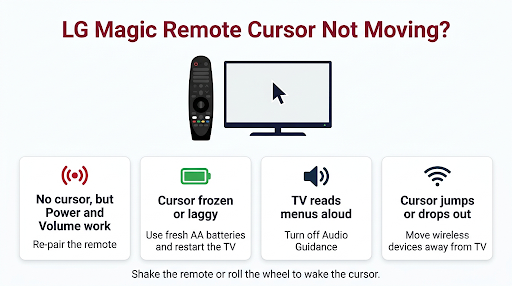
Your exact symptom points to the likely cause. Use this table to jump straight to the right fix instead of trying everything at random.
| What you see | Most likely cause | Try this first |
| Cursor visible but frozen in one spot | Weak batteries or a frozen TV process | New batteries, then unplug the TV for a minute |
| No cursor at all, but Power and Volume work | Remote is unpaired (RF connection lost) | Unpair and re-pair the remote |
| No cursor and the TV reads menus out loud | Audio Guidance is turned on | Turn off Audio Guidance |
| Cursor moves slowly, lags, or jumps around | Low batteries, interference, or tracking speed | Fresh batteries, move the router, adjust tracking speed |
| Cursor is off-center or does not follow your hand | Pointer misalignment | Point at the screen center and shake the remote |
| Cursor stuck in a corner or edge | Sensor drift or a stuck button | Remove batteries, press every button, re-pair |
| Cursor stopped after a TV update | Software bug or reset pairing | Re-pair, then check for another update |
| Nothing on the remote works at all | Dead batteries or a faulty remote | New batteries, then test with the LG ThinQ app |
How Do You Fix an LG Magic Remote Cursor That Won’t Move?
Work through these fixes in order. The early steps are fast and solve most cases. Test the cursor after each one before moving on.
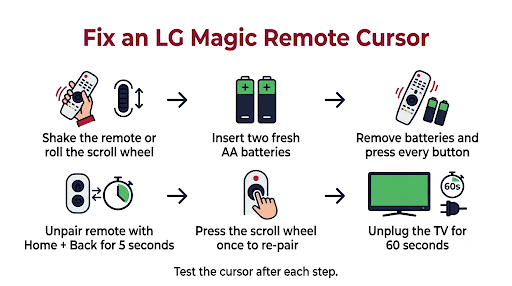
1. Wake the Pointer by Shaking the Remote or Rolling the Wheel
The pointer goes to sleep after a short period of no use, and it also hides the moment you press an arrow key. Point the remote at the TV, then shake it gently left and right or roll the center scroll wheel up or down. The cursor should pop back onto the screen and follow your hand.
If you are in an app like Netflix or YouTube, try it on the Home screen too. Some apps lean on arrow navigation, which can make it look like the pointer is broken when it is not.
2. Replace the Batteries and Clean the Contacts
Weak batteries are the top reason a Magic Remote cursor moves slowly, stutters, or freezes. The buttons may still work because they need less power than the motion sensor and RF radio.
- Slide off the battery cover on the back of the remote.
- Remove both AA batteries.
- Wipe the metal contacts with a dry cloth. For corrosion, use a cotton swab with a little isopropyl alcohol and let it dry fully.
- Insert two brand-new AA batteries, matching the + and – marks.
- Point the remote at the TV and shake it to test the cursor.
Common mistake: Mixing one new battery with one old one, or using batteries from a drawer that “should still be good.” Use a fresh matched pair so you can rule batteries out completely.
If the remote stopped responding right after you changed batteries, it may simply need re-pairing. Our guide on the LG Magic Remote not pairing after a battery change covers that exact situation.
3. Free Stuck Buttons and Drain Leftover Power
A jammed button can send a nonstop signal that freezes the cursor or pins it to one edge of the screen. This is common with remotes that live between couch cushions or have had snacks or drinks near them.
- Take the batteries out.
- Press and hold the Power button for about 10 seconds to drain leftover charge.
- Press every button firmly a few times, including the wheel. Feel for any that do not spring back.
- Put the batteries back in and test the cursor.
4. Unpair and Re-Pair the Magic Remote
Re-pairing is the single most effective fix when the cursor is missing or frozen but Power and Volume still work. It rebuilds the RF connection that the pointer depends on.
- Turn on the TV and wait about 20 seconds so it finishes starting up.
- Press and hold Home and Back together for at least 5 seconds.
- Let go when the power button light on the remote blinks three times. The remote is now unpaired.
- Point the remote directly at the TV from a few feet away.
- Press the Wheel (OK) button once.
- Wait for the “pairing complete” or “registered” message on the screen.
- Shake the remote. The cursor should appear and move.
Button combos vary by model. Most LG Magic Remotes from 2018 onward use Home + Back. Some newer AI Magic Remotes and LG smart monitors use Back + Settings or Home + Settings instead. Much older remotes used a different combination, so check your TV manual if Home + Back does nothing. If pairing keeps failing, unpair once more and try again, standing closer to the TV.
5. Turn Off Audio Guidance
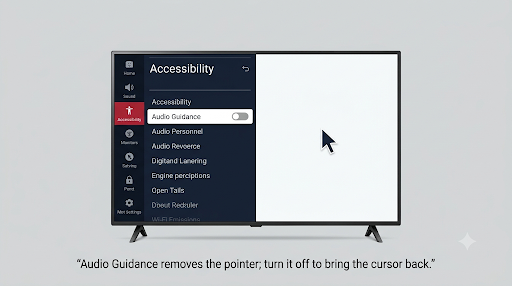
Audio Guidance is an accessibility feature that reads the menu out loud. LG confirms the pointer is removed while Audio Guidance is on, and shaking the remote will not bring it back. If your TV is talking to you and the cursor is gone, this is almost certainly the cause.
2021 and newer TVs (webOS 6.0 and later):
- Press Settings (gear icon) on the remote.
- Select All Settings.
- Go to General, then Accessibility.
- Select Audio Guidance and set it to Off.
2020 and older TVs (webOS 5.0 and earlier): Settings, All Settings, Accessibility, Audio Guidance, Off.
Shortcut: On many models, pressing the Settings or Mute button three times in a row opens the accessibility menu directly. Use the arrow keys to switch Audio Guidance off, since the pointer will not be available yet.
6. Move Wireless Devices Away From the TV
Because the pointer runs on radio signals, other wireless gear can scramble it. That shows up as a jittery cursor, random freezes, or a pointer that drops out every few minutes.
- Keep your Wi-Fi router at least 8 inches (20 cm) from the TV, which is LG’s own guideline. More distance is better.
- Move Bluetooth speakers, headphone docks, cordless phone bases, and game console controllers away from the TV.
- Do not place the TV inside a closed metal cabinet, which can weaken the signal.
- Check for tape, stickers, or decor covering the receiver area at the bottom of the TV.
7. Recenter a Pointer That Is Off-Center or Drifting
Sometimes the cursor moves, but not where you are pointing. It may sit in a corner, drift slowly, or lag behind your hand. That is an alignment issue, not a dead remote.
- Point the remote at the center of the TV screen.
- Shake it left and right several times quickly. The pointer should snap back to the middle.
- If it still drifts, take the batteries out for 30 seconds, reinsert them, and re-pair.
Older LG TVs had an Auto Alignment option under the Pointer settings. Turn it on if your model has it.
8. Adjust Tracking Speed and Pointer Size
If the cursor feels like it is barely moving or crawling across the screen, the tracking speed may be set too low. If it flies around, it may be set too high.
Newer webOS TVs: Settings, All Settings, General, System, Additional Settings, Pointer Options. Adjust Tracking Speed and Pointer Size.
2017 to 2019 TVs: Settings, All Settings, Accessibility, Pointer Options.
Medium tracking speed works well for most people. Choose Slow for shaky hands or kids, and pick a larger pointer if you have trouble spotting it from the couch.
9. Power Cycle the TV
A frozen webOS process can lock the cursor even when the remote is fine. A quick restart from the menu is not always enough, because many LG TVs only go into standby.
- Unplug the TV from the wall outlet, not just the power strip switch.
- Wait a full 60 seconds. If your TV has a physical power button, hold it for about 15 seconds while unplugged to drain stored power.
- Plug the TV back in, turn it on, and wait 20 seconds.
- Shake the remote to test the cursor. Re-pair if needed.
10. Turn Off QuickStart+ and Restart
QuickStart+ keeps your TV in a light sleep so it turns on faster. That also means the system rarely gets a true fresh start, and some owners in LG and Tom’s Hardware forums report the cursor came back only after turning QuickStart+ off and restarting. The setting usually sits under General in All Settings, though the exact menu varies by model and year. Once the cursor works again, you can turn it back on.
11. Update the TV Software
Pointer bugs sometimes get fixed in webOS updates. Use the arrow keys to go to Settings, All Settings, General (or Support on some models), then About This TV or Software Update, and select Check for Updates.
Updates can also cause the problem. If the cursor stopped moving right after an update, re-pair first, then check whether a newer patch is available. Our guide on the LG TV remote not working after a software update goes deeper into that scenario.
12. Factory Reset the TV as a Last Resort
If nothing else works and other remote buttons still respond, a factory reset can clear a deep software fault. Warning: this erases all your settings, Wi-Fi details, and app logins like Netflix and YouTube. Write down your passwords first.
Go to Settings, All Settings, General, System (on newer models), then Reset to Initial Settings. Follow the on-screen setup, then pair the Magic Remote when prompted. If the pointer still does not work after a reset, the remote itself is likely faulty.
What If Only the Scroll Wheel or Some Buttons Work?
When the wheel scrolls but the cursor will not move, the remote is getting power and sending some signals, but the pointer link or motion sensor is not working. Re-pair the remote first and check Audio Guidance. If you can scroll but not click, the wheel switch itself may be worn, which is a separate hardware issue covered in our guide on the LG Magic Remote scroll wheel not working.
If the cursor is not just frozen but vanishes completely and keeps coming back and going away, see our full walkthrough for when the LG Magic Remote pointer disappears.
How Can You Tell if the Magic Remote Is Broken?
Your remote is probably faulty if the cursor still does not move after fresh batteries, a successful re-pair, Audio Guidance off, and a TV restart. A quick way to confirm is to control the TV another way and see whether the pointer works there.
- Use the LG ThinQ app. Install it on your phone, connect it to the same Wi-Fi network as the TV, and open the remote screen. LG says the ThinQ app can move the pointer, scroll, and use the OK button just like the Magic Remote. If the on-screen pointer works from your phone, the TV is fine and the remote is the problem.
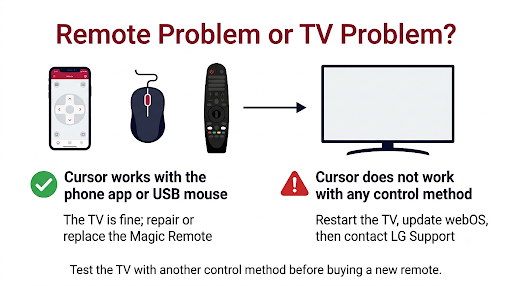
- Plug in a USB mouse. Most LG webOS TVs accept a wired or wireless USB mouse. If a mouse cursor moves normally, the TV software is not the issue.
- Look for physical damage. Rattling inside the remote, cracks, or a recent drop or spill point to a damaged motion sensor or board.
- Watch the power light. If the light on the remote does not blink when you press buttons, even with new batteries, the remote is not powering on.
Does Your Remote and TV Even Support the Pointer?
Only LG Magic Remotes and AI Magic Remotes have a pointer. A standard LG IR remote, the slimmer basic remote included with some budget models, will never show a cursor. That is normal, not a fault.
Compatibility also matters when you replace a remote. Magic Remotes are tied to certain TV model years. For example, an MR22GA, MR23GN, or MR24GA is built for specific newer TVs, while older sets used remotes like the MR18BA or MR19BA. A remote from the wrong year may control power and volume but never pair for pointer use.
Watch out for cheap replacements. Many third-party “LG remotes” sold online are labeled “no voice, no pointer.” Check the listing carefully, and confirm your TV model number (on the back label or under Settings, About This TV) before you buy.
Does the Fix Differ for LG OLED, QNED, NanoCell, and Smart Monitors?
The core fixes are the same across LG OLED (B, C, G series), QNED, NanoCell, UHD TVs, and LG smart monitors running webOS. The main differences are menu paths and the pairing button combo.
| Device or year | Audio Guidance path | Usual unpair combo |
| 2021 and newer LG TVs (webOS 6.0+), including OLED C1 to C5, QNED, NanoCell | General, Accessibility, Audio Guidance | Home + Back (some AI remotes use Back + Settings) |
| 2018 to 2020 LG TVs (webOS 4.0 to 5.0) | Accessibility, Audio Guidance | Home + Back |
| LG smart monitors with AI Magic Remote | General, Accessibility, Audio Guidance | Home + Back, Home + Settings, or Guide (model dependent) |
| Pre-2018 LG TVs | Accessibility, Audio Guidance | Varies, check your manual |
If you are not sure which webOS version you have, check Settings, All Settings, General (or Support), then About This TV.
Frequently Asked Questions
Why does my LG remote cursor move but not click?
If the cursor moves but nothing happens when you press the wheel, the Wheel (OK) switch is likely worn or dirty. Try pressing it firmly several times with the batteries out. If clicking still fails, the remote usually needs repair or replacement, though you can keep using the ThinQ app in the meantime.
Why is my LG Magic Remote cursor moving on its own?
A cursor that drifts or twitches by itself usually means low batteries, nearby wireless interference, or the remote resting on a vibrating surface like a soundbar or subwoofer. Set the remote on a stable surface and swap the batteries. If drift continues, lower the tracking speed and re-pair.
How do I get the cursor back on my LG TV without the remote?
Use the LG ThinQ app on your phone or plug a USB mouse into the TV. Both give you an on-screen pointer, which helps you reach Settings and turn off Audio Guidance or check for updates while your Magic Remote is out of action.
Why does the red light blink but the cursor does not move?
A blinking light means the remote has power and is trying to talk to the TV, but the pairing is not completing. Unpair with Home + Back, wait until the light blinks three times, then point at the TV and press the wheel. A light that keeps blinking with no pairing message often signals interference or a remote that does not match your TV model.
Can I turn off the Magic Remote pointer permanently?
LG does not offer a true off switch for the pointer on most models. It hides automatically when you use the arrow buttons and stays hidden until you shake the remote or roll the wheel. You can make it less sensitive by setting Tracking Speed to Slow.
Does LG replace a faulty Magic Remote under warranty?
Magic Remotes included with the TV are generally covered by the TV’s limited warranty, but terms vary by region and purchase date. Contact LG Support with your TV model and serial number to check eligibility before buying a new one.
Final Recommendation
If your LG Magic Remote cursor is not moving, do these three things first: shake the remote, put in new batteries, and re-pair it with Home + Back and the Wheel button. If the TV is reading menus aloud, turn off Audio Guidance. If the pointer still will not move, unplug the TV for a minute and move your router away from it.
Still stuck after all that? Test the pointer with the LG ThinQ app. If it works from your phone, your remote is the problem, so check your warranty with LG or buy a genuine Magic Remote that matches your TV model year. If it does not work from your phone either, the issue is on the TV side, and a software update or factory reset is your next move.