
If your Insignia Fire TV remote still moves through menus but the volume and power buttons do nothing, the remote’s infrared (IR) signal has stopped reaching the TV, or your volume is being sent to a soundbar or receiver. The navigation buttons use Bluetooth, so they keep working even after the IR side fails.
The good news is that this is almost always fixable at home in a few minutes. Below, you’ll find out which part is failing, how to test it with your phone camera, and the exact steps for built-in Insignia Fire TVs and for Fire TV Sticks plugged into an Insignia TV.
Quick Overview
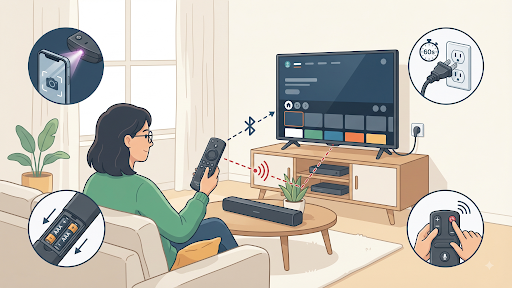
- Put in fresh alkaline AAA batteries. Weak batteries often kill IR range before they kill Bluetooth.
- Point the remote straight at the TV and clear anything blocking the IR sensor on the bottom bezel.
- Test the IR light with your phone camera. No flash when you press Power means the remote’s IR side is weak or damaged.
- Using a soundbar or receiver? Turn on HDMI CEC Device Control and check that audio output is set to Variable, not Fixed.
- Using a Fire TV Stick on an Insignia TV? Go to Settings > Equipment Control > Manage Equipment > TV > Change TV.
- Power cycle the TV and reset the remote (Left + Menu + Back for 12 seconds), then pair it again.
Why Do the Navigation Buttons Work but Volume and Power Don’t?
Your remote talks to the TV in two different ways, and only one of them has failed. Fire TV remotes use Bluetooth for streaming controls and infrared for TV power and volume. Bluetooth works through furniture and from odd angles. IR needs a clear, straight line to the TV’s sensor.
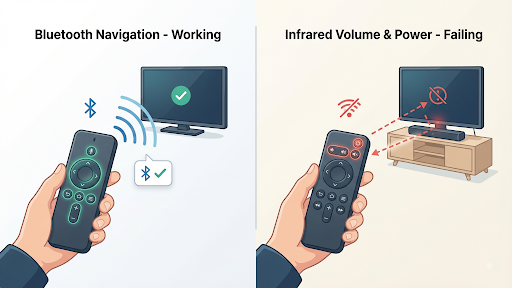
So when Home, Back, the arrows, and Alexa all respond but Power, Volume, and Mute stay dead, the problem sits on the IR path or on the audio setting. It is usually not a pairing problem.
| Button | How it talks to the TV | What breaks it |
| Home, Back, arrows, Select, Menu | Bluetooth | Lost pairing, interference, dead batteries |
| Alexa / microphone | Bluetooth | Lost pairing, network or Alexa issues |
| Power, Volume, Mute | Infrared (and HDMI CEC for soundbars) | Weak batteries, blocked IR sensor, damaged IR LED, wrong equipment profile, Fixed audio output |
This is also why the opposite problem happens to some people. An unpaired Insignia remote can still turn the TV on and change the volume while the screen keeps searching for the remote. Same remote, other half failing.
First, Which Setup Do You Have?
The fix depends on what is actually running Fire TV, so check this before you start pressing buttons.
- Insignia Fire TV (built-in): Fire TV is part of the TV itself. You’ll see the Fire TV home screen with no stick plugged in, and the remote usually says Insignia or has a model number such as NS-RCFNA-21 or NS-RCFNA-19 inside the battery compartment.
- Fire TV Stick or Fire TV Cube on an Insignia TV: A separate Amazon device is plugged into an HDMI port. This includes older Insignia Roku TVs or basic Insignia TVs with a stick added.
Important Point to be Considered! Amazon notes that its Equipment Control fix for volume and power buttons does not apply to Fire TV Smart TVs. If you own a built-in Insignia Fire TV and can’t find a “Change TV” option, that’s normal. Skip to the IR, CEC, and reset steps below.
How Do You Fix Insignia Fire TV Remote Volume and Power Buttons?
Work through these in order. Each step takes a minute or two, and most people get their buttons back by step 4.
1. Replace the Batteries with Fresh Alkaline AAAs
Start here even if the remote “seems fine.” The IR LED needs a strong burst of power, so a fading battery can still run Bluetooth navigation while the power and volume buttons quietly stop reaching the TV. Use a new pair of alkaline AAA batteries from the same pack, not one old and one new.
If the buttons stopped working right after you swapped batteries, the batteries might be in backward, low-grade, or rechargeable cells with lower voltage. Our guide on fixing an Insignia Fire TV remote that stops working after a battery change walks through that exact situation.
2. Aim at the TV and Clear the IR Sensor
The IR receiver on most Insignia Fire TVs sits on the bottom edge of the screen, often near the center or the logo. Anything in front of it can block the signal:
- A soundbar sitting right under the screen
- Decorations, a cable box, or a photo frame on the TV stand
- Dust or a sticker on the sensor window
- Bright sunlight or a strong lamp shining directly on the TV bezel
Stand about 3 feet away, point the remote straight at the bottom of the TV, and press Volume Up. If it works up close but not from the couch, you have a range problem, which points back to batteries or a weak IR LED.
Pro Tip! A soundbar that blocks the sensor is one of the most common causes when power and volume “suddenly” stop working after new equipment is set up. Lower the soundbar or move it forward a few inches and test again.
3. Test the IR Light with Your Phone Camera
This 30-second test tells you whether the remote is even sending a power or volume signal.
- Open your phone’s camera app. The front (selfie) camera usually works best because many rear cameras filter out infrared.
- Point the tip of the remote at the camera lens.
- Press and hold the Power or Volume button while you watch the screen.
If you see a purple or white flicker, the remote is sending IR and the problem is on the TV side: a blocked sensor, a CEC setting, or audio routing. If you see nothing with fresh batteries in, the IR LED is likely damaged, which often happens after a drop or a spill. A remote reset may help, but you’ll probably need a replacement.
4. Power Cycle the TV
A frozen TV can ignore IR input while the Fire TV software keeps responding over Bluetooth.
- Unplug the TV from the wall outlet, not just the power strip switch.
- Wait a full 60 seconds.
- Plug it back in and let the Fire TV home screen fully load.
- Point the remote at the TV and press Volume Up.
5. Reset and Re-Pair the Remote
If the buttons still don’t respond, reset the remote so it clears any glitched settings. Amazon’s official Fire TV remote reset steps work on Insignia Fire TV remotes too:
- Unplug the TV (or your Fire TV Stick) and wait 60 seconds.
- On the remote, press and hold Left (on the navigation ring), Menu (three lines), and Back together for 12 seconds.
- Release the buttons and wait 5 seconds.
- Remove the batteries from the remote.
- Plug the TV back in and wait about 60 seconds for it to finish loading.
- Put the batteries back in and press Home. If it doesn’t pair, hold Home for 10 seconds while standing close to the TV.
If the remote won’t pair after the reset and the light just stays orange, follow our step-by-step fix for an Insignia Fire TV remote that’s not pairing with a solid orange light.
Why Won’t the Volume Buttons Work When a Soundbar Is Connected?
When a soundbar or AV receiver is connected, the TV hands off volume control to that device. If that handoff breaks, the volume buttons seem dead even though the remote is fine. Power often keeps working in this case, which is a big clue.
Turn On HDMI CEC Device Control
- Press Home and open Settings.
- Select Display & Sounds.
- Select HDMI CEC Device Control and set it to On. If it’s already on, turn it off, wait a few seconds, and turn it back on.
- Make sure the soundbar is plugged into the TV’s HDMI ARC or eARC port, not a regular HDMI input.
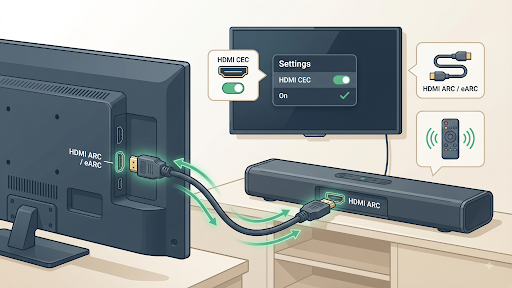
- Turn on HDMI CEC (sometimes called “TV Link” or “ARC control”) on the soundbar too.
Check That Audio Output Is Set to Variable
This is the setting most guides skip. On Fire TV Smart TVs, you’ll find it under Settings > Display & Sounds > Audio Output. According to Amazon’s Fire TV Smart TV audio settings guide, the Variable option lets you control volume with both the connected device and your Fire TV remote. If it’s set to Fixed, the TV sends audio at one level and your remote’s volume buttons won’t change it.
Using an Optical Cable?
Optical (Toslink) cables carry sound only. They can’t carry CEC control signals, so your Insignia remote can’t adjust the soundbar’s volume through the TV. Your choices are:
- Switch to an HDMI ARC connection (best option)
- Use the soundbar’s own remote for volume
- Check whether your soundbar can “learn” the TV remote’s IR volume codes (some soundbars have a “learn remote” feature, so check its manual)
Pro Tip! If you turned the TV speakers off for a soundbar and then unplugged the soundbar, the TV may still be sending sound to an empty port. Go back to Audio Output and turn TV Speakers on.
How Do You Fix Fire TV Stick Volume and Power on an Insignia TV?
If a Fire TV Stick or Cube is plugged into your Insignia TV, the stick needs to know your TV brand so it can send the right IR codes. A wrong or corrupted TV profile is the most common reason a Fire Stick remote navigates fine but won’t control TV volume or power.
- Go to Settings on your Fire TV Stick.
- Select Equipment Control, then Manage Equipment.
- Select TV.
- Check that the TV brand listed is Insignia. If not, or if it’s correct but still not working, select Change TV.
- Follow the on-screen prompts. The stick will ask you to press Power and Volume and confirm whether the TV responded.
- If the first set of codes doesn’t work, say “No” and let it try the next set. Some Insignia models respond to the second or third option.
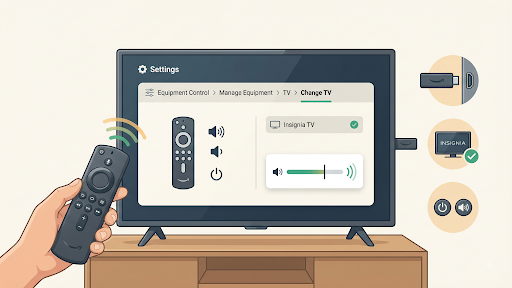
Also make sure HDMI CEC is turned on in the Insignia TV’s own settings, since the stick can use it for power on and off.
Important Point to be Considered! Not every Fire TV remote has TV controls. Some budget remotes, like the one that comes with certain Fire TV Stick models, have no dedicated TV power and volume buttons at all. If your remote has only a Fire TV power button or no volume rocker, the hardware simply can’t control the TV.
What If You’re Using the Wrong Remote?
A mismatched remote is a common cause after someone buys a cheap replacement or swaps remotes between rooms. Here’s what to expect:
| Remote | On a built-in Insignia Fire TV |
| Insignia Fire TV remote (NS-RCFNA-21, NS-RCFNA-19) | Full control, including power and volume |
| Toshiba or Pioneer Fire TV remote | Usually works, since these brands share the same Fire TV Edition remote design |
| Fire TV Stick or Alexa Voice Remote | Navigation pairs, but power and volume may not control the TV reliably |
| Generic or “universal” lookalike remote | Hit or miss; often has the wrong IR codes |
| Old Insignia Roku TV or non-smart remote | Will not pair with Fire TV at all |
If you bought a “Fire TV compatible” remote online and only navigation works, the IR codes in that remote likely don’t match your TV. An official Insignia replacement remote made for Insignia and Toshiba Fire TVs is the safest fix.
How Can You Control Volume and Power Without a Working Remote?
While you troubleshoot, you still have a few backup options:
- Use the TV’s physical button. Most Insignia Fire TVs have a single button under the bottom edge or on the back. It usually handles power and input, not volume.
- Ask Alexa. Hold the microphone button and say “Alexa, volume up,” “Alexa, set volume to 20,” or “Alexa, turn off the TV.” This works over Bluetooth and your network, so it often works even when the IR buttons don’t. Hands-free models with a far-field mic can do this without the remote.
- Use the Amazon Fire TV app. The free app for iPhone and Android works as a remote on the same Wi-Fi network. On supported TVs with HDMI CEC turned on, it can also show volume and power controls.
- Use the soundbar remote for volume if one is connected.
Common Mistakes That Keep the Problem Coming Back
- Mixing old and new batteries. One weak cell drags the IR range down for both.
- Using rechargeable AAAs. They run at lower voltage, and some remotes show the IR problem first.
- Looking for “Equipment Control > Change TV” on a built-in Insignia Fire TV. That menu is for sticks, not the TV itself, so you lose time hunting for it.
- Plugging the soundbar into a non-ARC HDMI port. Sound may still work through other paths, but volume control won’t.
- Doing a full TV factory reset first. It wipes your apps and logins and rarely fixes an IR issue. Save it for last.
When Should You Replace the Remote?
Replace the remote if fresh batteries are in, the phone camera test shows no IR flash, and a full reset didn’t help. At that point the IR LED or its circuit is damaged, and no setting will fix it.
You should also lean toward replacing it if:
- The remote was dropped, stepped on, or had liquid spilled on it
- The power and volume buttons feel mushy, sticky, or don’t click
- Battery contacts look corroded (white or green crust)
Before buying, check the model number inside the battery compartment so your new remote matches. If the TV itself won’t respond to any IR remote, including a known-good one, the IR receiver board in the TV may be the problem. If your TV is still under warranty, contact Insignia support before attempting a repair.
Frequently Asked Questions
Why does my Insignia Fire TV remote control the TV but not the soundbar volume?
The TV isn’t passing volume commands to the soundbar. This usually means HDMI CEC Device Control is off, the soundbar is on a non-ARC HDMI port, or you’re using an optical cable, which can’t carry control signals.
Why does my Insignia remote only work when I’m close to the TV?
Short range is a classic sign of weak batteries or a partly blocked IR sensor. Swap in new alkaline AAAs and clear anything in front of the bottom bezel. If range is still short, the remote’s IR LED may be wearing out.
Can I pair a Fire TV Stick remote to my Insignia Fire TV?
Yes, it will pair for navigation and Alexa. Power and volume may not work reliably, though, because Fire TV Smart TVs don’t offer the same “Change TV” equipment setup that sticks use. The Insignia remote made for your TV is the better choice.
Why did my power and volume buttons stop working after a software update?
An update can glitch the remote’s saved settings or CEC handshake. Unplug the TV for 60 seconds, reset the remote with Left + Menu + Back, then turn HDMI CEC Device Control off and on again. That usually clears it.
Does the Insignia Fire TV remote have a mute button that works the same way?
Yes. Mute uses the same IR path as power and volume, so if mute also fails while navigation works, you’re dealing with the same IR or audio routing issue covered above.
Why do my volume buttons work but the power button doesn’t?
If only power fails, check that the TV’s power-on setting and HDMI CEC are on, and that a connected stick or soundbar isn’t sending its own power command that conflicts with the TV. On a Fire TV Stick, re-run Change TV under Equipment Control so it relearns the Insignia power code.
Final Recommendation
Start simple. Put in fresh alkaline batteries, clear the TV’s IR sensor, and run the phone camera test. That tells you in under two minutes whether the remote or the TV setup is to blame.
If the IR light flashes, focus on the TV side: HDMI CEC, Variable audio output, and the soundbar connection, or Equipment Control if you’re using a Fire TV Stick. If the light never flashes and a reset doesn’t bring it back, stop troubleshooting and get a matching Insignia Fire TV replacement remote. It’s the fastest way to get your power and volume buttons working again.