
If your Insignia Fire TV remote stopped working right after you changed the batteries, the most common fix is simple: stand within 10 feet of the TV and hold the Home button for about 10 seconds to re-pair it. If that does not work, the problem is usually the new batteries themselves, a lost Bluetooth connection, or a remote that needs a full reset.
The good news is that a remote that worked fine before the battery swap is rarely broken. Work through the fixes below in order, and most people get their remote back in under five minutes.
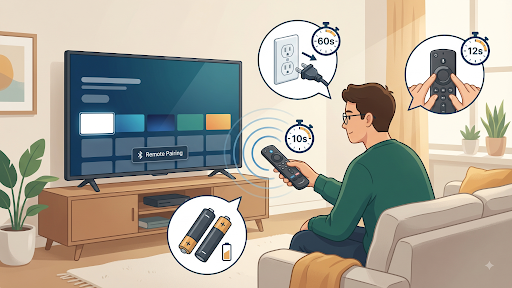
Quick Overview
- Check the batteries: Confirm + and – match the markings, use a fresh pair of AAA alkaline batteries, and make sure the cover clicks shut.
- Re-pair the remote: Within 10 feet of the TV, hold Home for 10 seconds.
- Power cycle the TV: Unplug the Insignia TV from the wall for 60 seconds.
- Reset the remote: Hold Left + Menu + Back together for 12 seconds, then re-pair.
- Use the Fire TV app: Control the TV from your phone while you fix or replace the remote.
- Replace the remote: If there is no light at all with known good batteries, the remote is likely faulty.
Why Is My Insignia Fire TV Remote Not Working After I Changed the Batteries?
Your Insignia Fire TV remote usually stops working after a battery change because it lost its Bluetooth connection to the TV, the new batteries are weak or inserted wrong, or the battery contacts are not touching properly. Less often, the remote has a hardware fault that showed up at the same time.
Here is what is usually going on behind the scenes:
- Lost pairing: Most Insignia Fire TV remotes talk to the TV over Bluetooth. When power is cut during a battery change, the remote sometimes fails to reconnect on its own, especially if the TV was asleep or you waited a long time before putting the new batteries in.
- Dud or low-voltage batteries: Brand new does not always mean good. Batteries that sat in a drawer for years, cheap no-name packs, and rechargeable NiMH cells (which run at about 1.2 volts instead of 1.5 volts) can all cause weak or no response.
- Bad contact: Dust, corrosion from old leaking batteries, or a bent spring can stop power from reaching the remote.
- Battery cover not seated: On some Insignia remotes, the sliding cover pushes the batteries firmly into place. If it is not fully closed, the remote may cut in and out.
- A stuck button: If a button got pressed down while you were handling the remote, it can block other commands.
A quick way to narrow it down: if the remote turns the TV on and off but will not navigate menus, the batteries are fine and the Bluetooth pairing dropped. If there is no light and no response at all, start with the batteries and contacts.
How Do You Check the Batteries Properly?
Your Fire TV remote runs on two AAA batteries, and checking them takes less than a minute. Do not skip this step just because the batteries are new.
- Remove the battery cover on the back of the remote.
- Check the direction of each battery. The + and – ends must match the markings inside the compartment. One reversed battery is enough to make the remote look dead.
- Look at the contacts. If you see white or green crust, gently clean the metal springs with a cotton swab and a little isopropyl alcohol. Let it dry fully.
- Use a matched pair of fresh AAA alkaline batteries from the same pack. Do not mix one old battery with one new one.
- Close the cover firmly until it clicks or slides fully into place.
Pro Tip! Amazon’s own Fire TV remote troubleshooting guide recommends alkaline batteries for the best performance. If you are using rechargeables and the remote acts up, try a fresh alkaline pair before doing anything else.
Why Does My Remote Work for a Few Hours After New Batteries and Then Stop?
When a remote works briefly after a battery change and then quits, the batteries are usually weak or the contacts are loose. A low-quality or old battery can hold just enough charge to wake the remote, then drop below the voltage it needs.
Try a pair of batteries from a different, trusted brand. Also press gently on the battery cover while pressing a button. If the remote suddenly responds, the cover or springs are not making steady contact, and you may need to bend the springs out very slightly or replace the remote.
How Do You Re-Pair an Insignia Fire TV Remote After a Battery Change?
To re-pair your remote, turn on the TV, stand within 10 feet (3 meters), and press and hold the Home button for about 10 seconds. The remote light should blink, and a confirmation message appears on the screen when it connects.
- Turn on your Insignia Fire TV and wait for the Home screen or the remote detection screen.
- Stand close to the TV with a clear line of sight.
- Press and hold the Home button for 10 seconds.
- Release it and watch for a pairing message in the corner of the screen.
- If you are on the setup screen and see “Press Play/Pause to start,” press Play/Pause to continue.
If it does not pair the first time, take the batteries out, wait 30 seconds, put them back in, and hold Home for 10 seconds again. Amazon lists this exact sequence on its Fire TV remote pairing help page.
If your remote shows a solid or blinking orange light and still refuses to connect, our guide on the Insignia Fire TV remote not pairing with a solid orange light walks through that specific problem in more detail.
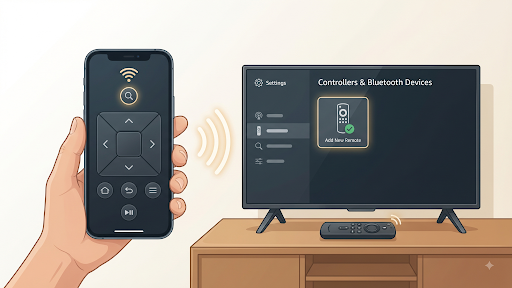
Important Point to be Considered! A Fire TV can hold up to seven paired controllers, and that count includes extra remotes, game controllers, and the Fire TV app. If you have used several remotes over the years, the list may be full. Open Settings > Controllers & Bluetooth Devices > Amazon Fire TV Remotes (using the phone app if needed) and remove old ones before pairing again.
What Should You Do If There Is No Light on the Remote After New Batteries?
If the remote shows no light at all with new batteries, first confirm the batteries are good and inserted correctly, then try a full remote reset. If there is still no light with known working batteries, the remote is most likely faulty.
Keep in mind that some basic Insignia Fire TV remotes do not have a status light, so “no light” on those models does not automatically mean the remote is dead. Here is a simple test anyone can do:
- Open the camera app on your phone.
- Point the front of the remote at the phone camera.
- Press and hold the Power button.
- Look at the screen. If you see a small flicker of light on the remote’s tip, the remote is getting power and sending an infrared signal.
If you see the flicker, the remote has power and the issue is pairing. If you see nothing, try a different battery pair from another brand. Some newer phones filter infrared on the main camera, so try the front camera if you see nothing on the back one.
How Do You Reset an Insignia Fire TV Remote?
To reset most Insignia Fire TV remotes, unplug the TV for 60 seconds, then hold the Left, Menu (three lines), and Back buttons together for 12 seconds. After that, remove the batteries, plug the TV back in, put the batteries back, and hold Home to pair.
This clears the remote’s old connection data and gives it a clean start. Follow the steps exactly in this order:
- Unplug your Insignia Fire TV from the wall outlet and wait 60 seconds.
- On the remote, press and hold Left + Menu + Back at the same time for 12 seconds.
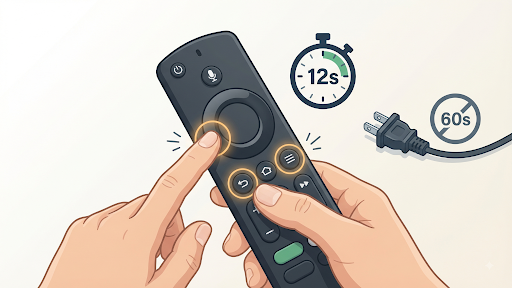
- Release the buttons and wait 5 seconds.
- Remove the batteries from the remote.
- Plug the TV back in and wait until it finishes starting up or shows the remote detection screen.
- Put the batteries back in the remote.
- Press Home. If it does not connect right away, hold Home for 10 seconds.
Amazon’s official remote reset instructions also note that on some setups you may need to hold Home for up to 40 seconds once the Home screen appears, then wait about a minute for setup to finish.
Which Reset Steps Fit Your Remote Model?
| Remote Type | How to Spot It | Reset Buttons |
| Alexa Voice Remote / Fire TV Smart TV remote (most Insignia models) | Has a microphone button, Menu button, and usually power and volume keys | Left + Menu + Back for 12 seconds |
| Alexa Voice Remote (1st Gen) | Older design with no Back combo needed | Left + Menu for 12 seconds |
| Basic Edition remote | No microphone button | Hold Home, press Menu 3 times, release Home, press Menu 9 times |
Pro Tip! Count the seconds out loud or use a timer. Letting go of the buttons too early is the number one reason a reset seems to “not work.”
How Can You Use Troubleshooting Mode to Find the Real Problem?
Many newer Fire TV remotes have a built-in troubleshooting mode that flashes a colored light to show what is wrong. To check if yours has it, press the Alexa (microphone) button. If the light at the top flashes, troubleshooting mode is available.
A lot of online guides get the button combo wrong here, so use these steps:
- Press and hold Rewind and Right together for 3 seconds.
- Press the Menu button. The light turns green to show you are in troubleshooting mode.
- Press any button and watch the color.
| Light Color | What It Means | What to Do |
| Red, slow blinking | Low battery | Replace with fresh AAA alkaline batteries |
| Red, fast blinking | Remote problem | Reset the remote |
| Orange | Remote is not paired | Restart the TV and hold Home for 10 seconds when the remote detection message appears |
| White | TV may be off or not responding | Make sure the TV is on, then restart it |
| Blue | Remote is fine | Restart the TV, since the issue is on the TV side |
To exit, hold Play/Pause and Up together for 3 seconds, press Menu, and then take the batteries out and put them back in. Play/Pause + Up is the exit combo, not the way in, which is where a lot of people get stuck.
Important Point to be Considered! A red slow blink right after you put in new batteries is a strong sign those batteries are bad. Swap them for a different pair before you reset anything.
Why Do Only Some Buttons Work After a Battery Change?
If only some buttons work, the remote is split between two signals. Power and volume on most Insignia Fire TV remotes use infrared, which works without pairing. Navigation, Home, and the Alexa button use Bluetooth, which needs an active pairing.
- Power and volume work, but menus do not: The Bluetooth pairing dropped. Hold Home for 10 seconds to re-pair, or do the full reset above.
- Menus work, but power and volume do not: The infrared side or the TV’s control settings are the problem, not the batteries. See our fix for when your Insignia Fire TV remote works but volume and power don’t.
- Only one button is dead: That button may be worn or stuck. Press every button firmly a few times to free anything jammed.
What If Your Insignia Fire TV Is Stuck on “Searching for Remote”?
If the TV is stuck on a “searching for remote” or “cannot detect your remote” screen after the battery change, keep the TV on that screen and hold Home on the remote for 10 seconds from close range. If that fails, use the Fire TV app on your phone to get past the screen and add the remote from Settings.
This often happens after a power outage or a factory reset, when the TV forgets every paired remote at once. Unplugging the TV for 60 seconds and trying again from a fresh boot also helps, because the TV is most ready to accept a remote right after startup.
How Do You Control Your Insignia Fire TV Without the Remote?
You can control your Insignia Fire TV with the free Amazon Fire TV app on your iPhone or Android phone, as long as the phone and TV are on the same Wi-Fi network. It works as a full remote, with a keyboard for typing.
- Download the Amazon Fire TV app from the App Store or Google Play.
- Connect your phone to the same Wi-Fi network as the TV.
- Open the app, sign in with the Amazon account linked to the TV, and select your Insignia TV.
- Enter the code shown on the TV screen.
Once connected, you can use the app to go to Settings > Controllers & Bluetooth Devices > Amazon Fire TV Remotes > Add New Remote, then hold Home on the physical remote to pair it. This is the easiest way out when the TV will not accept the remote on its own.
Pro Tip! If your TV is not on Wi-Fi yet, the app cannot connect. In that case, a cheap USB keyboard or mouse plugged into the TV can sometimes help you get through menus, though support varies by model.
When Should You Replace the Remote?
Replace the remote if it shows no response or no light after you have tried two different sets of good batteries, cleaned the contacts, reset it, and tried pairing through the Fire TV app. At that point, the problem is the remote’s hardware, not your setup.
Signs your remote has failed:
- No light and no infrared flicker on a phone camera with known good batteries
- Troubleshooting mode shows a fast red blink even after a reset
- The remote was dropped, got wet, or had leaking batteries inside
Insignia sells official replacement remotes made for Insignia Fire TVs, and an Amazon Alexa Voice Remote that supports TV controls also works with Fire TV smart TVs. Check the model number on the back of your TV or in Settings > My Fire TV > About before you buy, so the power and volume buttons work with your set. A universal IR remote can handle power and volume, but it will not give you the full Fire TV menu control that a Bluetooth remote does.
Common Mistakes That Keep the Remote From Working
- Pairing from across the room. Stay within 10 feet while pairing.
- Letting go of Home too soon. Hold it for a full 10 seconds.
- Using the wrong button combo. Left + Menu + Back is for reset. Rewind + Right is for troubleshooting mode.
- Mixing old and new batteries. Always replace both at once.
- Skipping the TV restart. A frozen TV can look like a broken remote. Unplug it for 60 seconds.
- Buying a new remote too fast. Try the app pairing method first. It fixes many “dead” remotes.
Frequently Asked Questions
Do I need to re-pair my Insignia Fire TV remote every time I change the batteries?
No. Usually the remote reconnects automatically within a few seconds after new batteries go in. You only need to re-pair it if it does not respond to navigation buttons after about a minute with the TV on.
Can I use lithium or rechargeable batteries in my Insignia Fire TV remote?
Amazon recommends AAA alkaline batteries for Fire TV remotes. Rechargeable NiMH batteries run at a lower voltage and can cause lag or missed presses, so if your remote acts strange after switching to rechargeables, go back to alkaline.
Why does my Insignia Fire TV remote turn on the TV but not do anything else?
The power button sends an infrared signal that does not need pairing, while menu buttons need Bluetooth. If only power works, the Bluetooth link is gone. Hold Home for 10 seconds near the TV to reconnect it.
Will a factory reset of my Insignia TV fix the remote?
Rarely, and it should be your last step. A factory reset erases your apps and settings, and you will still need to pair the remote during setup. Try the remote reset and the phone app method first.
Can I pair an Amazon Fire Stick remote to my Insignia Fire TV?
Yes, most Alexa Voice Remotes can pair with an Insignia Fire TV through the Add New Remote option. Basic navigation will work, but power and volume buttons may need setup under Equipment Control, and some older remotes have no TV controls at all.
How long does it take for the remote to connect after new batteries?
Normally just a few seconds. If you are on the setup or detection screen, holding Home for 10 seconds forces pairing. After a full reset, give the TV up to a minute to finish connecting.
Final Recommendation
Start with the easy wins. Put in a fresh pair of AAA alkaline batteries the right way, then hold Home for 10 seconds within 10 feet of the TV. If that fails, unplug the TV for 60 seconds and do the Left + Menu + Back reset. Still stuck? Use the Fire TV app on your phone to add the remote from Settings. Only buy a replacement once a remote shows no signal at all with known good batteries. Most of the time, a remote that quit after a battery change just needs to be reconnected.