
If your Hisense voice remote microphone is not working, the fix is usually simple: put in fresh batteries, re-pair the remote over Bluetooth, and make sure voice service and microphone access are turned on in your TV settings. Most voice problems happen because the remote lost its Bluetooth link while its regular buttons kept working through infrared.
This guide walks you through every fix in the right order, explains what your remote’s light is telling you, and shows the exact settings for each Hisense platform. You will also learn how to tell a settings problem from a dead microphone, so you don’t buy a new remote you don’t need.
Quick Overview
- Replace both batteries with a fresh matched pair. Weak batteries often kill voice first.
- Clear the mic hole on the top of the remote and speak 4 to 8 inches away while holding the mic button.
- Restart the TV by unplugging it for 60 seconds.
- Re-pair the remote (Home + Back on Google TV, hold Menu on VIDAA, pairing button on Roku, hold Home on Fire TV).
- Turn on voice service (Google Assistant, VIDAA Voice, Alexa) and allow microphone access.
- Check Wi-Fi, date and time. Voice assistants need a working internet connection.
- Update the TV software, then test voice on the home screen and inside YouTube.
- Use your phone as a backup and replace the remote only if every other fix fails.
Why Is My Hisense Voice Remote Microphone Not Working?
Your Hisense remote mic usually stops working for one of five reasons: low batteries, a lost Bluetooth pairing, voice service turned off, no internet connection, or a worn-out microphone. The good news is that the first four are fixable in a few minutes.
Here is the part most guides skip. Many Hisense voice remotes do two jobs at once. Power and some basic buttons can work over infrared (IR), while the microphone, Home button and smart features need Bluetooth. So when the remote still turns the TV on but voice does nothing, the remote has most likely lost its Bluetooth connection. If you’re seeing that same half-working behavior with other buttons, our guide on Hisense TV remote that only works for the power button explains it in more detail.
Other common causes include:
- Your remote has no microphone. Many Hisense Roku TVs and budget VIDAA models ship with a simple IR remote. If there is no mic or magnifying-glass button, voice was never supported on that remote.
- The TV was set up in basic mode. On Hisense Google TV, Google Assistant only works when the TV is signed in to a Google account.
- Microphone access is blocked in privacy settings or for a specific app like YouTube.
- Wrong date, time or region, which can break online assistant services.
- A software glitch after an update that leaves the remote connected but the voice feature unresponsive.
- Blocked or damaged mic hole from dust, a remote cover, or a drop.
What Is Your Remote’s Light Telling You?
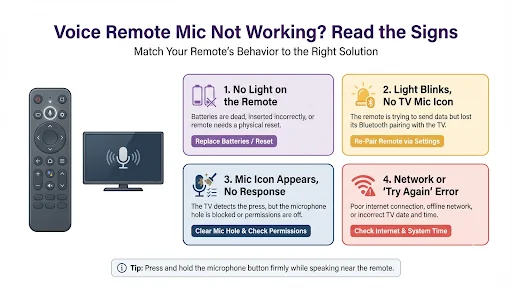
The fastest way to find the problem is to press and hold the mic button and watch what happens. The remote’s light and the TV screen together point you to the right fix.
| What You See | What It Usually Means | Start With |
| No light at all on the remote | Dead or weak batteries, or a remote fault | Fix 1 (batteries) and Fix 4 (remote reset) |
| Light blinks, but no mic icon on the TV | Remote is not paired over Bluetooth | Fix 5 (re-pair) |
| Mic icon appears, but “can’t hear you” or no response | Blocked mic, mic permission off, or failing mic hardware | Fix 2 (mic hole) and Fix 7 (permissions) |
| Mic icon appears, then a network or “try again later” error | Internet, account, or date and time problem | Fix 8 (Wi-Fi, date, time) |
| Voice works in one app but not another | App-level microphone permission or app bug | Fix 7 and Fix 9 (updates) |
If the light keeps flashing blue and the remote won’t respond at all, see our full breakdown of a Hisense TV remote blinking blue light but not working.
Which Hisense Platform Do You Have?
Hisense sells TVs on several operating systems, and the voice settings and pairing steps are different on each one. Check the home screen or the logo on your remote before you start.
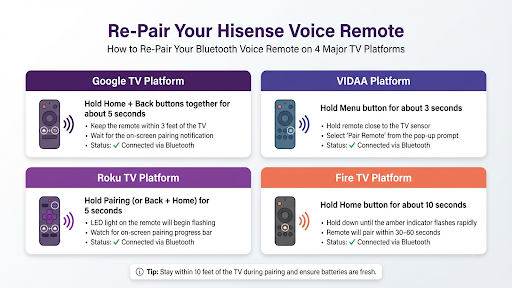
| Platform | Voice Assistant | How to Re-Pair the Voice Remote | Where Voice Settings Live |
| Google TV / Android TV | Google Assistant | Hold Home + Back about 5 seconds near the TV (some older Android TV remotes use the Menu button) | Settings > Accounts & Profiles > Google Assistant, and Settings > Privacy > Microphone |
| VIDAA | VIDAA Voice, Alexa (varies by model and region) | Hold the Menu button about 3 seconds within 10 feet of the TV | Settings > System > Voice Service |
| Roku TV | Roku Voice | Hold the pairing button for 5 seconds (or Back + Home if there is no pairing button) | Settings > Remotes & devices |
| Fire TV | Alexa | Hold Home for about 10 seconds | Settings > Controllers & Bluetooth Devices, and Alexa settings |
Important Point to be Considered! Menu names change between model years and software versions. If you don’t see the exact path, look for the closest match, such as “Voice,” “Remote & Accessories,” or “Privacy.”
How Do You Fix a Hisense Voice Remote Microphone That Is Not Working?
Work through these fixes in order. Test the mic button after each one so you know exactly what solved it.
Fix 1: Replace Both Batteries With a Fresh Pair
Swap in two new batteries of the same brand. Voice uses more power than a normal button press, so a remote can still change channels on weak batteries while the microphone and Bluetooth quietly fail.
Pro Tip! Don’t mix one old and one new battery. Check the + and – direction too. A battery that is slightly loose in the compartment can cause the remote to drop its connection mid-command.
Fix 2: Clean the Mic Hole and Speak the Right Way
Find the tiny pinhole near the top of the remote. That is the microphone. Gently clear dust with a dry soft brush or a puff of air. Never push a pin into it.
Then use voice correctly:
- Press and hold the mic button the whole time you speak. Don’t tap it.
- Wait for the on-screen mic icon or tone before talking.
- Hold the remote 4 to 8 inches from your mouth and speak at a normal volume.
- Remove any silicone cover that might be blocking the mic hole.
Fix 3: Power Cycle the TV for 60 Seconds
Unplug the TV from the wall, not just the power button. Wait 60 seconds, then plug it back in. This clears temporary glitches in the TV’s Bluetooth and voice services. Many Hisense TVs only go into standby when you press power, so a real restart needs the plug pulled.
Fix 4: Reset the Remote
Remove the batteries, press and hold any button (Power works well) for a few seconds to drain leftover charge, then put fresh batteries back in. Hisense’s own manuals suggest a similar step when the remote acts up even though its batteries are fine.
Fix 5: Re-Pair the Remote Over Bluetooth
Re-pairing fixes most cases of a Hisense remote mic button not working, especially after a battery change, a power outage, or a software update. Stand within 10 feet of the TV with the TV turned on.
Hisense Google TV and Android TV
- Go to Settings > Remotes & Accessories.
- Select your current remote and choose Unpair or Forget.
- Press and hold Home + Back together for about 5 seconds until the remote light blinks.
- Select the remote when it appears on screen and confirm.
Some older Hisense Android TV remotes pair by holding the Menu (three lines) button instead. If Home + Back doesn’t work right after you changed the batteries, our guide on the Hisense Google TV remote not pairing after a battery change covers the extra steps.
Hisense VIDAA TV
- Go to Settings > System (or Settings > Connection) and look for Bluetooth or Remote Pairing.
- Press and hold the Menu button for about 3 seconds while pointing at the TV.
- Wait for the “paired successfully” message.
Hisense Roku TV
- Open the battery cover and find the small pairing button.
- Press and hold it for 5 seconds until the status light flashes.
- If your remote has no pairing button, hold Back + Home for 5 seconds instead.
- Wait about 30 seconds for the pairing screen to finish.
If other buttons on your Roku remote are also acting up, our fix for Hisense Roku TV remote volume buttons not working may help with the rest.
Hisense Fire TV
- Hold the Home button for about 10 seconds.
- Look for a confirmation on screen, or go to Settings > Controllers & Bluetooth Devices to add the remote.
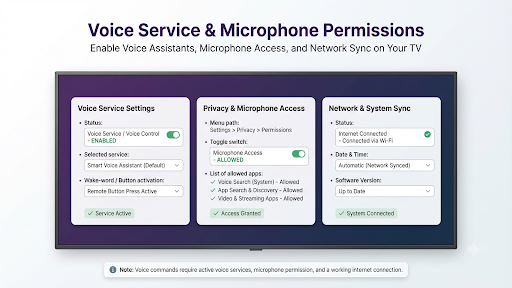
Fix 6: Turn On the Voice Service
Your remote can be paired perfectly and still do nothing if the assistant itself is off. This is one of the most common reasons a Hisense TV voice remote is not responding after setup.
- Google TV: Go to Settings > Accounts & Profiles, select your profile, open Google Assistant, and turn it on. On older Android TV models, check Settings > Device Preferences > Google Assistant. Make sure you are signed in to a Google account and not using basic TV mode.
- VIDAA: Go to Settings > System > Voice Service, pick VIDAA Voice or Alexa as your assistant, and accept the voice privacy terms. Sign in to your VIDAA account if asked.
- Roku TV: Voice works by default with a paired Roku voice remote. Check Settings > Remotes & devices to confirm the remote is listed.
- Fire TV: Make sure the TV is signed in to your Amazon account and Alexa is not turned off in settings.
Pro Tip! If your Hisense TV has a karaoke or external microphone feature, turn it off and test the voice remote again. Users have reported voice commands acting strangely while those features are active.
Fix 7: Allow Microphone Access
Hisense Google TV models have a system-wide microphone switch and per-app permissions. If either is off, the mic icon may appear but your words never reach the assistant.
- Go to Settings > Privacy > Microphone and make sure microphone access is on.
- Go to Settings > Apps > App permissions > Microphone and allow access for Google, Google Play Services, and YouTube.
This step matters most when voice works in one place but not another, for example when YouTube voice search fails but the home screen search works.
Fix 8: Check Wi-Fi, Date, Time and Region
Voice assistants send your speech to online servers, so they need a stable internet connection. Open a streaming app to confirm the TV is online. Then check that the date, time and time zone are set to automatic. A wrong clock can break the secure connection the assistant uses, which often shows up as a “try again later” message.
Fix 9: Update the TV Software and Apps
Go to Settings > System > About > System Update (the exact path varies) and install anything available. On Google TV, also update the Google and Google Play Services apps from the Play Store. If your Hisense voice remote stopped working after an update, a re-pair (Fix 5) after updating usually brings it back.
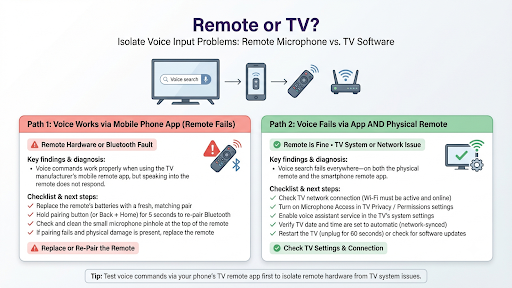
Fix 10: Use Your Phone as a Voice Remote
While you troubleshoot, you can still search by voice using your phone’s microphone. Connect your phone to the same Wi-Fi network as the TV and use:
- Google TV app for Hisense Google TV models
- VIDAA app (or RemoteNOW on older models) for VIDAA TVs, where voice support depends on the model
- Roku mobile app for Hisense Roku TVs
- Fire TV app for Hisense Fire TVs
This is also a great test. If voice works from the phone app but not the remote, the TV is fine and the remote is the problem.
Fix 11: Factory Reset the TV or Replace the Remote
A factory reset erases your apps, accounts and settings, so save it for last. If voice still fails after a reset, and the phone app works, the remote’s microphone has likely worn out.
When buying a replacement, match the model number printed inside the battery compartment or on the back of your remote. A generic “Hisense compatible” remote without voice will not fix this problem. Look for one that clearly says it is a Bluetooth voice remote for your TV platform.
How Do You Turn On the Microphone on a Hisense TV?
To turn on the microphone on a Hisense TV, enable the voice assistant in settings, then allow microphone access. On models with a built-in far-field mic, you also need to flip the physical microphone switch on the TV to on.
This is different from the remote’s microphone. Some higher-end Hisense models (such as certain U7 and U8 series sets) have a microphone built into the TV for hands-free commands like “Hey Google” or “Hey VIDAA.” That mic is usually controlled by a small switch on the bottom edge of the TV.
- Google TV hands-free: Flip the mic switch on the TV to on, sign in to your Google account, and turn on Google Assistant.
- VIDAA hands-free: Go to Settings > System > Voice Service > Hands-Free Mode and enable it, then follow the on-screen guide.
Important Point to be Considered! If hands-free voice works but the remote’s mic does not, the TV’s assistant is fine and the problem is the remote’s Bluetooth link or microphone. If the remote mic works but hands-free doesn’t, check the TV’s mic switch and hands-free setting instead.
Why Does Hisense Voice Control Still Not Work After a Factory Reset?
If voice control still fails after a factory reset, the cause is usually the remote hardware, an unsupported model, or a voice feature that isn’t available in your region. A reset fixes software problems, not a failed microphone.
Check these before giving up:
- Confirm your exact TV model supports voice. Look for voice or assistant features on the product page or in the user manual for your model number.
- Confirm the remote has a mic button. Not every Hisense remote does, even on TVs that support voice.
- Re-pair the remote after the reset. A reset often removes the Bluetooth pairing.
- Test voice from the phone app. If that works, replace the remote.
If nothing works and your TV is still under warranty, contact Hisense support with your model number and a short description of what the remote light does when you press the mic button.
Common Mistakes That Keep Voice From Working
- Tapping the mic button instead of holding it while you speak.
- Pairing from across the room. Stay within 10 feet with a clear line to the TV.
- Re-pairing without unpairing first, which can leave an old, broken connection in the list.
- Turning the TV off with the button instead of unplugging it when you restart.
- Buying a non-voice replacement remote that looks the same but has no microphone inside.
- Forgetting the TV must be online. Voice will not work if Wi-Fi is down, even if the remote is perfect.
Frequently Asked Questions
Does Hisense voice control work without internet?
No. Google Assistant, VIDAA Voice, Alexa and Roku Voice all process your speech online. Without a working internet connection, the mic icon may appear, but the TV can’t understand or act on the command.
Why does my Hisense remote mic light up but the TV says it can’t hear me?
The remote is connected, but your voice is not reaching the assistant clearly. Check that nothing covers the mic hole, speak closer to the remote, and make sure microphone permission is turned on in the TV’s privacy or app settings.
How do I activate the microphone on my Hisense remote?
Press and hold the mic or Google Assistant button and speak while holding it. The remote must be paired over Bluetooth first. There is no separate on or off switch on the remote itself.
Why does voice search work on YouTube but not the Hisense home screen (or the other way around)?
Each app can have its own microphone permission and its own voice search. If one works, your remote’s mic is fine. Check app permissions and update both the app and the TV software.
Can I add a voice remote to a Hisense TV that came with a basic remote?
Often yes, if the TV’s platform supports voice. Hisense Roku TVs, for example, can work with a compatible Roku voice remote. Check that the remote is listed as compatible with your exact TV model before you buy.
What is Hisense TV karaoke mode, and does it affect the voice remote?
Karaoke mode on supported Hisense models lets you sing through the TV using a microphone. If you have it turned on, switch it off and test your voice remote again, since the two features both rely on audio input.
Final Recommendation
Start with the two-minute fixes: fresh batteries, a clean mic hole, and a 60-second unplug. If the mic still doesn’t respond, re-pair the remote using the steps for your platform, then confirm the voice service and microphone access are on. Use your phone’s TV app as the final test. If voice works from the phone but not the remote, skip the factory reset and get a matching Bluetooth voice remote for your Hisense model.