
If the volume buttons on your Hisense Roku TV remote stopped working, the cause is usually weak batteries, a blocked IR signal, a lost remote pairing, or your sound being routed to a soundbar or receiver. Swap in fresh batteries, point the remote straight at the TV, restart the TV, and re-pair the remote. That clears it up in most homes.
If you still can’t change the volume after that, the steps below go through every other cause, from stuck buttons and HDMI-CEC settings to headphone and app conflicts. You’ll also learn how to tell whether the remote or the TV is at fault, so you don’t buy a new remote you don’t need.
Quick Overview
| What You Notice | Most Likely Cause | Fastest Fix |
| Volume works only when you aim right at the TV | Weak IR signal or blocked sensor | New batteries and clear the TV’s front sensor |
| Volume and power both dead, other buttons fine | Lost TV control or software glitch | Update Roku software, restart, re-pair |
| Volume bar shows on screen but sound doesn’t change | Audio going to soundbar, receiver, or headphones | Check audio output and HDMI-CEC settings |
| Soundbar volume won’t change with the TV remote | CEC off or soundbar on optical cable | Turn on CEC and use the HDMI ARC/eARC port |
| Only one button (up or down) fails | Stuck or worn button contact | Clean the rocker, or replace the remote |
| Nothing on the remote works | Dead batteries or failed remote | Restart the remote, then test with the Roku app |
Why Are the Volume Buttons Not Working on My Hisense Roku TV Remote?
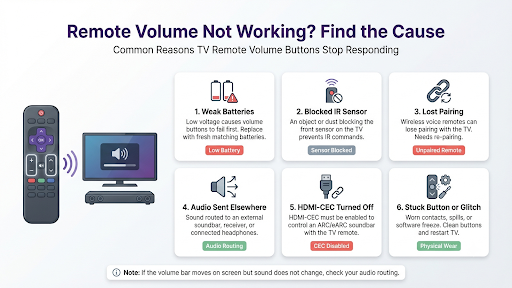
The volume buttons usually fail because the remote can’t get its signal to the TV, or because the TV is sending sound somewhere the remote isn’t controlling. It’s rarely a broken TV.
Here are the common causes, roughly in order of how often they show up:
- Low or loose batteries. Volume and power buttons often weaken first, especially on IR remotes, because they need a strong infrared signal.
- Blocked line of sight. A soundbar, decoration, or glare in front of the TV’s sensor can stop IR commands.
- Lost pairing. Voice remotes connect over a wireless link. If that link drops, some buttons stop responding.
- Audio routed to another device. If sound plays through a soundbar, AV receiver, or headphones, the TV may not be the thing controlling volume.
- HDMI-CEC turned off. Without CEC, the TV can’t pass volume commands to a soundbar or receiver.
- Software glitch after an update. Roku OS updates sometimes leave the remote in a half-connected state until you restart and re-pair.
- Stuck or worn buttons. Spills, crumbs, and years of pressing can wear out the rocker contact.
Which Hisense Roku TV Remote Do You Have?
Check your remote type first, because the fixes differ. A simple remote has no microphone or magnifying glass button. A voice remote does.
According to Roku’s remote troubleshooting guide, a simple remote uses infrared and must point directly at the device, while voice remotes can connect wirelessly and don’t need a line of sight.
| Remote Type | How to Spot It | How It Talks to the TV |
| Roku Simple Remote | No mic or voice button, no pairing button | Infrared (must point at the TV) |
| Roku Voice Remote (batteries) | Mic or magnifying glass button, pairing button in the battery area on many models | Wireless pairing |
| Rechargeable Voice Remote (Pro) | USB charging port, no removable batteries | Wireless pairing |
Pro Tip! Many Hisense Roku TVs ship with the simple IR remote. If you bought a voice remote later, remember that the old simple remote may still be in a drawer. Grab it to test. If the old remote changes the volume and the new one doesn’t, the TV is fine and the problem is the new remote’s pairing.
How Do You Fix Hisense Roku TV Remote Volume Buttons That Aren’t Working?
Start with the quick checks and work down. Most people never need to go past step 5.
1. Replace or Reseat the Batteries
Fresh batteries fix more volume problems than anything else. Roku recommends removing the old batteries, pressing any two buttons to drain leftover power, then inserting a fresh matching pair.
- Slide off the battery cover.
- Remove both batteries.
- Press any two buttons on the remote.
- Insert two new batteries of the same brand and type.
- Replace the cover and test the volume.
On a voice remote, you can check battery level from Settings > Remotes & devices > Remotes > [your remote] > About.
Important Point to be Considered! Don’t mix an old battery with a new one, and avoid cheap rechargeable cells that run at lower voltage. A remote can light up and still not send a strong enough IR signal for volume.
2. Clear the Path to the TV’s Sensor
Point the remote straight at the front of the TV. The IR sensor is usually near the bottom center or bottom corner of the Hisense frame. Move anything that sits in front of it, like a soundbar, picture frame, or plant.
Roku’s own test is simple. Aim the remote at the TV and press volume. Then cover the front of the remote and point it away. If volume only works when aimed, your remote is using IR for volume, and a clear path matters.
3. Test the Remote With Your Phone Camera
Your phone camera can see infrared light that your eyes can’t. Open the camera, point the front tip of the remote at the lens, and press a volume button.
- You see a flashing light: the remote is sending a signal. The problem is the TV side, the sensor, or the audio settings.
- You see nothing: the IR emitter or the button isn’t working. Try new batteries once more, then plan to replace the remote.
Note that some iPhone rear cameras filter IR. If you see no light, try the front selfie camera before you blame the remote.
4. Check for Stuck or Dirty Buttons
A sticky volume rocker can stop working or keep changing the volume on its own. Tap the remote firmly against your palm a few times, then press each volume button several times to free it.
If something was spilled on it, remove the batteries and gently clean around the rocker with a cotton swab lightly dampened with isopropyl alcohol. Let it dry fully before you put the batteries back.
5. Restart Your Hisense Roku TV
A real restart clears glitches that standby mode doesn’t. Pressing the power button only puts a Roku TV to sleep, which Roku says is not the same as a system restart.
- Go to Settings > System > Power > System restart. If you don’t see a Power menu, go to Settings > System > System restart.
- Or unplug the TV from the wall, wait about 60 seconds, and plug it back in. Turn it on with the button on the TV itself.
6. Restart and Re-Pair the Voice Remote
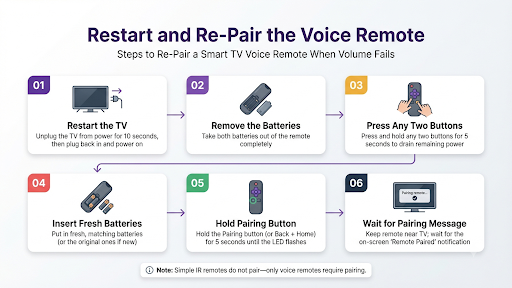
If you have a voice remote, re-pairing often brings dead volume buttons back. Roku’s steps are:
- Restart the TV first (step 5).
- Remove the batteries, press any two buttons, and put the batteries back in.
- When the home screen appears, hold the pairing button for 5 seconds until the status light flashes.
- No pairing button? Hold Back and Home together for 5 seconds.
- Wait for the pairing message on screen.
For a rechargeable voice remote, first reset it by holding the pairing button (or Back + Home) for 20 seconds until the light stops flashing, charge it, then pair it.
Simple IR remotes don’t pair, so skip this step if yours has no mic button.
If other buttons fail too while power still responds, see our guide on a Hisense TV remote not working but the power button works, which covers that reverse symptom.
7. Update the Roku Software
Roku’s official fix when both volume and power stop working is to update first, then set up the remote again.
- Go to Settings > System > System update > Check now.
- Let the TV install the update and restart.
- Re-pair your voice remote as shown above.
If you can’t navigate because the remote is unreliable, use the free Roku mobile app to reach the menus.
8. Run “Set Up Remote for TV Control” (If You See It)
This option matters most when a Roku voice remote is paired to a Roku streaming player. On a Hisense Roku TV, the remote that came with the TV normally controls volume without any extra setup. But if you paired a separately bought voice remote and see this option, run it.
- Go to Settings > Remotes & devices > Remotes.
- Select your remote.
- Choose Set up remote for TV control.
- Turn the TV volume up, point the remote at the TV, and follow the prompts. The TV will play music while it tests settings.
Important Point to be Considered! If you’re actually using a Roku stick or Roku Ultra plugged into the Hisense TV, this step is the main fix. Pick Hisense as the TV brand when asked, and answer honestly when the setup asks if the music stopped.
Why Does the Volume Bar Show Up but the Sound Doesn’t Change?
If you see the volume bar move on screen but the loudness stays the same, the remote is working. The TV is just sending sound to a device it isn’t controlling. This is one of the most overlooked causes, and most guides skip it.
Check these three things:
- Headphones on the remote or phone. If headphones are plugged into a voice remote or you’re using private listening in the Roku app, TV speakers turn off. Unplug the headphones or close private listening.
- Audio output setting. Go to Settings > Audio (or Settings > System > Audio on some models) and check whether sound goes to TV speakers, ARC/eARC, or optical.
- Casting from a phone. When you stream through Spotify Connect, AirPlay, or a casting app, volume may be controlled by the phone app instead. Use your phone’s volume while casting.
How Do You Fix the Remote Not Controlling a Soundbar or AV Receiver?
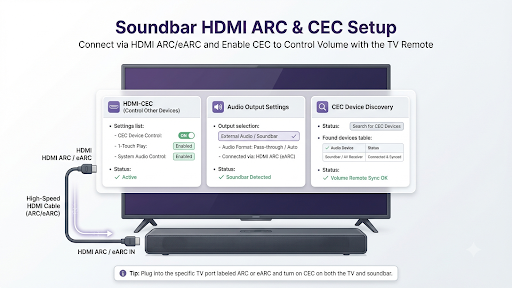
Your Hisense Roku TV remote can control soundbar volume only when the soundbar connects through HDMI ARC or eARC and HDMI-CEC is turned on. Roku notes that its remotes can’t directly control a soundbar or receiver. The TV passes the command along through CEC.
Follow these steps:
- Plug the soundbar’s HDMI cable into the TV port labeled ARC or eARC, and into the soundbar’s ARC port.
- Go to Settings > System > Control other devices (CEC).
- Turn on System audio control and 1-Touch Play. Some models also list HDMI ARC here. Enable it.
- Select Search for CEC devices so the TV finds the soundbar.
- Turn on CEC on the soundbar as well. Brands name it differently, like Anynet+, Bravia Sync, Simplink, or “HDMI Control.”
- Unplug both ends of the HDMI cable, plug them back in firmly, and restart both devices.
Roku’s guide to enabling HDMI-CEC and ARC also suggests checking for TV firmware updates, since some CEC bugs get fixed that way.
Pro Tip! If your soundbar connects only by optical cable, CEC won’t work, so the Roku TV remote usually can’t change its volume. Your choices are to switch to HDMI ARC, use the soundbar’s own remote, or use a universal remote. A few soundbars happen to respond to the same IR codes as the TV, which is why some optical setups seem to work while others don’t.
Important Point to be Considered! To test whether the soundbar is the issue, unplug it and switch audio back to TV speakers. If volume works through the speakers, your remote is fine and the problem sits in the HDMI-CEC chain. An older or uncertified HDMI cable can also break CEC, so try a newer High Speed HDMI cable.
Why Does Only One Volume Button Work, or Only Sometimes?
When volume up works but volume down doesn’t, or you have to press several times, the button contact under the rubber pad is usually worn or dirty. Batteries and pairing affect all buttons, not just one.
- Clean around the rocker as described in step 4.
- Test with the camera trick on each button separately. If one button shows no IR flash, that button has failed.
- If the volume changes by itself or keeps going up, a button is stuck down. Remove the batteries right away and clean it.
Intermittent volume can also come from IR interference. Bright sunlight on the TV, some LED bulbs, and reflective surfaces can confuse the sensor. Close the blinds and test again.
Volume Buttons Stopped Working After a Roku Update. What Should You Do?
If the volume buttons quit right after a Roku OS update, restart the TV, reset the remote, and re-pair it. Updates can leave the remote connection in a confused state that only a fresh pairing clears.
Do it in this order: system restart, remove and reinsert remote batteries, pair the remote, then check Settings > System > System update again in case a follow-up patch is waiting. If a soundbar is involved, run Search for CEC devices again, since updates sometimes forget CEC devices.
How Can You Change the Volume Without the Remote?
You still have three ways to control volume while you troubleshoot:
- Roku mobile app. The free Roku app (Roku Remote, official) shows volume controls when it’s connected to a Roku TV. Your phone and TV must be on the same Wi-Fi network.
- Buttons on the TV. Most Hisense Roku TVs have a small button or joystick under the front edge or on the back. Depending on the model, it may handle power, inputs, and volume. Check your model’s manual on the Hisense support site.
- Voice commands. On a voice remote, press the mic button and say “volume up” or “volume down.”
Why Does My Roku App Not Have Volume Buttons?
The Roku app shows volume buttons only when it’s connected to a Roku TV. If it’s connected to a Roku stick or player plugged into the TV, the volume controls don’t appear.
If you have a Hisense Roku TV and the buttons are still missing, make sure the app is connected to the TV itself (not another Roku in the house), update the app, and sign out and back in. Keep in mind that the app’s volume controls the TV, not a separate soundbar on optical.
When Should You Replace the Remote?
Replace the remote when the camera test shows no IR light with fresh batteries, the Roku app controls volume fine, and a spare remote also works. All three point to a failed remote, not the TV.
When buying a replacement, get a Roku TV remote that lists Hisense Roku TV compatibility. A remote made for a Roku streaming stick may lack volume and power buttons or need extra setup. If you want hands-free control, a voice remote works, but you’ll need to pair it.
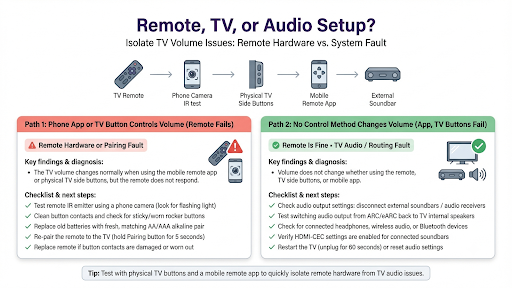
Roku and Hisense sell many TVs and remotes, and steps can vary slightly by model and software version. If nothing here works and even the TV’s own buttons and the app can’t change the volume, the issue is likely the TV’s audio system. Contact Hisense support with your model number.
Frequently Asked Questions
Why does my Roku remote work for volume but nothing else?
Volume uses IR, while navigation on a voice remote uses the wireless pairing. When only volume works, the pairing has dropped. Restart the TV and re-pair the remote with the pairing button or Back + Home.
Why is my Hisense Roku TV remote not working even with new batteries?
New batteries can’t fix a lost pairing, a blocked sensor, or a dead IR emitter. Restart the TV, re-pair a voice remote, and do the phone camera test. If the camera shows no light, the remote has likely failed.
How do I reset my Hisense Roku TV remote?
For a battery voice remote, remove the batteries, press two buttons, reinsert them, and hold the pairing button for 5 seconds. For a rechargeable remote, hold the pairing button or Back + Home for 20 seconds. Simple remotes have no reset; just replace the batteries.
Can I use a Roku streaming stick remote with my Hisense Roku TV?
Usually yes, if it’s a Roku voice remote. You’ll pair it the same way. Stick remotes without volume buttons won’t help with volume, so check that the model has them.
Why is the volume on my Hisense Roku TV stuck or not changing at all?
Check that the TV isn’t muted, headphones aren’t connected, and audio output is set to TV speakers. If the volume still won’t move even from the Roku app, try a system restart and then reset audio settings under Settings > System > Advanced system settings, if your model offers that option.
Do I need a voice remote to control my soundbar’s volume?
No. Any Roku TV remote can change soundbar volume through HDMI-CEC when the soundbar uses the HDMI ARC or eARC port. The remote type doesn’t matter as much as the connection and CEC setting.
If you use voice commands for volume and the mic doesn’t respond, our guide on the Hisense voice remote microphone not working walks through those fixes.
Final Recommendation
Start simple. Put in fresh batteries, clear the TV’s sensor, and do a full system restart. If you have a voice remote, re-pair it next. Using a soundbar? Move it to the HDMI ARC port and turn on System audio control under CEC settings.
If the Roku app can change the volume but your remote can’t, even after all that, the remote has worn out. Replace it with a Roku TV remote that supports Hisense, and keep the Roku app on your phone as a backup.