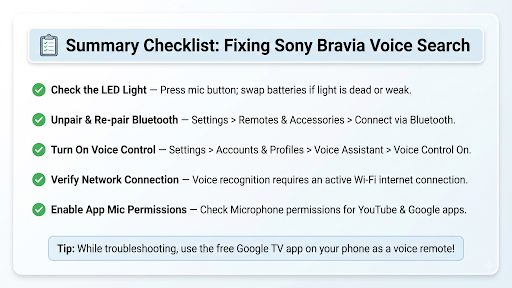
If your Sony Bravia remote microphone or voice search is not working, the cause is usually one of four things: the remote isn’t paired over Bluetooth, voice control is turned off, the TV has no internet, or the remote’s batteries are too weak. Re-pairing the remote from the TV’s Remotes & Accessories menu fixes it in most cases, especially after a software update or a remote replacement.
This guide walks you through every fix in the right order, from 30-second checks to the settings most people miss, so you can get “search for comedies” and “open YouTube” working again.
Quick Overview
- Press the mic button and watch the remote’s LED. No light usually means weak batteries or a dead remote.
- Replace or recharge the batteries, then try again.
- Unpair and re-pair the remote in Settings → Remotes & Accessories → Remote control → Connect via Bluetooth (menu names vary by model).
- Turn Voice control On in Settings → Accounts and Profiles → your profile → Voice Assistant (or Google Assistant) → Voice control.
- Confirm the TV is online, because voice search needs an internet connection.
- Update the TV and the remote’s software, then do a power reset by unplugging the TV.
- Check special cases: Google TV set up in “basic TV” mode, YouTube microphone permission, or “OK Google” not responding while the TV is off.
Why Is My Sony Bravia Voice Search Not Working?
Sony Bravia voice search usually stops working because the TV can’t receive or process your voice. Either the mic signal never reaches the TV, or the TV gets it but can’t send it to Google.
Here are the most common reasons:
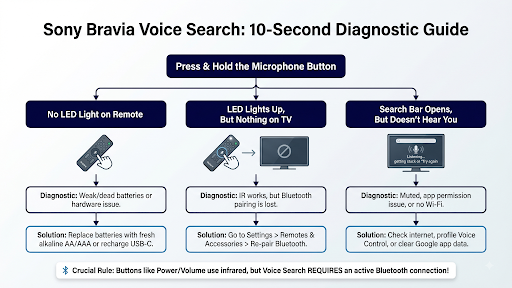
- The remote isn’t paired over Bluetooth. Regular buttons like power and volume can still work over infrared, but the microphone needs a Bluetooth connection. That’s why your remote can seem “fine” while the mic does nothing.
- A software update or remote swap cleared the pairing. Sony notes that after updating your TV, the remote may need to be paired again to restore voice search. The same applies after you replace the remote.
- Voice control is switched off in your Google account profile on the TV.
- No internet connection. Voice recognition is processed online, so a dropped Wi-Fi connection breaks it even when everything else looks normal.
- Weak batteries. Low power can make pairing fail and the mic cut out.
- Google TV was set up as a “basic TV.” In this mode, voice recognition through the remote does not work at all.
- Your remote doesn’t have a mic. Only remotes with a Microphone or Google Assistant button support voice search.
How Can You Tell What’s Wrong in 10 Seconds?
Press the microphone button and watch what happens on the remote and on the screen. That one test tells you where to start.
| What you see | What it usually means | Where to start |
| No LED lights up on the remote | Dead or weak batteries, or a faulty remote | Replace or recharge batteries |
| LED lights up, but nothing appears on the TV | Remote is not paired over Bluetooth | Unpair and re-pair the remote |
| LED blinks red repeatedly and the remote won’t respond | Pairing or connection problem | Re-pair, then reset the remote |
| Search bar opens, but the TV doesn’t hear you | Mic blocked, voice control off, or Google app issue | Check voice control settings and clear Google app data |
| Search bar shows an error or keeps spinning | No internet connection | Run the network check |
| Voice works on the Home screen but not inside YouTube | App microphone permission or an app-side bug | Check app permissions and update the app |
| “OK Google” doesn’t work but the mic button does | Built-in TV mic switch or Energy Mode setting | See the hands-free section below |
How Do You Fix a Sony Bravia Remote Microphone That Is Not Working?
Work through these steps in order and test the mic button after each one. Most people are fixed by Step 3.
Step 1: Confirm Your Remote Supports Voice Search
Look for a Microphone button or a Google Assistant button on your remote. If neither is there, your remote is IR-only and can’t do voice search, no matter what settings you change.
No mic button? You still have two options. You can type with the on-screen keyboard, or use the Google TV app on your phone as a remote. Just make sure your phone is on the same Wi-Fi network as the TV.
Step 2: Replace or Recharge the Batteries
Pull the batteries out, put in a fresh pair, and press the mic button again. If your remote has a USB-C port on the bottom, it’s rechargeable, so charge it instead.
While you’re at it, check the small microphone hole near the top of the remote. Dust, a case, or a sticky residue can block it and muffle your voice.
Pro Tip! “Almost dead” batteries are worse than dead ones here. The LED may still light up, but pairing fails or the mic drops halfway through your sentence. Always test with brand-new batteries before moving on.
Step 3: Unpair and Re-Pair the Remote via Bluetooth
Re-pairing is the single most effective fix for a Sony TV mic button not working while other buttons work fine.
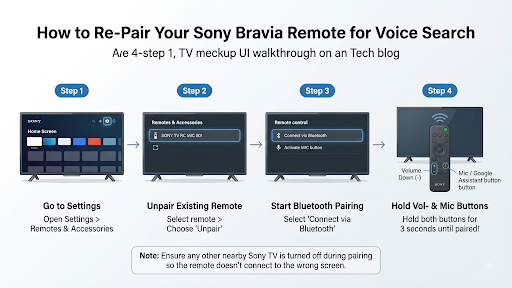
First, unpair the old connection:
- Open Settings on the TV.
- Go to Remotes & Accessories (on some models, Bluetooth settings).
- Look for your remote in the list. It usually shows a name like SONY TV RC MIC 001.
- Select it, choose Unpair, and confirm with OK.
Then pair it again:
- Go back to Settings.
- Depending on your model, select one of these:
- Remotes & Accessories → Remote control → Connect via Bluetooth (or Activate MIC button)
- Voice Remote Control → Activate MIC button
- BRAVIA Settings → Voice Remote Control (older Android TV models)
- Follow the on-screen prompt. It shows exactly which buttons to hold on your specific remote.
- Wait for the confirmation message, then press the mic button to test.
Important Point to be Considered! If the remote was ever paired with another Sony TV in your home, turn that TV off before pairing. Otherwise, the remote may reconnect to the wrong TV.
If the LED on the remote keeps flashing red during or after pairing and the remote stops responding, follow our guide on fixing a Sony Bravia remote blinking red light that won’t respond before trying voice again.
Step 4: Turn Voice Control On
On many Google TV and Android TV models, voice control is a separate setting tied to your profile. If it’s off, the mic button does nothing useful.
- Open Settings.
- Select Accounts and Profiles → your login name → Voice Assistant → Voice control → On.
- On some models, the path is Accounts and Sign In → your login name → Google Assistant → Voice control → On.
If you don’t see either option, your model doesn’t use this setting. Skip to the next step.
Step 5: Check the TV’s Internet Connection
Voice search needs an active internet connection and, on Google TV, a signed-in Google account. A quick test is to open YouTube or another streaming app. If videos won’t load, voice won’t work either.
To run Sony’s built-in check:
- Open Settings.
- Select Network & Internet → Network status → Check Connection.
- On some models: Network → Advanced settings → Network status → Check Connection.
If the result isn’t OK, restart your router and reconnect the TV to Wi-Fi.
Step 6: Make Sure Google TV Isn’t in Basic TV Mode
This is a big one that most guides skip. If your Sony Google TV was set up as a basic TV (without signing in to a Google account), voice recognition through the remote does not work. The TV must be set up as a full Google TV.
You can usually spot basic mode because the Home screen shows only inputs and a few apps, with no personalized recommendations. To switch, look for a Set up Google TV banner on the Home screen and sign in with your Google account.
Step 7: Clear the Google App Data
When the search bar opens but the TV never “hears” you, the Google app itself may be stuck. Clearing its data often brings voice back.
- Go to Settings → Apps → See all apps → Show system apps.
- Select Google (on Android TV, it may be called Google app for Android TV).
- Choose Clear data and confirm.
- Press the mic button again and accept any permission prompt that appears.
Step 8: Update the TV and Remote Software
Sony releases updates that fix voice and remote bugs, and the remote has its own software too.
To update the TV: Go to Settings → System → About → System update (the path varies by model). Turning on automatic updates is the easiest way to stay current.
To update the remote:
- Open Settings.
- Select Remotes & Accessories → Remote control → Software update, or Voice Remote Control → Software update.
- If you see “Your software is up to date,” no action is needed.
According to Sony’s remote control software update instructions, a remote update that keeps failing usually means the batteries are low. Swap them and try again.
If the mic stopped working right after a TV update, re-pair the remote first. If other buttons broke too, our guide to the Sony Bravia remote not working after a software update covers the full set of post-update fixes.
Step 9: Do a Power Reset
A power reset clears temporary glitches, including a frozen Bluetooth connection.
- Unplug the TV’s power cord from the wall.
- Wait about 2 minutes.
- Plug it back in and turn the TV on.
- Give it a minute to fully load, then test the mic button.
Pro Tip! After a TV software update, the remote may not respond for 2 to 3 minutes after you turn the TV back on. Don’t start re-pairing too quickly, or you’ll think the fix failed when the TV was just finishing its startup.
Step 10: Factory Reset as a Last Resort
If none of the steps above work, a factory reset returns the TV to its original state. It also erases your apps, sign-ins, and settings, so treat it as the final option.
After the reset, set the TV up as a full Google TV, sign in to your Google account directly on the TV, and pair the remote when prompted during setup.
Why Does Voice Search Work on the Home Screen but Not in YouTube?
When voice search works from the Home screen but the mic icon fails inside YouTube or another app, the problem is with the app, not your remote.
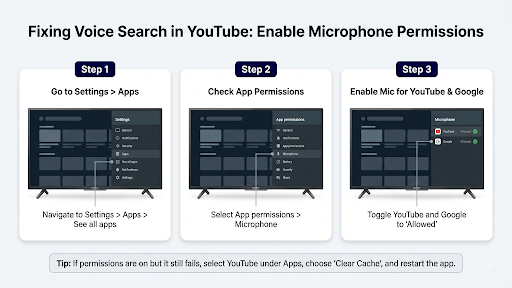
Try these fixes:
- Check app permissions: Go to Settings → Apps → App permissions → Microphone and make sure YouTube (and the Google app) is allowed.
- Update the app from the Google Play Store on your TV.
- Clear the app’s cache: Settings → Apps → YouTube → Clear cache.
- Use the main mic button instead. Saying “play [show name] on YouTube” from the Home screen often works even when the in-app mic icon doesn’t.
Important Point to be Considered! Sony has confirmed that on BRAVIA 2 II (S20M2) TVs, the microphone icon on the search screen of some apps, including YouTube, may not work, and said the issue would be improved in a software update. If you own that model, keep automatic updates turned on.
What If “OK Google” Hands-Free Voice Isn’t Working?
Hands-free “OK Google” uses a microphone built into the TV itself, not the one in your remote. So it has its own set of fixes.
Check Whether Your TV Has a Built-In Mic
Many models don’t. Sony lists the BRAVIA 2 II (S20M2), W8L, X64L, X70L, X74L, X75L, X74K, X75K, W8K, X7, W8, X74H, and X75H series as having no built-in mic. On these TVs, you must press the MIC or Google Assistant button on the remote.
Turn the Built-In MIC Switch On
TVs with a built-in mic have a physical Built-in MIC Switch on the TV body. If it’s off, the TV will show a “Voice input off” style message. Flip it on, and if it still doesn’t respond, Sony recommends turning it off and back on after a power reset. See Sony’s built-in microphone troubleshooting page for model-specific details.
Watch Out for Soundbars and eARC
Sony’s Help Guide says the built-in mic’s voice recognition can get worse when eARC is enabled, when a soundbar is connected, or when Digital audio output is set to Prioritize pass through. Loud audio from the soundbar can drown out your voice. Try speaking closer to the TV or lowering the volume first.
If your soundbar is also giving you remote trouble, check our fix for Sony TV remote volume buttons not working with a soundbar.
“OK Google” Stopped Working When the TV Is Off After an Update
On models upgraded from Android 12 to Android 14 (software 114.602.050.1 or later), a new Energy Mode setting changes how the built-in mic works in standby. When Energy Mode is set to Low, the mic doesn’t listen while the TV is off. And if Remote Start was off before the update, Energy Mode switches to Low automatically.
To fix it, go to Settings → System → Power and Energy → Energy Mode and choose Optimized or Increased. Sony explains this change in its article on “OK Google” not responding in standby after the update. Keep in mind that higher settings use more standby power.
What Common Mistakes Stop Sony Voice Search From Working?
- Pointing the remote at the TV and talking far away. Voice runs over Bluetooth, so aiming doesn’t matter. Hold the remote a few inches from your mouth and speak normally.
- Speaking before the LED lights up. Press the mic button, wait for the light, then talk. On some models, you need to keep holding the button while you speak.
- Re-pairing with weak batteries. Sony notes pairing can fail when the battery level is low.
- Skipping the unpair step. Pairing on top of an old, broken connection often fails silently.
- Assuming the remote is broken. In most cases, it’s a pairing, settings, or network problem, not hardware.
When Should You Replace the Remote?
Replace the remote if the LED never lights up with fresh batteries, the mic still fails after re-pairing and a factory reset, or the remote shows physical damage like water exposure or a cracked case.
Before you buy, test with the Google TV app on your phone. If voice search works through the app, your TV is fine and the remote’s microphone is the problem. When buying a replacement, choose a genuine Sony voice remote that lists your TV model as compatible. Generic IR remotes won’t support voice search.
FAQs
Why does my Sony TV remote work but the mic button doesn’t?
Your remote is likely sending regular commands over infrared but has lost its Bluetooth connection, which the microphone needs. Unpair and re-pair it from Remotes & Accessories, and the mic should come back.
How do I activate voice control on my Sony TV remote?
Pair the remote using Settings → Remotes & Accessories → Remote control → Connect via Bluetooth (or Activate MIC button). Then make sure Voice control is On under Accounts and Profiles → your profile → Voice Assistant. Your TV also needs to be signed in to a Google account.
Why did my Sony Bravia voice search stop working after a new remote?
A new or replacement voice remote isn’t automatically linked for voice. It has to be paired with the TV over Bluetooth before the mic works, even if the power and volume buttons already respond.
Can I turn off the voice assistant on my Sony TV?
Yes. Turn Voice control Off in your profile’s Voice Assistant or Google Assistant settings. To stop hands-free listening, flip the Built-in MIC Switch on the TV body to off. Your remote’s mic button will still work if you leave Voice control on.
Does Sony Bravia voice search work without Wi-Fi?
No. Voice search needs an internet connection to process what you say. Without it, the search bar may open but won’t return results.
Why is my Android TV remote microphone not working on a non-Sony device?
The same basics apply on most Android TV and Google TV devices: fresh batteries, Bluetooth re-pairing, internet access, and microphone permission for the Google app. Menu names differ by brand, so check your device’s Remotes & Accessories settings.
Final Recommendation
Start with the 10-second LED test. If the light doesn’t turn on, change the batteries. If it does, unpair and re-pair the remote, then confirm Voice control is On and the TV is online. Those three steps fix the large majority of Sony Bravia remote microphone and voice search problems.
Still stuck? Update both the TV and remote software, do a 2-minute power reset, and check that your Google TV isn’t in basic mode. If voice works through the Google TV phone app but not the remote, it’s time for a genuine Sony replacement remote.