
If your Sony TV remote volume buttons are not working with your soundbar, the cause is usually one of three things: the soundbar is connected by optical cable instead of HDMI ARC/eARC, BRAVIA Sync (HDMI-CEC) is turned off on the TV or the soundbar, or your Bluetooth voice remote can’t send IR volume signals to the soundbar. Fix the connection and settings, and the volume buttons almost always start working again.
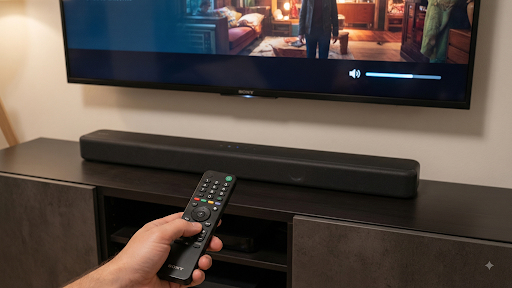
This guide walks you through every fix in the right order. It covers Sony soundbars and third-party ones like Samsung, Sonos, Bose, Vizio, and LG, on Google TV and Android TV BRAVIA models.
Quick Overview
| What You See | Most Likely Cause | Quick Fix |
| Volume buttons do nothing on the soundbar | BRAVIA Sync or Control for HDMI is off | Turn on BRAVIA Sync control on the TV and Control for HDMI (CEC) on the soundbar |
| Soundbar connected with an optical cable | Optical cables can’t carry control signals | Switch to HDMI ARC/eARC, or use the soundbar’s IR learning feature |
| Volume worked before, then suddenly stopped | HDMI-CEC handshake dropped | Unplug both devices for a few minutes, then restart |
| Volume bar moves on screen, but the sound doesn’t change | TV sending audio to the wrong output or Fixed audio out | Set Speakers to Audio system and check the Audio out setting |
| Other buttons work, only volume fails | Bluetooth remote can’t send IR volume to the soundbar | Use HDMI ARC with BRAVIA Sync, or switch the remote to IR mode |
| No buttons respond at all | Remote problem, not a soundbar problem | Replace batteries, check for stuck buttons, re-pair the remote |
Why Are My Sony TV Remote Volume Buttons Not Working With My Soundbar?
Your Sony TV remote controls soundbar volume through the TV, not directly. The remote talks to the TV, and the TV passes the volume command to the soundbar over HDMI using CEC (Sony calls this BRAVIA Sync). If any link in that chain breaks, the volume buttons stop working with the soundbar even though the remote still works for everything else.
Here are the most common reasons:
- Optical or AUX connection: Sony says TV remote control of a soundbar only works when the soundbar is connected by HDMI with Control for HDMI enabled. It will not work over optical or composite cables.
- Wrong HDMI port: The cable must go into the TV port labeled ARC or eARC and the soundbar port labeled HDMI OUT (ARC/eARC). Any other HDMI port won’t pass volume control.
- BRAVIA Sync or CEC is disabled: It has to be on in both places, the TV and the soundbar.
- TV speaker output is set wrong: If the TV is still set to its own speakers, the volume buttons control the TV speakers, not the soundbar.
- Bluetooth voice remote: Newer Sony remotes talk to the TV over Bluetooth. They can’t send IR signals to a third-party soundbar that is programmed to “learn” an IR remote.
- A dropped CEC connection: After a power outage, a software update, or swapping cables, the TV and soundbar can lose their HDMI handshake.
- A remote hardware issue: Weak batteries, a stuck button, or a remote that lost its pairing.
Important Point to be Considered! Before you change any settings, press the volume button and watch the TV screen. If no volume bar appears at all, the remote itself may not be reaching the TV, so start with the remote fixes further down. If the volume bar appears but the soundbar doesn’t get louder, the problem is the TV-to-soundbar link.
How Do I Get My Sony TV Remote to Control My Soundbar?
Connect the soundbar to the TV’s HDMI ARC or eARC port, turn on BRAVIA Sync control on the TV, turn on Control for HDMI on the soundbar, and set the TV speaker output to Audio system. That’s the setup Sony officially supports for volume control.
Step 1: Use the Correct HDMI ARC/eARC Connection
- Find the HDMI port on your Sony TV labeled ARC or eARC/ARC. The port number differs by model, so go by the label printed next to the port.
- Find the port on the soundbar labeled HDMI OUT (ARC) or HDMI OUT (eARC/ARC) or “TV (ARC).”
- Connect them with a high-speed HDMI cable. Sony recommends a new or known working cable and suggests avoiding long cables, adapters, and extenders.
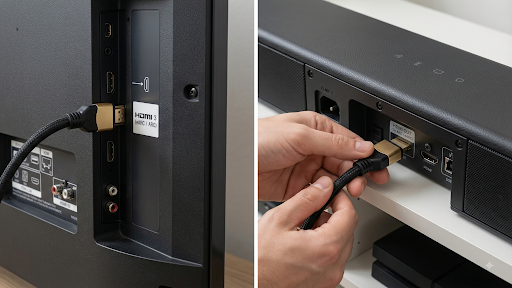
Pro Tip! If you have a gaming console or streaming box plugged into the ARC port instead, move it to another HDMI input. The ARC port is the only one that sends audio and volume commands to a soundbar.
Step 2: Turn On BRAVIA Sync Control on the TV
On Google TV BRAVIA models, Sony’s Help Guide lists the path as:
- Press the Quick Settings (gear) button on the remote.
- Go to Settings > Channels & Inputs > External inputs > BRAVIA Sync settings.
- Turn on BRAVIA Sync control.
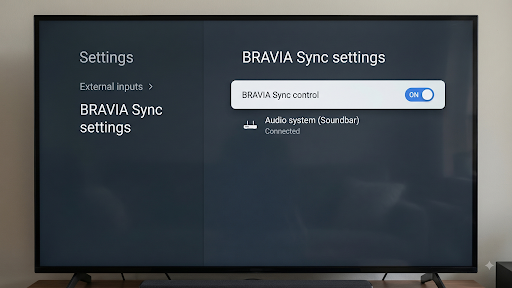
You can see the official steps in Sony’s BRAVIA Sync settings guide. On older Android TV models, the same option usually sits under Settings > Watching TV > External inputs > BRAVIA Sync settings. Menu names vary slightly by model and region.
While you’re in BRAVIA Sync settings, check the device list. If your soundbar shows up there, make sure it’s enabled.
Step 3: Turn On Control for HDMI (CEC) on the Soundbar
Every brand names this setting differently. Look for these terms in your soundbar’s menu or app:
| Soundbar Brand | What the CEC Setting Is Called |
| Sony | Control for HDMI |
| Samsung | Anynet+ (HDMI-CEC) |
| LG | SIMPLINK (HDMI-CEC) |
| Vizio | CEC |
| Bose / Sonos / others | HDMI-CEC or TV control, usually set in the brand’s app |
On Sony soundbars like the HT-S20R and HT-S40R, Sony’s steps are: press MENU on the soundbar remote, select HDMI, then CONTROL FOR HDMI, and choose ON. Some Sony soundbars without a full menu use a button shortcut instead. On those, Sony’s steps have you press and hold the VOICE button for more than 5 seconds, then turn on CONTROL FOR HDMI when it appears. Check your soundbar’s manual to confirm which method your model uses.
Step 4: Set the TV Speakers to Audio System
Press the Quick Settings button, then select Settings > Display & Sound > Audio output > Speakers > Audio system. This tells the TV to send sound, and volume commands, to the soundbar. Sony’s guide to adjusting an audio system shows this same path.
Step 5: Do the Power Sync Test
Sony’s own setup steps end with a simple test that also locks in the CEC connection:
- Turn off both the TV and the soundbar.
- Turn on the TV using the TV remote.
- Turn on the soundbar using the soundbar remote.
- Turn off both using only the TV remote.
If both devices turn off together, CEC is working. Now try the volume buttons on your Sony remote.
Can a Sony TV Remote Control Soundbar Volume Through an Optical Cable?
Not through BRAVIA Sync. An optical cable only carries audio, so the TV can’t send volume commands through it. You have two workarounds.
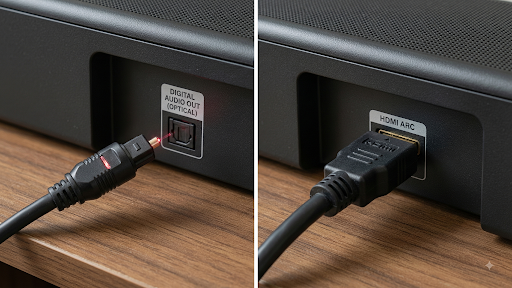
Option 1: Teach the Soundbar Your Sony Remote’s IR Signal
Many third-party soundbars have an IR “learn” or “TV remote” feature. Sony notes that some third-party soundbars connected to the TV’s optical output can be programmed to respond to a TV remote that uses IR. You set this up in the soundbar’s menu or app, then press the Sony volume buttons so the soundbar learns them.
Option 2: Set Audio Out to Variable
On many BRAVIA models, there’s an Audio out setting with two choices:
- Fixed: The soundbar’s own remote controls volume.
- Variable: The TV remote controls volume when you use an external audio system.
On Android TV models, this sits under Settings > Display & Sound > Audio output > Headphone/Audio out. Keep in mind this mostly applies to the analog headphone/audio out jack, not the optical port on every model. People who use the headphone jack for a soundbar sometimes report a buzzing sound, which is why HDMI ARC is the cleaner choice.
Important Point to be Considered! If Audio out is set to Fixed, the TV volume buttons won’t change the soundbar’s level. Sony’s support pages specifically point to this setting when the TV volume can’t be adjusted. Switch it to Variable if you want the TV remote in control.
Why Does My Sony Bluetooth Voice Remote Not Control My Soundbar Volume?
Newer Sony voice remotes connect to the TV over Bluetooth. Sony confirms that because of this, a third-party soundbar can’t be set up to learn volume from the Bluetooth TV remote. That’s why the Sonos Playbar, Samsung, and other “learn IR” soundbars often ignore newer Sony remotes even when the connection is fine.
Sony gives three options:
- Use HDMI ARC with BRAVIA Sync. This is the best fix because the TV relays the volume command over HDMI, so Bluetooth doesn’t matter.
- Disconnect the remote’s Bluetooth mode. The remote falls back to IR and can control the soundbar’s volume. The tradeoff is that Google Assistant and the microphone stop working.
- Use the soundbar’s own remote for volume.
If you’re thinking about option 2, know what you’re giving up first. Without Bluetooth, voice search won’t work. If the mic stops responding even after you reconnect Bluetooth later, this guide on fixing a Sony Bravia remote microphone and voice search that isn’t working walks you through getting it back.
Pro Tip! For soundbars with an IR sensor, point the Sony remote at the soundbar itself, not the TV, when you test IR volume control. Also make sure the soundbar isn’t blocking the TV’s IR sensor at the bottom of the screen.
What Should I Do If Sony TV Remote Volume Suddenly Stopped Working With My Soundbar?
If it worked before and suddenly stopped, the HDMI-CEC connection usually dropped. A full power reset clears it in most cases.
Power Reset Both Devices
- Turn off the TV and soundbar.
- Unplug both from the wall outlet.
- Wait a couple of minutes.
- Plug in the soundbar first, then the TV.
- Turn on the TV and test the volume.
You can also restart a Google TV BRAVIA quickly by pressing and holding the remote’s power button until the Restart option appears.
Toggle BRAVIA Sync and CEC Off and On
If the power reset doesn’t help, turn BRAVIA Sync control off on the TV and Control for HDMI off on the soundbar. Restart both, then turn both settings back on. This forces the devices to recognize each other again.
Reseat or Replace the HDMI Cable
Unplug the HDMI cable from both ends and plug it back in firmly. A loose or worn cable can still carry sound but lose control signals. If you recently bought a cheap or very long cable, try a known good high-speed one.
Check for a Software Update
Volume control problems sometimes start right after a TV update. Check for TV software updates and soundbar firmware updates, since a newer version may fix the bug. If the remote started acting up right after an update, read this guide on fixing a Sony Bravia remote that stopped working after a software update.
Why Does the Volume Bar Move on Screen But the Soundbar Volume Doesn’t Change?
When the TV’s volume bar moves but the soundbar stays the same, the TV is getting the command but isn’t passing it to the soundbar. Usually the Speakers setting is still on TV speakers, or CEC volume control isn’t active.
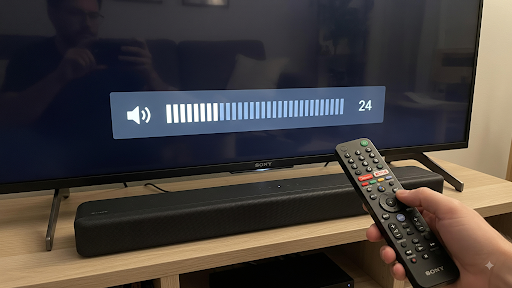
Try these checks:
- Confirm Speakers is set to Audio system.
- Make sure the soundbar input is set to TV or HDMI ARC, not Bluetooth or optical.
- Turn the CEC setting off and on again on both devices.
- Look at the soundbar’s own display. If it shows a volume level change, the control is working but the soundbar might be capped by its own volume limit or night mode.
Here’s a related quirk many people notice. Sony says that on some software versions, the TV no longer shows the volume level when you use the soundbar’s remote. That’s expected. The volume bar still appears when you control the soundbar through CEC with the TV remote.
Why Does My Sony Remote Turn the Soundbar On and Off But Not Change the Volume?
If power works but volume doesn’t, CEC is on, but volume commands aren’t being handled. This happens a lot with third-party soundbars, because CEC support differs from brand to brand.
- Some soundbars only accept power commands over CEC unless “TV volume control” or a similar option is turned on in their app.
- Sony notes that with some soundbar models, the volume can’t be changed with another device’s remote. In that case, you need the soundbar’s own remote or buttons.
- The TV may be connected to a non-ARC HDMI port on the soundbar, like an HDMI IN pass-through port. Move it to HDMI OUT (ARC/eARC).
Pro Tip! Samsung soundbar owners, like those with the Q990B or Q990C, often report that Sony remote volume stops working randomly. Owners on community forums say a full TV restart usually brings it back. If it keeps happening, check both the TV and soundbar for firmware updates.
Is the Problem the Remote or the Soundbar Setup?
If other buttons on your Sony remote work but only the soundbar volume fails, it’s a setup issue. If several buttons don’t work, or nothing on the TV responds, the remote itself needs attention.
Use these remote checks from Sony’s support guidance:
- Press each button twice to make sure none are stuck. A stuck button can block other commands.
- Remove and reinstall the batteries to get a good contact. Use fresh, non-rechargeable batteries if possible.
- Remove obstacles between the remote and the TV, and try using the remote closer to the TV.
- Test the TV’s own volume buttons. If they control the soundbar but the remote doesn’t, the remote is the problem.
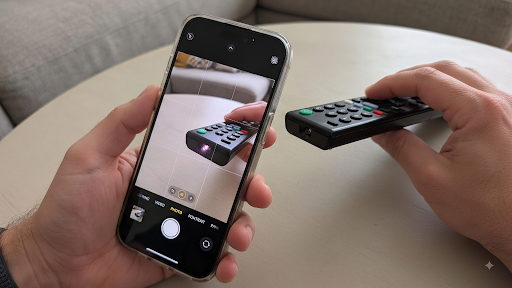
- Test IR with your phone camera. Point the remote at a phone camera and press a button. A flashing light on screen means the remote is sending IR. Bluetooth-only commands won’t show this light.
If your remote’s light keeps blinking red and the TV won’t respond, that points to a pairing or connection problem. See how to fix a Sony Bravia remote blinking red light and not responding before going back to the soundbar settings.
Common Mistakes That Stop Sony TV Remote Soundbar Volume Control
- Using the wrong HDMI port on the TV or the soundbar.
- Turning on CEC on only one device. It must be on for both the TV and the soundbar.
- Leaving the soundbar on optical input after switching to HDMI ARC.
- Running the TV through an AV receiver or HDMI switch that doesn’t pass CEC correctly.
- Expecting a Bluetooth voice remote to send IR to a “learn remote” soundbar.
- Having Audio out set to Fixed when you want the TV remote in control.
- Connecting the soundbar to the TV by Bluetooth. Sony recommends HDMI for a stable connection, and Bluetooth audio often won’t follow TV remote volume the same way.
What Can I Use If My Sony TV Remote Still Won’t Control the Soundbar?
If none of the fixes work, you still have good ways to control the volume:
- The soundbar’s own remote or the buttons on top of the soundbar.
- The soundbar brand’s app on your phone. Most Sony, Samsung, Sonos, and Bose soundbars have one.
- A universal remote that can control both the TV and soundbar over IR.
- A replacement Sony remote. If your current one is damaged, get an official replacement that matches your TV model. Check your TV’s manual or Sony’s support site for the correct part.
If the TV remote controls the soundbar for a few minutes and then stops every time, or the issue started after a hardware change, contact Sony support with your TV model number, soundbar model, and connection type. That makes it much faster to narrow down the cause.
Frequently Asked Questions
Why do my Sony TV remote volume buttons control the TV speakers instead of the soundbar?
Your TV’s Speakers setting is still on TV speakers. Change it to Audio system under Display & Sound > Audio output > Speakers. If it keeps switching back on its own, the TV isn’t detecting the soundbar over CEC, so recheck the ARC cable and BRAVIA Sync.
Why does my Sony remote control the soundbar volume only on some inputs or apps?
This usually happens when a streaming box or game console on another HDMI input also uses CEC and grabs control. Check that device’s CEC or “TV volume control” setting, and set it to let the TV handle volume. Some boxes, like Apple TV, let you choose between IR and CEC for volume.
Why is my Sony TV volume slow or lagging when I use the soundbar?
A short delay is normal because the command travels from the remote to the TV and then over HDMI to the soundbar. If it’s very slow or skips steps, try pressing the button instead of holding it, update the soundbar firmware, and replace the HDMI cable.
Do I need eARC for my Sony remote to control soundbar volume?
No. Regular ARC works fine for volume control. eARC mainly adds support for higher-quality audio formats. Either one needs CEC turned on for the remote to work.
Why did my Sony TV remote stop controlling the soundbar after I disconnected it?
When you remove a soundbar, the TV may still be set to send sound to an audio system. Change Speakers back to TV speakers, and the remote volume will control the TV again. A quick TV restart helps if the setting doesn’t update right away.
Can I make my Sony remote control both the TV and a soundbar without HDMI?
Only over IR. The soundbar must support learning a TV remote, and your Sony remote must send IR signals. With newer Bluetooth remotes, you’d need to switch the remote out of Bluetooth mode, which turns off voice features.
Final Recommendation
Start with the connection. If your soundbar is on optical, move it to the HDMI ARC/eARC port. Then turn on BRAVIA Sync on the TV and Control for HDMI on the soundbar, set Speakers to Audio system, and run the power sync test. That fixes most Sony TV remote volume problems with soundbars.
If volume worked before and suddenly stopped, unplug both devices for a few minutes and restart. And if you use a third-party soundbar with optical only, know that newer Sony Bluetooth remotes can’t teach their volume buttons to it, so HDMI ARC or the soundbar’s own remote is your best bet.