
If your Samsung Smart TV remote keeps disconnecting, the cause is almost always one of four things: a weak battery, a dropped Bluetooth pairing, signal interference, or a TV software glitch. In most homes, a full reset of the remote, a 60-second TV power drain, and a fresh pairing fix it in under five minutes.
This guide walks you through every fix in the right order, from quick checks to the stubborn cases where the remote unpairs every time the TV turns off. You will also learn how to tell whether the problem is the remote or the TV, so you don’t buy a replacement you don’t need.
Quick Overview
- Charge or replace the battery. SolarCell remotes act up when the charge is low. Use a USB-C cable for a fast charge.
- Reset the remote. Battery remotes: remove the batteries and hold Power for 8 seconds. SolarCell remotes: hold Return + Enter for about 10 seconds.
- Power-drain the TV. Unplug the TV (and One Connect Box, if you have one) for 60 seconds.
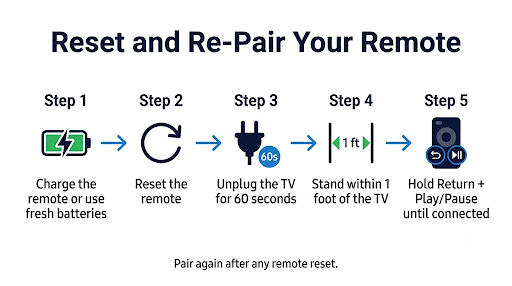
- Re-pair the remote. Stand within 1 foot of the TV and hold Return + Play/Pause for 5 seconds until a “connected” message appears.
- Remove interference. Move routers, soundbars, metal cabinets, and other Bluetooth gear away from the TV’s lower edge.
- Update the TV software. Go to Settings > Support > Software Update > Update Now.
- Still dropping? If it keeps disconnecting after all of this, the remote’s Bluetooth or the TV’s Bluetooth module is likely faulty. Contact Samsung Support.
Why Does My Samsung TV Remote Keep Disconnecting?
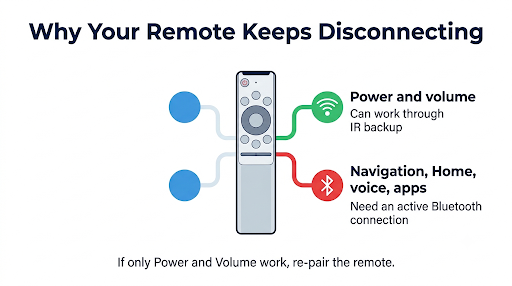
Your Samsung Smart Remote talks to the TV over Bluetooth for most buttons and uses infrared (IR) as a backup. When the Bluetooth link drops, the remote quietly falls back to IR. That’s why many people notice that only the power and volume buttons still work.
Here are the most common reasons the connection keeps dropping:
- Low battery: A SolarCell remote that sits in a drawer or a dark room slowly drains. Samsung notes that a low battery can make the remote respond slowly or not work properly.
- Corrupted pairing: After a TV update, a power outage, or a factory reset, the stored pairing can break.
- Wireless interference: Wi-Fi routers, mesh nodes, Bluetooth headphones, game controllers, and metal TV stands can crowd the 2.4 GHz band the remote relies on.
- Physical blocking: A soundbar placed directly in front of the TV’s bottom edge can block the IR sensor and weaken the signal.
- TV software glitch: Outdated firmware or a TV that has been in standby for weeks can cause random dropouts.
- Hardware fault: Some remotes, and occasionally a TV’s Bluetooth board, simply fail.
What Do the Symptoms Tell You?
The way your remote fails tells you a lot about where to look. Use this table to jump to the right fix.
| What you see | Most likely cause | Start with |
| Only Power and Volume work | Bluetooth dropped, remote is in IR fallback | Re-pair the remote |
| Red light on the remote blinks and nothing happens | Low battery or lost pairing | Charge, then re-pair |
| Remote unpairs every time the TV turns off | TV-side pairing memory or software issue | TV power drain, software update, then factory reset as a last step |
| Disconnects every few minutes | Interference or failing remote | Remove interference, test with SmartThings app |
| Laggy or delayed button presses | Weak battery or weak signal | Charge fully and move closer |
| Started right after changing batteries | Pairing reset or battery contact issue | Reset and re-pair |
| Voice button stopped working | Bluetooth link dropped (voice needs Bluetooth) | Re-pair, then check voice assistant settings |
Which Samsung Remote Do You Have?
Fixes differ slightly by remote type, so check yours before you start. Flip the remote over and look for the model number, usually starting with BN59.
| Remote type | How to identify it | Power source | Typical TVs |
| SolarCell Remote | Solar panel on the back, USB-C port on the bottom | Built-in rechargeable battery | 2021 and newer Neo QLED, QLED, OLED, The Frame, and many Crystal UHD models |
| Smart Remote (battery) | Slim remote with a battery cover, few buttons | AAA batteries | Roughly 2016 to 2020 Smart TVs |
| Standard IR remote | Number pad, many buttons | AA or AAA batteries | Basic and older models |
Note: A standard IR remote does not pair over Bluetooth, so it can’t “disconnect” in the same way. If an IR remote stops working, the issue is usually batteries, a blocked sensor, or a dead IR emitter.
How Do You Fix a Samsung Remote That Keeps Disconnecting?
Work through these fixes in order. Each step builds on the one before it, and most people solve the problem by Fix 4.
Fix 1: Charge the SolarCell Remote or Replace the Batteries
Start here, even if you think the battery is fine. A remote at 20% can still turn the TV on but drop Bluetooth constantly.
- SolarCell remote: Plug a USB-C cable into the port on the bottom. The LED turns on while charging and turns off when it’s done. Samsung says a full charge can last up to two years, depending on use.
- Solar charging: Place the remote with the solar panel facing up under room light or near a window. Leaving it face-down on a couch cushion blocks charging.
- Battery remote: Use fresh alkaline batteries from the same pack. Samsung recommends not mixing new and used batteries.
To check the battery level on most 2021 and newer TVs, press Home, then go to Settings > All Settings > General & Privacy > Power and Energy Saving > Available Remote Battery. The exact menu name varies by model year.
If the trouble started right after a battery swap, the steps in our guide on fixing a Samsung remote that won’t pair after a battery change cover contact and pairing issues in more detail.
Fix 2: Reset the Remote
A reset clears the remote’s stored connection and any stuck button signal.
- Battery-powered Smart Remote: Remove the batteries. Press and hold the Power button for 8 seconds to drain leftover charge. Press a few other buttons to free any stuck keys. Reinsert the batteries.
- SolarCell Remote (2021 and newer): Press and hold Return and Enter (the center of the navigation pad) for about 10 seconds.
- Older Smart Remotes: Samsung US support lists holding Return and the button diagonally up and to the right of it (usually the 4-colored-dots button) to reset.
You will need to pair the remote again after any reset.
Fix 3: Power-Drain the TV (Cold Boot)
This is the step most people skip, and it fixes a surprising number of cases. Turning the TV off with the remote only puts it in standby. A cold boot actually restarts the TV’s Bluetooth module.
- Unplug the TV power cord from the wall outlet.
- If your TV has a One Connect Box (common on The Frame, Neo QLED, and some QLED models), unplug that too.
- Wait 60 seconds.
- Plug the TV directly into a working wall outlet, not a loose power strip.
- Turn the TV on.
Quick shortcut: If your remote still sends IR, press and hold the Power button until the TV turns off and back on. This forces a restart without unplugging.
Fix 4: Re-Pair the Remote to the TV
- Turn on the TV.
- Stand within 1 foot of the TV and point the remote at the sensor near the Samsung logo or bottom edge.
- Press and hold Return and Play/Pause together for at least 5 seconds.
- Let go when the TV shows a message that the remote is connected.
If nothing appears, repeat Fix 2 and Fix 3, then try again. Pairing from across the room is a common mistake. The pairing signal needs to be close.
If pairing works but some buttons still fail while the TV turns on, read our breakdown of why BN59 remote buttons stop working even though the TV turns on.
Fix 5: Remove Interference Around the TV
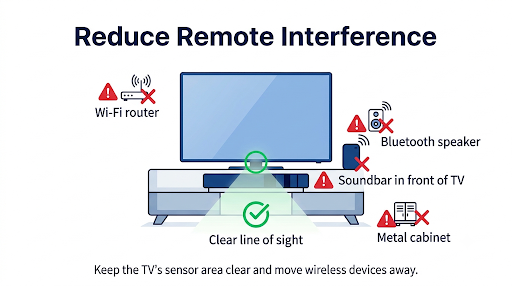
If the remote connects and then drops after a few minutes, interference is a strong suspect. Samsung community users have reported dropouts tied to soundbars, cabinets, and nearby wireless gear.
- Move the Wi-Fi router or mesh node at least a few feet away from the TV.
- Don’t place a soundbar directly in front of the TV’s bottom edge where the sensor sits.
- Avoid closed metal or glass-door cabinets around the TV or One Connect Box.
- Turn off nearby Bluetooth devices for a test, such as headphones, speakers, and game controllers.
- Keep USB 3.0 hard drives plugged into the TV away from the TV’s edge, since USB 3.0 can create 2.4 GHz noise.
Fix 6: Clear Other Bluetooth Devices From the TV
Too many saved Bluetooth devices can cause conflicts. Go to Settings > Connection (or Sound > Sound Output on some models) and open the Bluetooth Device List. Remove old headphones, speakers, and phones you no longer use. Then re-pair the remote.
Fix 7: Update the TV Software
Samsung regularly fixes connectivity bugs in firmware updates. Go to Settings > Support > Software Update > Update Now. Turning on Auto Update helps prevent the issue from returning.
If your remote is too unreliable to navigate menus, use the SmartThings app (see Fix 9) or the TV’s physical control button to get there.
Fix 8: Test the Remote’s IR Signal With Your Phone Camera
This quick test tells you if the remote is sending any signal at all.
- Open your phone’s camera. The front camera often works better because some rear cameras filter IR.
- Point the remote’s top edge at the camera lens.
- Press the Power button and watch the screen.
If you see a flicker of light, the remote’s IR is working. If you see nothing with a charged battery, the remote’s hardware may be failing.
Fix 9: Use the SmartThings App to Isolate the Problem
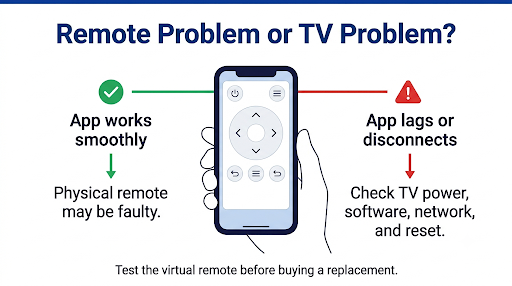
The free Samsung SmartThings app on Android and iPhone includes a virtual remote. Connect your phone to the same Wi-Fi network as the TV, add the TV, and test the controls.
- If the app works smoothly: The TV is fine. The physical remote is likely the problem.
- If the app also lags or disconnects: The issue is on the TV or network side. Focus on software, power, and reset steps.
Fix 10: Check Power-Saving Settings
Some Eco and power-saving settings can affect how the TV wakes up and reconnects. Go to Settings > General & Privacy > Power and Energy Saving and review options such as Auto Power Off or Auto Power Saving. Turn them off temporarily to test whether the remote stays connected.
Fix 11: Reset the TV’s Smart Hub or Factory Reset the TV
Use this only after everything above fails, because a factory reset erases apps, accounts, and picture settings.
- Smart Hub reset first: Go to Settings > Support > Device Care > Self Diagnosis > Reset Smart Hub. The default PIN is usually 0000.
- Factory reset: Go to Settings > General & Privacy > Reset. Then set up the TV again and pair the remote fresh.
Menu names vary slightly between model years, so check your e-Manual (on the TV) if a path looks different.
Fix 12: Replace the Remote or Contact Samsung Support
If the remote keeps disconnecting after a full charge, reset, cold boot, re-pair, and software update, the remote is probably defective. One Samsung community member who went through every step and even shipped the remote for testing concluded that if other Bluetooth devices connect fine to the TV, the remote itself has failed.
Before buying a replacement:
- Check your warranty. Remotes included with the TV are usually covered.
- Buy a remote listed as compatible with your exact TV model number.
- Avoid cheap look-alike Bluetooth remotes. Many only work over IR and won’t support voice or Smart features.
You can reach Samsung through the official Samsung US Support page for chat, repair requests, and replacement parts.
Why Does My Samsung Remote Unpair Every Time the TV Turns Off?
When the remote disconnects every single time you power the TV off and on, the TV is usually not saving the pairing. Several Samsung community users reported this even after Samsung sent a new remote, which points to the TV side.
Try this sequence:
- Update the TV software.
- Cold boot the TV and One Connect Box for 60 seconds.
- Reset Smart Hub.
- Factory reset the TV if it still happens.
- If a new remote has the same problem after a factory reset, request service for the TV’s Bluetooth or main board.
Does the Problem Differ by Samsung TV Model?
The core fixes work across all Samsung Smart TVs, but a few model-specific details are worth knowing.
- Neo QLED and QLED (QN90A, QN90B, Q80, Q60 and similar): Most use the SolarCell remote. Low charge is the top cause of dropouts.
- OLED (S90C, S95B, S95C and similar): These ship with SolarCell remotes. Some owners on the Samsung forum reported the BN59-01385A remote disconnecting constantly, so test with SmartThings to rule out a faulty unit.
- The Frame: The One Connect Box houses much of the TV’s electronics. Always unplug it during a cold boot.
- Crystal UHD (CU, AU, TU series): Many use a simpler remote. Confirm whether yours pairs over Bluetooth before following pairing steps.
- 2016 to 2020 models (NU, RU, MU, Q6FN and similar): These use battery Smart Remotes. Fresh batteries and the Power-button drain reset fix most issues.
What Common Mistakes Make the Problem Worse?
- Pairing from across the room. Always stand within about a foot of the TV.
- Only turning the TV off with the remote. That’s standby, not a restart. Unplug it.
- Forgetting the One Connect Box. If you unplug only the screen, the reset may not work.
- Mixing old and new batteries. Low voltage causes weak Bluetooth.
- Keeping the SolarCell remote face-down. The solar panel can’t charge in the dark.
- Factory resetting too early. It takes time to set up again and often isn’t needed.
How Can You Keep Your Samsung Remote From Disconnecting Again?
- Leave the SolarCell remote face-up in a lit room, or top it off with USB-C every few months.
- Keep TV software set to auto-update.
- Give the TV a cold boot once in a while, especially after power outages.
- Keep the area around the TV’s lower edge clear of soundbars and metal.
- Remove Bluetooth devices from the TV that you no longer use.
If the remote also has trouble with connected gear, such as your soundbar ignoring volume commands, see our guide on what to do when your Samsung TV remote isn’t controlling the soundbar.
Frequently Asked Questions
Why does my Samsung remote only work for power and volume?
The Bluetooth connection has dropped, and the remote is using its infrared backup. Power and volume can work over IR, but navigation, voice, and Smart Hub buttons need Bluetooth. Re-pairing with Return + Play/Pause usually restores full control.
What does a blinking red light on my Samsung remote mean?
A blinking red light usually means the remote is trying to reconnect to the TV or the battery is low. On SolarCell remotes, Samsung notes that the LED flashes for about 3 seconds when the battery is too low to work. Charge it with USB-C, then pair again.
Can Wi-Fi cause my Samsung remote to disconnect?
Yes, it can contribute. Wi-Fi on the 2.4 GHz band shares airspace with Bluetooth. A router sitting right next to the TV, or a crowded wireless environment, can cause random dropouts. Moving the router or switching your devices to the 5 GHz band often helps.
Will a factory reset fix a Samsung remote that keeps disconnecting?
Sometimes, but it’s a last resort. A factory reset helps when the TV’s software or pairing memory is corrupted. It won’t fix a remote with a failing battery or Bluetooth chip, so test the remote with the SmartThings app first.
How long does a Samsung SolarCell remote battery last?
Samsung says a full charge can last up to two years depending on use. Heavy voice use and keeping the remote in a dark spot shorten that. The internal battery also wears down over many years, which can cause dropouts on older remotes.
Can I use my Samsung TV without the remote?
Yes. Use the SmartThings app on your phone as a remote, or use the physical control button found under the bottom edge or on the back of most Samsung TVs. This is helpful for running a software update when the remote won’t stay connected.
Does the voice button stop working when the remote disconnects?
Yes. Voice commands need the Bluetooth link because the microphone audio is sent over Bluetooth. If voice fails even while other buttons work, the issue may be the assistant settings instead. Our guide on fixing a Samsung TV remote voice button that’s not working covers those steps.
Final Recommendation
Start with the simple, high-success fixes: fully charge the remote, reset it, unplug the TV for 60 seconds, and re-pair from within a foot of the screen. Then clear interference and update the TV software. If the remote still drops after all that, test with the SmartThings app. A smooth app means the remote is faulty and should be replaced under warranty. A laggy app means the TV needs attention, so a factory reset or a Samsung service request is your next move.