
If your Samsung TV remote is not controlling your soundbar, the cause is almost always one of three things: the TV’s Sound Output is set to the wrong device, Anynet+ (HDMI-CEC) is turned off, or the soundbar isn’t set to accept TV remote commands. Fix the one that matches how your soundbar is connected and volume, mute, and power control usually come right back.
This guide walks you through every fix in order, from the 30-second checks to the deeper resets. It covers Samsung and non-Samsung soundbars (Sonos, Vizio, Bose, LG, Yamaha, and others), HDMI ARC, eARC, optical, and Bluetooth setups.
Quick Overview
| Your setup | Most likely fix |
| Samsung soundbar on HDMI ARC/eARC | Set Sound Output to the soundbar, then turn on Anynet+ (HDMI-CEC) in External Device Manager |
| Samsung soundbar on optical cable | Set Sound Output to the soundbar or Optical, then hold the soundbar remote’s WOOFER up button for about 5 seconds until “ON – TV REMOTE” appears |
| Non-Samsung soundbar on HDMI ARC | Turn on Anynet+ on the TV and HDMI-CEC in the soundbar’s settings or app |
| Non-Samsung soundbar on optical | Run Universal Remote setup on the TV, or use the soundbar’s “learn TV remote” feature |
| Remote stopped working after an outage or update | Unplug the TV and soundbar for 60 seconds, re-pair the remote, and toggle Anynet+ off and on |
Why Is My Samsung TV Remote Not Controlling My Soundbar?
Your TV remote does not talk to the soundbar directly in most setups. It talks to the TV, and the TV passes the volume command along. When that handoff breaks, the volume bar may pop up on screen, but nothing changes on the soundbar.
Here are the most common reasons this happens:
- Wrong Sound Output: The TV is still sending audio to its built-in speakers or a different device.
- Anynet+ (HDMI-CEC) is off: This is Samsung’s name for HDMI-CEC, the feature that lets devices on HDMI control each other. Without it, HDMI ARC soundbars won’t respond to the TV remote.
- Wrong HDMI port: Only the port labeled HDMI (ARC) or HDMI (eARC) supports two-way audio control.
- Optical limitations: An optical cable carries sound only. It doesn’t carry volume or power commands, so control has to happen another way.
- TV remote control disabled on the soundbar: Some Samsung soundbars have a “TV REMOTE” setting that can get switched off after a reset.
- Lost pairing or glitch: Power outages, firmware updates, and battery changes often break the connection between the remote, TV, and soundbar.
- Unsupported third-party device: Some soundbars simply don’t support Samsung’s CEC commands or Universal Remote codes.
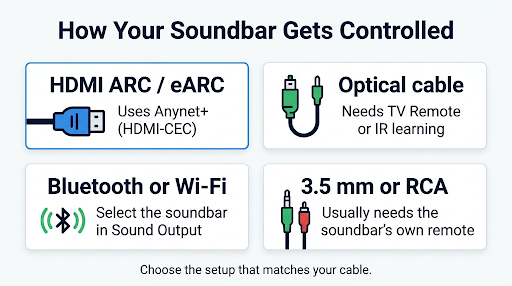
How Is Your Soundbar Connected? Check This First
The right fix depends on the cable between your TV and soundbar. Look at the back of both devices before changing any settings.
| Connection | Carries volume control? | How the TV remote controls it |
| HDMI ARC | Yes | Anynet+ (HDMI-CEC) |
| HDMI eARC | Yes | Anynet+ (HDMI-CEC) |
| Digital optical (Toslink) | No | Soundbar’s TV remote setting, IR learning, or Universal Remote setup |
| Bluetooth or Wi-Fi | Usually yes, on supported Samsung soundbars | Selected by name in Sound Output |
| 3.5 mm / RCA analog | No | Soundbar’s own remote or IR learning |
Quick tip: If you press volume and the TV shows a small box that says “Optical” or “Receiver” instead of a number, the TV is handing control off to the external device. That means the TV side is set up. The problem is on the soundbar side.
How Do You Set the Right Sound Output on a Samsung TV?
Set Sound Output to your soundbar first. Everything else depends on this step.
- Press the Home button on your Samsung remote.
- Go to Settings, then All Settings (on newer models).
- Select Sound, then Sound Output.
- Choose your soundbar by name. You may see options like “[Soundbar name] (HDMI-eARC),” “Audio Out (Optical),” “Receiver (HDMI),” or a Bluetooth/Wi-Fi speaker name.
- Press the volume button to test.
Samsung’s own guide to controlling a Samsung soundbar with your TV remote confirms that once the soundbar is selected here, the TV remote should adjust volume, mute, and turn the soundbar on and off with the TV.
Common mistake: Picking “TV Speaker” plus a soundbar, or choosing a Bluetooth speaker you paired months ago. Make sure only the soundbar you’re using is selected.
How Do You Turn On Anynet+ (HDMI-CEC) on a Samsung TV?
If your soundbar is on HDMI ARC or eARC, Anynet+ must be on. It’s usually enabled by default, but updates and resets can turn it off.
The menu path changes by model year:
| TV model year | Anynet+ menu path |
| 2025 to 2026 | Settings > All Settings > General & Privacy > External Device Manager > Anynet+ (HDMI-CEC) |
| 2023 to 2024 | Settings > All Settings > Connection > External Device Manager > Anynet+ (HDMI-CEC) |
| 2022 | Settings > General & Privacy > External Device Manager > Anynet+ (HDMI-CEC) |
| 2017 to 2021 | Settings > General > External Device Manager > Anynet+ (HDMI-CEC) |
These paths come from Samsung’s official Anynet+ support page. Menu names can vary a little by region and software version. If you can’t find it, search the Settings menu for “External Device Manager.”
After turning Anynet+ on:
- Turn the soundbar off and back on.
- Wait up to two minutes for the TV to detect it.
- Go back to Sound Output and select the soundbar.
- Test the volume.
Pro tip: If Anynet+ is already on but volume still doesn’t work, turn it off, restart the TV, then turn it back on. This forces the TV to rescan HDMI devices and fixes a lot of “it worked yesterday” problems.
Turn On HDMI-CEC on the Soundbar Too
CEC needs to be enabled on both ends. Samsung soundbars typically handle this automatically. Other brands often bury it in their app or menu:
- Sonos: Check TV setup and remote control options in the Sonos app.
- Vizio, LG, Yamaha, Bose, Polk: Look for “CEC,” “HDMI Control,” “TV Remote,” or “Simplink” in the soundbar menu or app.
Check the HDMI Port and Cable
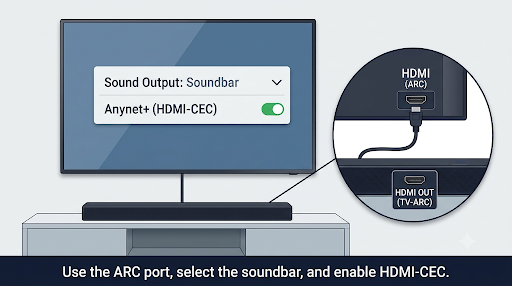
- Plug the cable into the TV port labeled HDMI (ARC) or HDMI (eARC). On many Samsung TVs this is HDMI 2 or HDMI 3, but check the label.
- On the soundbar, use the port labeled HDMI OUT (TV-ARC) or HDMI TV (eARC), not HDMI IN.
- Samsung notes that some HDMI cables don’t support Anynet+. If nothing works, try a different certified high-speed HDMI cable.
- Set the soundbar input to D.IN, TV ARC, or HDMI ARC, depending on the model.
What If Your Soundbar Is Connected With an Optical Cable?
Optical cables don’t carry control signals, so the setup is different. The fix depends on whether your soundbar is a Samsung or another brand.
Samsung Soundbar on Optical
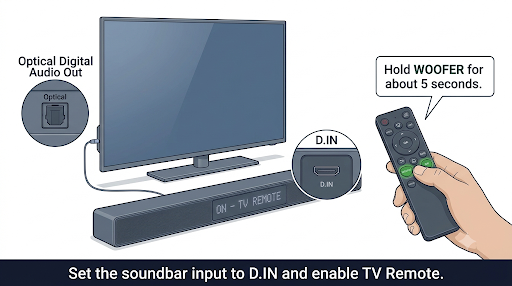
Samsung soundbars are built to accept Samsung TV remote commands even over optical. If it stopped working, turn the feature back on:
- Set the TV’s Sound Output to the soundbar or Audio Out (Optical).
- Turn the soundbar on and set its input to D.IN (digital in).
- On the soundbar remote, press and hold the WOOFER up button (or the Up arrow on newer remotes) for about 5 seconds.
- Wait until “ON – TV REMOTE” shows on the soundbar display.
- Test with your TV remote.
If it shows “OFF – TV REMOTE,” repeat the hold to switch it back on. The button name varies by model, so check your soundbar’s manual if you don’t see a WOOFER key.
Non-Samsung Soundbar on Optical
For Sonos, Vizio, Bose, Yamaha, Polk, LG, and similar brands on optical, you have two options:
- Use the TV’s Universal Remote setup. This lets your Samsung remote send infrared (IR) codes to the soundbar. Steps are in the next section.
- Use the soundbar’s “learn remote” feature. Many soundbars can learn the volume buttons from any TV remote. Sonos, for example, has a remote control setup option in its app. Check your soundbar’s manual or app for “Learn,” “TV Remote,” or “IR learning.”
Heads up: If your soundbar has an HDMI ARC port, switching from optical to HDMI ARC is the most reliable long-term fix. It gives you volume, mute, and power control without IR workarounds.
How Do You Set Up Universal Remote for a Non-Samsung Soundbar?
Universal Remote setup teaches your Samsung remote to control third-party devices using IR. It’s the go-to fix when CEC doesn’t work or when you’re stuck with an optical connection.
- Turn on the soundbar.
- From the Samsung Home screen, press Left on the remote.
- Select Connected Devices, then Universal Remote (2023 to 2025 models). On 2016 to 2021 models, go to Home > Source > Universal Remote.
- Select Start or New Device.
- Choose Home Theater or Soundbar as the device type.
- Pick the brand, then select the connection type (HDMI or Optical).
- Follow the on-screen test to confirm the remote works.
Samsung’s Universal Remote setup guide lists these paths by model year. If your soundbar brand isn’t in the list, the TV remote can’t control it through this method, and you’ll need the soundbar’s own remote or its learning feature.
Tip: Keep a clear line of sight between the TV and the soundbar’s IR sensor. A soundbar tucked inside a cabinet or blocked by the TV stand often won’t receive the IR signal.
Is Your Samsung Remote Itself the Problem?
Sometimes the soundbar is fine and the remote is the issue. If the remote also struggles to control the TV, fix the remote first.
Re-Pair the Samsung Smart Remote
- Stand within about 1 foot of the TV.
- Point the remote at the TV’s sensor.
- Press and hold Return (Back) and Play/Pause together for 3 to 5 seconds.
- Wait for the “connected” message on screen.
If pairing fails after you swapped in new batteries, see our guide on fixing a Samsung TV remote that won’t pair after a battery change.
Reset the Remote
- Battery remotes: Remove the batteries, hold Power for 8 seconds, reinsert the batteries, then re-pair.
- SolarCell remotes (2021 and newer): Hold Return and Enter (center button) for about 10 seconds, then re-pair.
These steps match Samsung’s Smart Remote troubleshooting guide.
Test the IR Signal
Point the remote at your phone’s camera and press a button. If you see a faint flashing light on the screen, the remote is sending IR. If not, the batteries or IR emitter may be the problem.
If the TV turns on but some buttons do nothing, especially on older remotes, our guide to Samsung BN59 remote buttons not working while the TV still turns on covers that specific issue. And if your remote keeps dropping its Bluetooth link, check out how to fix a Samsung Smart TV remote that keeps disconnecting.
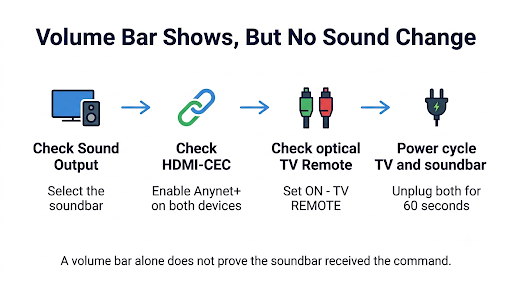
What Should You Do If the Volume Bar Shows But Nothing Happens?
This is one of the most reported versions of the problem. You press volume, an icon pops up, but the soundbar volume doesn’t change.
It means the TV knows an external speaker is active, but the command isn’t reaching the soundbar. Try these fixes in order:
- Re-enable TV remote on the soundbar (Samsung soundbars on optical: hold WOOFER up until “ON – TV REMOTE”).
- Toggle Anynet+ off and on (HDMI setups).
- Re-select the soundbar in Sound Output, even if it already looks selected.
- Run Universal Remote setup for non-Samsung soundbars on optical.
- Check that nothing blocks the soundbar’s IR sensor.
Some users report that an older Samsung remote controls the soundbar while a newer one doesn’t. That points to a pairing or IR code difference, so running Universal Remote setup with the new remote usually closes the gap.
How Do You Power Cycle and Reset Everything?
When settings look correct but nothing works, a full power cycle clears stuck CEC handshakes and frozen firmware states. This is especially effective after a power outage.
Full Power Cycle
- Turn off the TV, soundbar, and any connected devices (streaming box, game console, cable box).
- Unplug all of them from the wall for at least 60 seconds.
- Plug in the soundbar first and turn it on.
- Plug in the TV and turn it on.
- Re-check Sound Output and Anynet+.
Quick TV Reboot
Hold the Power button on the remote until the TV turns off and the Samsung logo appears again. This restarts the TV’s software without unplugging it.
Reset the Samsung Soundbar
If the soundbar itself seems stuck, a factory reset gives it a clean start. On many Samsung models, you hold a button combination on the soundbar or remote (often the Up button on the remote, or Volume + and Volume – on the soundbar) for about 5 seconds until “INIT OK” or a similar message appears. The exact combo varies by model, so check your soundbar’s manual before trying it.
Warning: A soundbar reset clears Wi-Fi, Bluetooth pairings, and sound settings. You’ll need to set it up again afterward.
Should You Update Your TV and Soundbar Firmware?
Yes. Outdated firmware causes a lot of CEC and remote control bugs, and updates sometimes fix them.
- TV: Go to Settings > Support > Software Update > Update Now. (On some models, it’s under All Settings.)
- Samsung soundbar: Connected Wi-Fi models usually update automatically or through the SmartThings app. Older models may need a USB update from Samsung’s support site.
- Third-party soundbar: Use the brand’s app (Sonos, Bose, Vizio, etc.) to check for updates.
On the flip side, a fresh update can also break things that used to work. If control stopped right after an update, run the full power cycle and toggle Anynet+ before anything else.
Can You Control the Soundbar With Your Phone or Another Remote?
Yes. If the TV remote still won’t cooperate, you have backup options:
- SmartThings app: Controls Samsung TVs and Wi-Fi-connected Samsung soundbars from your phone.
- Soundbar brand app: Sonos, Bose, Vizio, and others have their own apps with volume control.
- Streaming device remote: Roku, Fire TV, Apple TV, and Chromecast remotes can often control soundbar volume over HDMI-CEC or IR.
If you mostly use voice commands, our guide on a Samsung TV remote voice button that isn’t working can help you get voice volume control back too.
What Are the Most Common Mistakes to Avoid?
- Using a regular HDMI port instead of ARC/eARC. Volume control won’t pass through a standard HDMI input.
- Connecting both HDMI and optical at once. This can confuse the TV about which output to use. Pick one.
- Expecting optical to work like HDMI. Optical carries sound only. Control needs a separate method.
- Forgetting the soundbar’s input. If the soundbar is on Bluetooth input while connected by HDMI, the TV remote won’t control it.
- Skipping the power cycle. Many CEC issues clear up only after everything is unplugged for a full minute.
- Turning on “Auto Volume” or volume limits on the TV and mistaking it for a soundbar control problem. These settings affect the TV’s own speakers, so turn them off while testing.
Frequently Asked Questions
Why did my Samsung TV remote stop controlling my soundbar after a power outage?
A power outage can break the HDMI-CEC link and reset the soundbar’s TV remote setting. Unplug the TV and soundbar for 60 seconds, plug the soundbar in first, then toggle Anynet+ off and on. For Samsung soundbars on optical, re-enable “ON – TV REMOTE.”
Can a Samsung TV remote control a Sonos soundbar?
Yes. A Sonos soundbar on HDMI ARC or eARC usually responds through Anynet+ (HDMI-CEC). On optical, you’ll need to set up IR control through the Sonos app’s remote setup or the Samsung TV’s Universal Remote feature.
Why does my Samsung TV remote turn the soundbar on but not change the volume?
Power and volume commands are handled separately. If power works but volume doesn’t, the TV may be outputting to the wrong device. Re-select the soundbar in Sound Output and make sure no Bluetooth speaker is also connected.
Does a Samsung TV remote work with a Bluetooth soundbar?
It often does with Samsung soundbars, which show up by name in Sound Output. Third-party Bluetooth speakers may not respond to volume changes from the TV remote, so their own remote or app may be needed.
Is it better to use HDMI eARC or optical for soundbar control?
HDMI ARC or eARC is better for remote control because it carries CEC commands. It also supports higher-quality audio formats like Dolby Atmos on eARC. Optical works for sound but needs an IR workaround for volume on most non-Samsung soundbars.
Why does my Samsung TV show “Optical” when I press volume?
That message means the TV is sending sound through the optical port and expects the soundbar to handle volume. The TV side is working. You need to enable TV remote control on the soundbar or set up Universal Remote for it.
What if my soundbar brand isn’t listed in Universal Remote setup?
Then the Samsung remote can’t control it through IR codes. Check whether the soundbar can learn TV remote buttons, switch to an HDMI ARC connection if possible, or use the soundbar’s own remote or app.
Final Recommendation
Start with the two settings that fix most cases: select your soundbar in Sound Output and turn on Anynet+ (HDMI-CEC). If you use an optical cable with a Samsung soundbar, hold the WOOFER up button until “ON – TV REMOTE” appears. For non-Samsung soundbars on optical, run Universal Remote setup or use the soundbar’s learning feature.
Still stuck? Do a full 60-second power cycle, re-pair your remote, and update both devices. If your soundbar has an HDMI ARC or eARC port, moving off optical is the most reliable way to get one-remote control that keeps working.