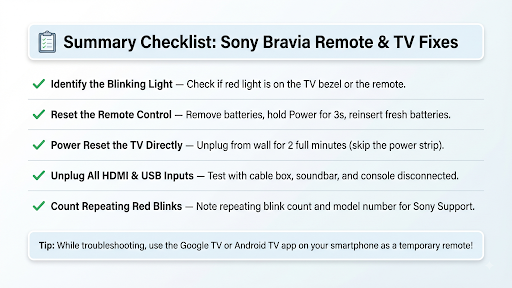
If your Sony Bravia remote isn’t responding and you see a blinking red light, first check where the light is. In most cases it’s the TV’s status LED, not the remote. Start with two quick resets: take the batteries out of the remote and hold the Power button for 3 seconds, then unplug the TV from the wall for a minute or two. That clears most temporary glitches.
If the red light keeps blinking after that, the TV itself may have found a problem. Below you’ll learn how to tell a remote problem from a TV problem, which fixes to try in what order, and when it’s time to call Sony.
Quick Overview
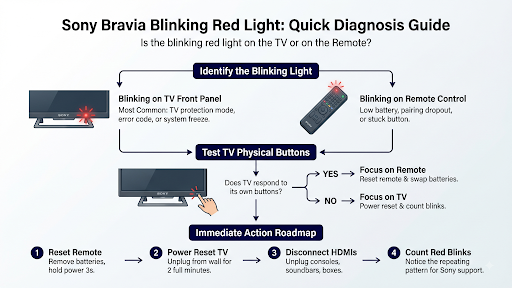
- Find the light. Is the red light blinking on the TV’s front panel, or on the remote?
- Test the TV buttons. If the TV responds to its own buttons but not the remote, the remote is the likely problem.
- Reset the remote. Take the batteries out, hold Power for 3 seconds, and put them back in. If that doesn’t work, leave them out for about 1 minute.
- Power reset the TV. Unplug it from the wall for 1 to 2 minutes, then plug it straight into the outlet.
- Count the blinks. If the TV’s red LED keeps blinking in a pattern, write down the number of blinks and contact Sony support.
Is the Red Light Blinking on the TV or the Remote?
Usually it’s the TV. Many standard Sony infrared remotes have no indicator light at all, so a blinking red light near the bottom edge of the screen is the TV’s status LED telling you something.
Here is how to read what you’re seeing:
| What You See | What It Usually Means | Where to Start |
| Solid red light on the TV, screen off | The TV is in standby and waiting for a command | Reset the remote and check the batteries |
| Red light on the TV blinking in a repeating pattern | The TV has found an internal problem and may have shut itself off for protection | Power reset the TV, then count the blinks |
| Light blinking nonstop, even when nobody is touching the remote | A button on the remote may be stuck | Take the remote batteries out and see if the blinking stops |
| Light on the remote itself (voice or Bluetooth remotes) | Low battery, a pairing problem, or a stuck button | Reset the remote, then re-pair it if it’s a Bluetooth model |
Sony’s own guide says that a blinking red LED on a TV that isn’t working properly means the TV has detected a problem. Sony also says most blinking red conditions end up needing service. So the TV’s light matters more than most people think.
How Do You Tell If the Problem Is the Remote or the TV?
Press the buttons on the TV itself. If the power or volume buttons on the TV work but the remote does nothing, the problem is the remote. If the TV ignores both, the TV is the problem.
The buttons are usually on the back, the side, or under the bottom edge of the screen. On many newer Bravia models it’s just one small power button, so you may need a flashlight to find it.
Once you know which one it is, use the matching section below. You’ll save time and avoid replacing a remote that was fine all along.
How Do You Reset a Sony Bravia Remote?
Remove the batteries, press and hold the Power button for 3 seconds, then put the batteries back in with the + and – ends facing the right way. This drains leftover charge and clears static that can freeze the remote.
Here are the full steps, based on Sony’s remote troubleshooting guide:
- Open the battery cover and take out both batteries.
- Press and hold the Power button for 3 seconds.
- Put the batteries back in with the correct polarity.
- Point the remote at the TV and try the Power button.
- If it still doesn’t work, take the batteries out again and leave them out for about 1 minute before putting them back.
Note: If your remote has a USB-C port on the bottom, it has a built-in rechargeable battery. Skip the battery steps and charge it with a USB-C cable for a while first.
Check for Stuck Buttons
A button stuck in the pressed position can make the remote send a nonstop signal, so the TV ignores everything else. Press every button firmly twice, one at a time. Spills and crumbs often cause this, especially on the Power, Volume, and Input buttons.
Use Fresh Batteries From the Same Pack
Use two new batteries from the same pack. Mixing an old battery with a new one, or using cheap batteries that are already weak, is one of the most common reasons a remote works sometimes and fails other times. If you see white or green crust on the metal contacts, wipe it off gently with a cotton swab and a little rubbing alcohol, and let it dry.
Test the Remote With Your Phone Camera
Infrared light is invisible to your eyes, but most phone cameras can see it. Open your camera app, point the front tip of the remote at the lens, and press a button. If you see a small flicker on the screen, the remote is sending a signal.
- Flicker shows up: The remote works. The problem is on the TV side, such as the sensor or the TV itself.
- No flicker: Try new batteries again. If there’s still nothing, the remote may be damaged.
Tip: Some rear phone cameras filter out infrared, so try the front selfie camera if you see nothing. Also note this test only works for infrared signals. Bluetooth voice remotes send many commands by radio, so a blank screen doesn’t always mean they’re dead.
How Do You Power Reset a Sony Bravia TV?
Unplug the TV’s power cord from the wall outlet, wait 1 to 2 minutes, and plug it back in. This restarts the TV’s internal system, which often clears a glitch that stops it from listening to the remote.
- Turn the TV off if you can.
- Pull the power cord out of the wall outlet. If your TV uses a separate power adapter, unplug that too.
- Wait at least 1 minute. Two minutes is even better.
- Plug the TV straight into the wall outlet, not a power strip or surge protector, while you test.
- Turn the TV on with the remote or the TV’s power button.
Why skip the power strip? A strip that’s failing or overloaded can deliver unsteady power, and that can trigger the TV’s protection mode. Plugging straight into the wall rules that out.
Unplug Connected Devices
Disconnect everything plugged into the TV’s HDMI and USB ports, such as cable boxes, game consoles, streaming sticks, and soundbars. Then power reset the TV again. A faulty HDMI device or cable can sometimes cause power problems or confuse the TV’s controls.
If the TV works with nothing connected, plug your devices back in one at a time to find the one causing trouble.
What Does It Mean When the Red Light Blinks a Set Number of Times?
A red light that blinks a set number of times, pauses, and repeats is an error code. Sony says these codes usually range from 2 to 8 blinks, and that what each number means depends on your TV model. A 6-blink code on one Bravia doesn’t mean the same thing on another.
Here’s what to do:
- Watch the light through a few full cycles and count the blinks between pauses.
- Write down the number along with your TV’s model number. You’ll find it on the sticker on the back of the TV.
- Try the power reset above one more time.
- If the pattern comes back, contact Sony support and give them the blink count.
You’ll see guesses online, like “2 blinks means the power board.” These can be right for some models and wrong for others. Don’t buy parts based on a forum post. Let Sony confirm what your model’s code means first, especially if the TV is still under warranty.
Could a Software Update Be Causing This?
Yes. While a Bravia TV is installing a software update, the remote stops working until the update finishes. Sony warns not to turn off or unplug the TV during an update, because that can damage the TV’s software.
If the screen shows an update message, or the light blinks orange or amber, wait. Updates can take a while on a slow internet connection. If the remote still acts up after the update is done, read our guide on fixing a Sony Bravia remote that stopped working after a software update.
What If You Have a Sony Voice or Bluetooth Remote?
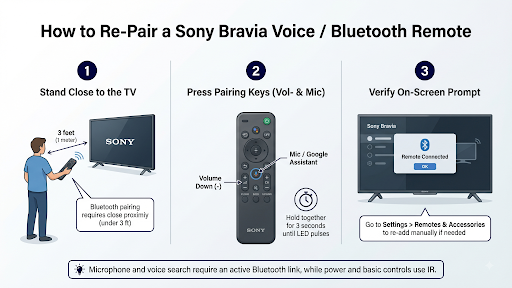
Voice remotes on Sony Google TV and Android TV models connect over Bluetooth for some features. If the pairing drops, buttons like voice search or app shortcuts can stop working even when the batteries are fine.
Try these steps in order:
- Reset the remote and power reset the TV as described above.
- Stand within a few feet of the TV and try again. Bluetooth pairing works best up close.
- If the basic buttons respond, go to the TV’s Settings and look for Remotes & Accessories. From there, remove the remote and pair it again. Menu names can vary a little by model and software version.
If power and channel buttons work but the voice button doesn’t, the problem is usually the microphone or the Bluetooth link, not the whole remote. Our guide to fixing Sony Bravia remote voice search and microphone problems covers that case step by step.
Why Do Only Some Buttons Not Respond?
When the remote works partly, the cause is usually a setting or a connected device, not a dead remote. Here are the most common patterns:
- Channel buttons don’t work: If you watch through a cable or satellite box, Sony notes you may need that box’s own remote to change channels. The Sony remote controls the TV, not the box.
- Volume buttons don’t work with a soundbar: Volume control goes through HDMI ARC or eARC and a feature called CEC (Sony calls it BRAVIA Sync). If that link breaks, the volume buttons seem dead. See our guide on fixing Sony TV remote volume buttons that don’t work with a soundbar.
- App buttons like Netflix or YouTube show an error: Check the TV’s internet connection. Those buttons need the TV to be online.
Common Mistakes That Make This Worse
- Unplugging too fast. Pulling the plug and putting it right back in doesn’t always fully reset the TV. Wait at least a full minute.
- Testing through a power strip. Always test with the TV plugged straight into the wall.
- Buying a new remote too soon. If the TV’s own buttons don’t work either, a new remote won’t help.
- Using a universal remote set up for the wrong brand. If you’re using a universal remote, make sure it’s programmed with a Sony TV code.
- Unplugging during an update. This can cause much bigger problems than a frozen remote.
- Ignoring a repeating blink pattern. A steady error code that keeps coming back usually means the TV needs service, not more resets.
When Should You Contact Sony Support?
Contact Sony if the red LED keeps blinking in a pattern after a full power reset with all devices unplugged, or if the TV won’t respond to its own power button. Those are signs of a hardware problem that home fixes usually can’t solve.
Before you call, have these ready:
- Your TV’s model number and serial number from the back label
- The number of red blinks between pauses
- What you’ve already tried, such as the remote reset, the power reset, and unplugging devices
- Your purchase date, for warranty coverage
If only the remote has failed and the TV works fine with its own buttons, a replacement remote is usually the simplest fix. Order one that matches your model, or check whether your TV supports the Google TV app on your phone as a temporary remote.
FAQs
Why is my Sony TV blinking red but the remote does nothing?
The TV is probably in protection mode, so it ignores every command, including the remote. That’s why the remote seems dead even though it may be fine. Do a full power reset. If the blinking comes back, the TV itself needs attention.
Can a Sony Bravia remote stop working even with brand-new batteries?
Yes. Static charge, a stuck button, a dirty battery contact, or a dropped Bluetooth pairing can all stop a remote with fresh batteries. Leaving the batteries out for a full minute after holding the Power button fixes more cases than most people expect.
How long should I leave my Sony TV unplugged?
Leave it unplugged for at least 1 minute. Many people wait 2 minutes to be safe. Sony suggests longer, about 3 minutes, for projection TVs and projectors.
Does a blinking red light always mean my Sony TV is broken?
No. A one-time glitch, a bad power strip, or a faulty HDMI device can all trigger it, and a power reset often clears it. But if the same blink pattern keeps coming back after resets, it usually points to a hardware problem that needs a technician.
Will a factory reset fix a blinking red light?
Usually not. You need a working screen and menu to do a factory reset, and a TV stuck blinking red often has neither. A factory reset can help with software glitches once the TV turns on normally, but it also erases your settings and apps, so try it last.
Can I control my Sony Bravia without the remote?
Yes, you have two options. Use the physical buttons on the TV for basic power, volume, and input. On Google TV models, the Google TV app on your phone can act as a remote when your phone and TV are on the same Wi-Fi network.
Final Recommendation
Work through the fixes in this order: check where the light is, test the TV’s own buttons, reset the remote with fresh batteries, then unplug the TV from the wall for 2 minutes with all HDMI devices disconnected. That fixes most cases where the remote isn’t responding.
If the TV works with its own buttons but not the remote, focus on the remote and replace it if the phone camera test shows no signal. If the TV’s red light keeps blinking in a set pattern after a clean power reset, stop troubleshooting. Write down the blink count and your model number, and contact Sony support. That’s the fastest way to a real fix.