
When your Hisense TV remote’s blue light keeps blinking but the TV doesn’t respond, the remote is almost always sending a signal the TV isn’t accepting. That usually means a broken Bluetooth pairing, weak batteries, or a TV that has frozen in the background. In most cases, fresh batteries, a full power cycle, and a re-pair fix it in under 10 minutes.
Below you’ll find what the blinking light actually means, the right fix for your Hisense platform (Google TV, VIDAA, or Roku TV), and how to tell when the remote itself has failed.
Quick Overview
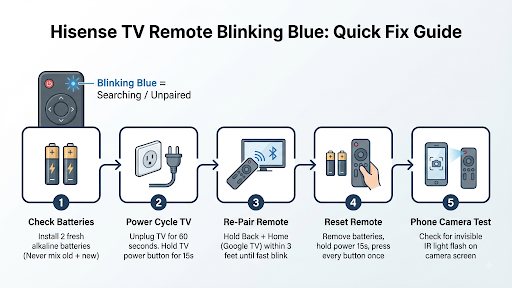
- Put in two new alkaline batteries, even if the light still turns on.
- Unplug the TV from the wall for 60 seconds, then plug it back in.
- Re-pair the remote while standing close to the TV. On Hisense Google TV, hold Back + Home until the light blinks fast.
- Reset the remote if pairing fails: remove the batteries, press buttons to drain leftover power, then reinsert.
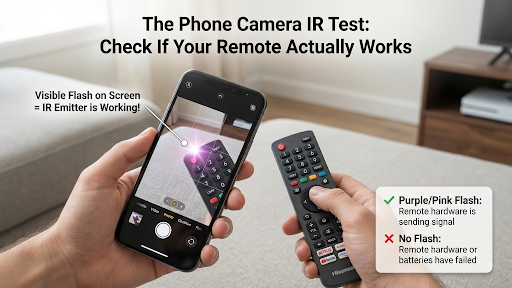
- Test the IR signal with a phone camera. No flash at all on camera often points to a failed remote.
Why Is My Hisense Remote Blinking Blue but Not Working?
The blue light means the remote is powered and trying to talk to the TV. The problem is on the receiving end, or in the connection between the two.
Most newer Hisense voice remotes use Bluetooth for most buttons and infrared (IR) mainly for power. When the Bluetooth link drops, the remote keeps blinking as it tries to reconnect, but menus, volume, and Home stop responding. That’s why so many people notice the power button still works while everything else is dead.
Here are the common causes:
- Lost Bluetooth pairing. This often happens after a power outage, a software update, or a battery change.
- Low battery voltage. The LED can still light up even when the batteries are too weak to hold a stable Bluetooth connection.
- A frozen TV. The TV’s software can hang while the screen still looks normal.
- Constant blinking from a stuck button. A button pressed down by a couch cushion or sticky residue can keep the remote transmitting nonstop.
- Interference or a blocked sensor. A soundbar placed in front of the TV can block IR, and nearby wireless devices can disrupt Bluetooth.
- Hardware failure. Drops, spills, and corroded battery contacts can damage the remote.
What Does the Blinking Pattern Tell You?
The exact blink pattern isn’t the same on every Hisense remote, but these general patterns help narrow things down.
| What You See | What It Usually Means | What to Try First |
| Light blinks once per button press | Remote is sending a command normally | Power cycle the TV, then check the TV’s sensor |
| Light blinks rapidly and nonstop | Remote is in pairing mode or searching for the TV | Stand close to the TV and complete the pairing steps |
| Light blinks without pressing anything | Stuck button or remote stuck in a pairing loop | Check the buttons, then reset the remote |
| Light is dim or blinks weakly | Low batteries | Replace both batteries with a fresh pair |
| No light at all | Dead batteries, bad contacts, or a failed remote | Check battery direction and contacts |
How Do You Fix a Hisense Remote That Blinks Blue but Won’t Control the TV?
Work through these steps in order. Each one rules out a common cause before you move to the next.
1. Replace the Batteries With a Fresh Pair
Use two new alkaline batteries from the same pack. Don’t mix an old battery with a new one. Bluetooth needs more steady power than IR, so batteries that still light the LED can be too weak to keep the connection alive.
While the cover is off, look at the metal contacts. White or green crust is corrosion. Gently clean it with a cotton swab and a little isopropyl alcohol, then let it dry.
2. Power Cycle the TV the Right Way
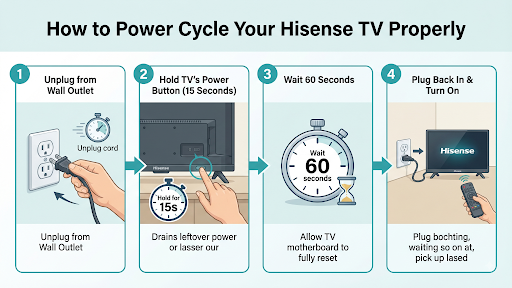
Turning the TV off with the remote only puts it in standby. A real power cycle clears frozen software.
- Unplug the TV’s power cord from the wall outlet.
- Press and hold the physical power button on the TV for about 15 seconds to drain leftover power.
- Wait at least 60 seconds.
- Plug the TV back in and turn it on.
Try the remote again once the home screen fully loads. Pressing buttons during startup can make it look like the remote is still broken.
3. Re-Pair the Remote to the TV
This is the fix that works most often. The steps depend on your Hisense TV’s platform. If you’re not sure which one you have, look at the home screen: Google TV shows “For you” tabs, Roku TV shows a purple grid of tiles, and VIDAA shows a Hisense-branded app row.
Hisense Google TV
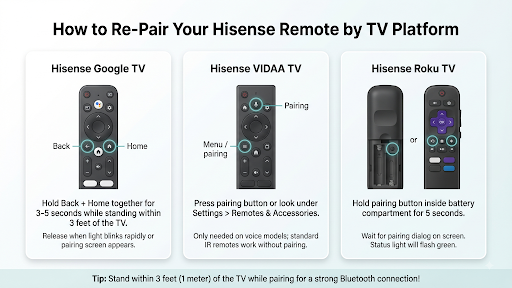
- Stand within 3 feet of the TV and point the remote at it.
- Press and hold Back and Home together.
- Release when the remote’s light starts blinking quickly or a pairing message appears on screen.
- Follow any on-screen prompt to finish.
Google lists this same Back and Home pairing method in its Google TV setup instructions. If you can control the TV another way, you can also go to Settings > Remotes & Accessories, remove the old remote, and add it again. If pairing broke right after you swapped batteries, this guide on fixing a Hisense Google TV remote that won’t pair after a battery change covers that specific case.
Hisense VIDAA TV
Budget VIDAA models often use a basic IR remote that doesn’t need pairing at all. VIDAA voice remotes do use Bluetooth, and the pairing button combination differs by remote model. Check the quick start guide that came with your TV, or look in the TV’s settings under remote or Bluetooth options to remove and re-pair the remote.
Hisense Roku TV
Roku voice remotes that use batteries have a small pairing button inside the battery compartment. Hold it for about 5 seconds until the status light flashes, then wait for the pairing dialog on the TV. Rechargeable Roku remotes use Home + Back instead. Note that Roku remotes usually show a green light, not blue, so if you have a Roku remote, the color difference is normal.
4. Reset the Remote
A remote can get stuck in a bad state that pairing alone won’t clear.
- Take both batteries out.
- Press and hold the power button for about 15 seconds, then press every other button once. This drains leftover charge.
- Wait a minute and put the batteries back in.
On many Google TV style remotes, you can do a factory reset by holding the Home button while you put the batteries back in, then releasing it when the light starts to pulse. After any reset, you’ll need to pair the remote again.
5. Check for Stuck Buttons and Blocked Sensors
If the light blinks when nobody is touching the remote, press each button firmly a few times and see if one feels sticky or doesn’t spring back. Spilled drinks are a common culprit.
Also check the front of the TV. The IR sensor is usually near the bottom center or bottom corner. A soundbar, decoration, or the TV stand lip can block it, which matters most for the power button.
How Can You Tell If the Remote Itself Is Broken?
Use your phone camera for a quick test. Open the camera app, point the remote’s front end at the lens, and press a button. Many phone cameras show a faint flashing light from the IR emitter that your eyes can’t see. Some rear cameras filter IR, so try the front camera if you see nothing.
- Flash on camera, but the TV ignores Bluetooth buttons: the remote is probably fine. Focus on pairing and power cycling.
- No flash on camera with fresh batteries: the remote’s IR side has likely failed.
- Only the power button works: that’s a classic Bluetooth pairing problem. This guide on a Hisense TV remote that’s not working but the power button works goes deeper into that exact symptom.
If the remote fails every test after a reset and fresh batteries, it’s time for a replacement. Buy one that matches your TV’s platform. A Roku remote won’t pair with a Google TV model, and a Google TV remote won’t pair with VIDAA.
What Can You Use While You Wait for a Fix?
Your phone can act as a temporary remote, as long as it’s on the same Wi-Fi network as the TV.
- Google TV models: use the remote feature built into the Google TV app or Google Home app.
- VIDAA models: use the Hisense RemoteNOW or VIDAA app.
- Roku TV models: use the free Roku mobile app.
A phone app is also handy for getting into the settings menu so you can remove and re-pair the physical remote.
Common Mistakes That Keep the Problem Coming Back
- Pairing from across the room. Bluetooth pairing works best within a few feet of the TV.
- Using rechargeable or cheap batteries. Some rechargeables run at a lower voltage, which can cause dropped connections.
- Skipping the full unplug. Standby mode doesn’t clear a software freeze.
- Pressing buttons during startup. The TV may not be ready to accept the remote yet.
- Ignoring software updates. Once the remote works again, check for a TV update, since updates can fix remote connection bugs.
Frequently Asked Questions
Why does my Hisense remote blink blue when I put new batteries in?
A few quick blinks after inserting batteries is normal. It’s the remote powering on and, on many models, trying to reconnect to the TV. If it keeps blinking for more than a minute and nothing responds, start the pairing steps.
Why does my Hisense remote stop working randomly and then start again?
Random dropouts usually point to a weak Bluetooth connection. Low batteries, a crowded spot near a Wi-Fi router, or a TV that needs a software update are the usual causes. Fresh batteries and a re-pair fix most cases.
Can I use my Hisense remote without pairing it?
Partly. On Bluetooth voice remotes, the power button often works through IR without pairing, but navigation, Home, and voice need a paired connection. Basic IR remotes on budget VIDAA models don’t need pairing at all.
Why is the voice button blinking but the mic doesn’t hear me?
Voice commands only work over Bluetooth, so an unpaired remote can light up without sending your voice. If the remote is paired and the rest works, check the TV’s microphone permissions and Wi-Fi. This guide on a Hisense voice remote microphone that’s not working walks through those checks.
Does a factory reset of the TV fix the remote?
It can, but treat it as a last resort. A TV factory reset erases your apps, sign-ins, and settings. Try power cycling, re-pairing, and a remote reset first. If you do reset the TV, it will ask you to pair the remote again during setup.
What if only some buttons on my Hisense Roku remote don’t work?
When only certain buttons fail, the cause is often a worn button contact or a setting tied to that button, not pairing. Volume is the most common example, since it can be routed to a soundbar or receiver. This guide on Hisense Roku TV remote volume buttons not working covers that issue.
Final Recommendation
Start with the simple steps: new batteries, then a full 60-second unplug of the TV. If the remote still blinks blue without controlling anything, re-pair it while standing close to the TV using the method for your platform. If that fails, reset the remote and pair again. When the phone camera test shows no signal even with fresh batteries, stop troubleshooting and order a replacement remote made for your TV’s platform. Use your phone as a remote in the meantime.