
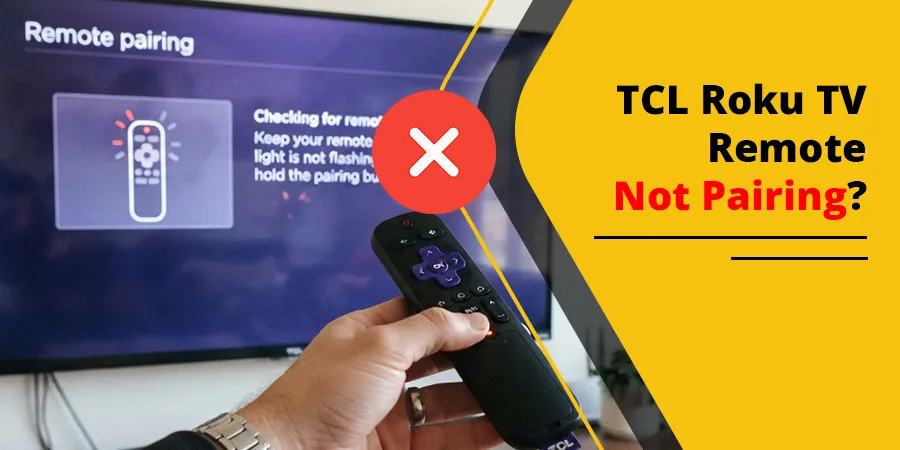
If your TCL Roku TV remote is not pairing, start with fresh batteries, unplug the TV for 60 seconds, then hold the pairing button inside the battery compartment for about 5 seconds. No pairing button? Hold Back and Home together for 5 seconds until the status light flashes. That alone fixes most pairing failures.
If it still won’t connect, the cause is usually one of a few things: you have a simple IR remote that never needed pairing, the TV missed the pairing window, something is blocking the signal, or the remote itself has failed. This guide walks you through each fix in order, so you can stop guessing and get your TV working again.
Quick Overview
- Check your remote type. Only voice remotes (with a mic or voice button) pair. Simple IR remotes just need a clear line of sight.
- Put in fresh batteries. Weak batteries are the number one reason pairing fails.
- Power cycle the TV. Unplug it from the wall for 60 seconds, then plug it back in.
- Pair right after the Home screen loads. Hold the pairing button, or Back + Home, for 5 seconds until the light flashes.
- Use the Roku mobile app as a backup remote and to pair through Settings.
- Replace the remote if the app controls the TV but the remote still won’t pair after a reset.
Why Is My TCL Roku TV Remote Not Pairing?
Most pairing failures come down to low power, bad timing, or the wrong remote type. The remote and TV only talk to each other during a short pairing window, and if anything goes wrong in that window, the connection never happens.
Here are the most common causes:
- Weak or dead batteries. A remote can light up and still not have enough power to finish pairing.
- You have a simple IR remote. These remotes don’t pair at all, so holding buttons will not do anything.
- The TV isn’t in pairing mode. A TCL Roku TV looks for a remote mostly right after it restarts.
- Wireless interference. Routers, soundbars, game consoles, and other Wi-Fi devices near the TV can disrupt the signal.
- Another remote is already paired. An old or spare remote can confuse the connection.
- Stuck buttons or a software glitch inside the remote.
- A failed or incompatible replacement remote. Not every “Roku” remote sold online works with every TCL model.
Which TCL Roku TV Remote Do You Have?
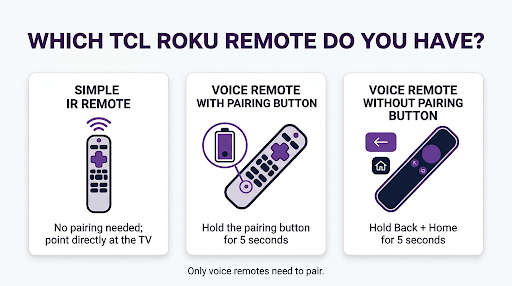
Check for a voice button first. If your remote has a microphone or voice button, it’s a voice remote that connects wirelessly and needs pairing. If it has no voice button, it’s most likely a simple IR remote that works by pointing at the TV.
| Remote Type | How to Spot It | Needs Pairing? | How to Connect |
| Simple (IR) remote | No voice button, often no status light | No | Insert batteries and point it at the TV |
| Voice remote with pairing button | Voice button plus a small button in the battery compartment | Yes | Hold the pairing button for 5 seconds |
| Voice remote without pairing button | Voice button, no button under the battery cover | Yes | Hold Back + Home for 5 seconds |
| Rechargeable voice remote (Voice Remote Pro) | Charging port, pairing button on the back | Yes | Hold the pairing button until the light flashes |
Roku’s own support pages confirm this split. Its guide on how to set up and pair a Roku voice remote explains that a simple remote has no voice button, and Roku’s moderators note that only voice remotes need to be paired.
Important Point to be Considered! If your remote doesn’t say Roku on it, or your TV’s Home screen looks like Google TV or Fire TV instead of the Roku menu, you’re on the wrong guide. A TCL Google TV remote uses a different button combination, which we cover in our fix for when the TCL Android TV remote Home and OK pairing is not working. Fire TV models have their own process too, so check this guide if your TCL Fire TV remote will not pair during setup.
How Do I Fix a TCL Roku TV Remote That Won’t Pair?
Work through these fixes in order. Each one rules out a cause, and most people are back up and running by Fix 4.
Fix 1: Replace the Batteries With a Fresh Set
Put in two brand new AAA batteries, even if the old ones seem fine. Pairing takes more power than pressing a few buttons, so a half-drained set can fail without warning.
- Use batteries from a sealed pack, not ones from a drawer.
- Check the + and – direction inside the compartment.
- If it’s a new remote, make sure you pulled out the plastic battery tab.
- Look for corrosion on the metal contacts. Wipe it off gently with a dry cloth if you see any.
Pro Tip! If a new remote won’t pair with new batteries, try a different brand of batteries. Some cheap or rechargeable AAAs deliver lower voltage, and that’s enough to stop pairing.
Fix 2: Power Cycle Your TCL Roku TV
Unplug the TV from the wall outlet, wait 60 seconds, then plug it back in. Turning it off with the remote is not the same thing, because the TV only goes into standby.
- Pull the power cord from the wall or power strip.
- While it’s unplugged, press and hold the power button on the TV itself for about 30 seconds to drain leftover power.
- Wait a full minute.
- Plug it back in and let it fully boot to the Home screen.
This clears temporary glitches and, just as important, puts the TV in a state where it looks for a remote. That’s why the next fix should happen right after this one.
Fix 3: Reset the Remote and Drain Its Power
A remote can get stuck in a bad state just like the TV. Draining it gives it a clean start.
- Remove the batteries.
- Press every button on the remote once or twice. This frees any stuck keys and drains leftover charge.
- Wait about 10 to 30 seconds.
- Put the batteries back in.
For older TCL Roku TV remotes, TCL Support also suggests removing the batteries and holding the number 1 button (or any button, if there are no number keys) for 60 seconds before putting them back.
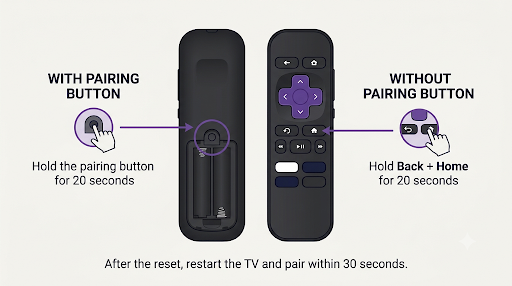
If you have a rechargeable Roku remote, Roku’s guide to fixing a simple or voice remote says to hold the pairing button for 20 seconds to restart it. If it has no pairing button, hold Back + Home for 20 seconds instead.
Fix 4: Re-Pair the Remote During the Pairing Window
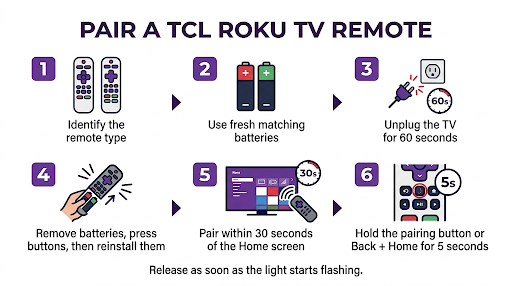
Pair the remote as soon as the Home screen appears after a restart. That’s when your TCL Roku TV is ready to accept a new connection.
If Your Remote Has a Pairing Button
- Open the battery cover and find the small pairing button. It’s usually a tiny round button near the batteries.
- Press and hold it for about 3 to 5 seconds, until the status light on the front of the remote starts flashing.
- Let go and keep the remote close to the TV.
- Wait up to 30 seconds for the pairing message to appear on screen.
If Your Remote Has No Pairing Button
- Press and hold the Back and Home buttons at the same time.
- Keep holding for about 5 seconds until the status light flashes.
- Release both buttons and wait for the on-screen confirmation.
Important Point to be Considered! Don’t hold Back + Home for much longer than 5 seconds. Holding too long can trigger a remote reset instead of pairing mode, which is a common reason people think the combo “doesn’t work.”
If the light never flashes at all, the problem is usually power or a faulty remote, not pairing. We break down that exact symptom in our guide on why the TCL Roku TV remote light is not flashing when pairing.
Fix 5: Pair the Remote From the Settings Menu
If restarting the TV doesn’t trigger pairing, you can start it manually from Settings. You’ll need a working remote or the Roku mobile app to get there.
- Press Home on the Roku app.
- Go to Settings > Remotes & devices.
- Select Pair new device (on some software versions this reads Add device), then choose Remote.
- Put the remote into pairing mode using the steps in Fix 4.
- Follow the on-screen prompts.
Menu names can vary a little depending on your TCL Roku TV model and Roku OS version, but the path is close to this on current models.
Fix 6: Clear the Line of Sight and Reduce Interference
Your TV’s IR sensor sits near the TCL logo on the front bottom edge. If anything covers it, a simple remote won’t work, and even voice remotes use IR for power and volume.
- Move soundbars, decor, or cables away from the bottom of the TV.
- Stand within a few feet of the TV while pairing.
- Move Wi-Fi routers, mesh nodes, wireless speakers, and game consoles away from the TV if you can.
- Turn off nearby Bluetooth or Wi-Fi devices for a few minutes as a test.
- Keep bright sunlight or strong LED lights off the sensor, since they can wash out IR signals.
Fix 7: Do a Quick IR Test With Your Phone Camera
This test tells you in seconds whether your remote is sending a signal at all.
- Open your phone’s camera app.
- Point the top of the remote at the camera lens.
- Press and hold any button, like Volume Up.
- Look at the screen. You should see a small flashing light at the tip of the remote.
If you see the light, the remote is sending IR, and the issue is probably the TV sensor or pairing. If you see nothing, the remote or its batteries are the problem. Some phone rear cameras filter out IR, so try the front camera if the rear one shows nothing.
Fix 8: Remove Other Paired Remotes
An extra remote that’s already paired can get in the way, especially if it’s sitting in a drawer with batteries in it.
- Take the batteries out of any spare Roku remotes nearby.
- Or hold Back + Home + Mute on the unused remote for 5 seconds to disable it, as Roku support recommends.
Then try pairing the remote you actually want to use.
Fix 9: Update the TV Software or Factory Reset as a Last Resort
Outdated Roku OS software can cause remote bugs. Using the Roku app, go to Settings > System > System update > Check now.
If nothing else works and you’ve confirmed the remote sends a signal, a factory reset may help. You can do it from Settings > System > Advanced system settings > Factory reset, or by pressing and holding the reset button on the back of the TV for about 10 to 20 seconds.
Important Point to be Considered! A factory reset erases your apps, sign-ins, and settings. You’ll need to set the TV up again from scratch, so try every other fix first.
How Do You Use the Roku App as a Remote for Your TCL TV?
Download the free Roku app, connect your phone to the same Wi-Fi network as your TV, and it will find your TCL Roku TV automatically. It works as a full remote while you troubleshoot.
- Install The Roku App (Official) from the App Store or Google Play.
- Connect your phone to the same Wi-Fi network as the TV. This matters more than anything else.
- Open the app and tap Devices, then select your TV.
- Tap the remote icon to control it.
If the app can’t find your TV, check that mobile app control is turned on. On the TV, go to Settings > System > Advanced system settings > Control by mobile apps and set it to allow access. Roku’s own help guide for app connection issues also points to same-network setup and mobile app control as the main fixes.
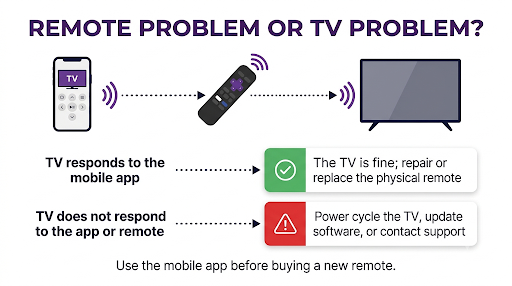
Pro Tip! If your TV isn’t connected to Wi-Fi yet and you have no working remote, the app can’t help. In that case, a cheap universal remote or a replacement Roku simple remote is the fastest way to get into the menus.
What If Your TCL TV Doesn’t Respond to the Remote or Its Own Buttons?
If the TV ignores both the remote and the Roku app, the TV itself may be frozen, not the remote. A full power cycle (Fix 2) is the first step.
Most TCL Roku TVs have a single power button or joystick on the back or underside. A short press usually turns the TV on, and repeated presses or a press and hold can change inputs or open a small menu, depending on the model.
If the remote seems fine and the light flashes, but the TV just won’t react to button presses, see our guide on what to do when the TCL TV remote works but the TV does not respond. It covers sensor problems, input issues, and frozen software in more detail.
Why Won’t a New Remote Pair With My TCL Roku TV?
A new or replacement remote usually fails to pair for one of three reasons: it’s the wrong type, it’s a cheap knockoff, or the TV wasn’t in pairing mode when you tried.
- Check compatibility. Look for a remote that lists “Roku TV” compatibility, not just “Roku player.” Some voice remotes are made only for streaming sticks.
- Remember simple remotes don’t pair. If your new remote has no voice button, just insert batteries and point it at the TV.
- Use the Settings method. With a new remote, starting pairing from Remotes & devices is often more reliable than waiting for the TV to detect it.
- Be wary of very cheap third-party remotes. Many are IR-only even if they look like a voice remote.
Common Mistakes That Stop Pairing
- Turning the TV off with the remote instead of unplugging it. Standby isn’t a real restart.
- Waiting too long after the Home screen loads. Try to pair within about 30 seconds.
- Holding buttons for too long. 5 seconds is enough. Much longer may reset the remote instead.
- Trying to pair a simple IR remote. It doesn’t need it and will never show a pairing screen.
- Pairing from across the room. Stay close to the TV with a clear path.
- Using a Google TV or Fire TV pairing method on a Roku TV. Each platform uses different buttons.
When Should You Replace Your TCL Roku TV Remote?
Replace the remote when the Roku app controls your TV but the physical remote still won’t pair or work after fresh batteries, a remote reset, and a TV power cycle. At that point, the remote itself has most likely failed.
Other signs it’s time for a new one:
- The status light never turns on, even with new batteries.
- The phone camera IR test shows no light.
- Buttons feel stuck, sticky, or crunchy, often after a spill.
- The remote was dropped and now works only sometimes.
You can buy a replacement from TCL, Roku, or a major retailer. A basic Roku simple remote is the cheapest option if you don’t need voice control. If your TV is still under warranty, contact TCL Support first, since they may replace a faulty remote.
Frequently Asked Questions
How do I pair my TCL Roku TV remote with no pairing button?
Hold the Back and Home buttons together for about 5 seconds until the status light flashes. If your remote has no voice button either, it’s a simple IR remote and doesn’t need pairing. Just insert batteries and point it at the TV.
Where is the pairing button on a TCL Roku TV remote?
On most TCL Roku voice remotes, it’s a small round button inside the battery compartment, near the batteries. On the rechargeable Roku Voice Remote Pro, it’s on the back of the remote. If you don’t see one, use the Back + Home method.
Why does my TCL Roku TV remote only turn the TV on and off?
This usually means the remote is sending IR signals but isn’t paired over its wireless connection. Power and volume can work by IR, while navigation needs the paired link. Re-pair the remote using the steps in Fix 4.
Can I pair my TCL Roku TV remote without Wi-Fi?
Yes. Pairing happens directly between the remote and the TV, so you don’t need an internet connection. You only need Wi-Fi if you want to use the Roku mobile app as a backup remote.
Will a Roku streaming stick remote work with a TCL Roku TV?
Often it will, because TCL Roku TVs run the same Roku software. But some remotes are built only for streaming players and won’t control TV features like power and volume. Check that the remote says it supports Roku TVs before you buy it.
Why does my TCL Roku TV remote keep unpairing?
Weak batteries and wireless interference are the most common reasons a remote drops its connection. Start with fresh batteries, move routers or other wireless devices away from the TV, and check for a software update.
Final Recommendation
Start simple. Put in fresh batteries, unplug your TCL Roku TV for 60 seconds, and pair the remote as soon as the Home screen loads. Use the pairing button if you have one, or Back + Home if you don’t. That fixes the problem for most people.
If it still won’t pair, use the Roku app to start pairing from Settings and to check for a software update. And if the app works but the remote doesn’t, even after a reset, save yourself the frustration and replace the remote.