
If your Samsung TV remote voice button is not working, the cause is usually one of four things: the remote lost its Bluetooth pairing, the TV’s microphone or voice assistant is turned off, the TV is offline, or your Samsung account needs attention. Re-pairing the remote by holding Back and Play/Pause for 3 to 5 seconds fixes most cases in under a minute. If that doesn’t do it, the steps below walk you through every other fix, from Bixby settings to SolarCell remote quirks.
Quick Overview
| What You See | Most Likely Cause | Fastest Fix |
| Mic button does nothing, other buttons work | Remote is working in IR mode only (Bluetooth unpaired) | Hold Back + Play/Pause for 3 to 5 seconds near the TV |
| “Microphone is off” message | TV mic switch or remote mic is disabled | Turn the microphone switch on (bottom of the TV on many models) |
| “Set up a network connection” message | TV is offline or voice server can’t be reached | Check Wi-Fi, restart the router, then retry |
| Voice icon appears but nothing happens | No voice assistant selected or Samsung account issue | Settings > General > Voice > Voice Assistant > choose Bixby |
| Everything worked yesterday, now it doesn’t | Temporary software glitch | Unplug the TV for 60 seconds |
| Remote has no mic button at all | Basic IR remote without voice support | Use the SmartThings app or get a compatible Smart Remote |
Why Is My Samsung TV Remote Voice Button Not Working?
The voice button stops working because voice commands need a working chain: remote mic, Bluetooth link, TV microphone setting, voice assistant, Samsung account, and internet. If any one link breaks, the button seems “dead” even though the remote looks fine.
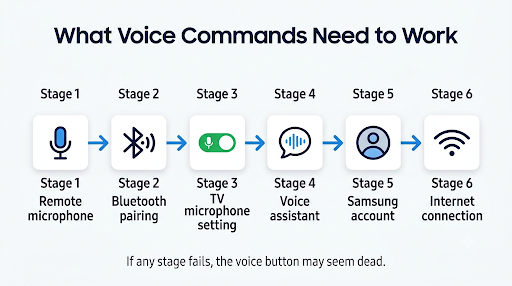
Here’s the part most guides skip. Samsung Smart Remotes send regular commands (power, volume, channels) over infrared, but voice goes over Bluetooth. So if pairing drops after a power outage, a software update, or a battery change, your remote still turns the TV on and changes the volume. Only the mic stops responding. That’s why so many people think the voice button itself is broken.
Common causes include:
- Lost Bluetooth pairing between the remote and TV
- Weak batteries or a drained SolarCell remote (Bluetooth needs more power than IR)
- TV microphone switched off by the physical switch or a voice command
- No voice assistant selected or the assistant was never set up
- Not signed in to a Samsung account, which Bixby requires
- No internet connection or a Samsung voice server outage
- Outdated TV software
- A remote that doesn’t support voice in the first place
How Do You Fix the Samsung TV Remote Voice Button?
Work through these fixes in order. They start with the quickest and most common solutions and move toward the less common ones.
1. Re-Pair the Remote With the TV
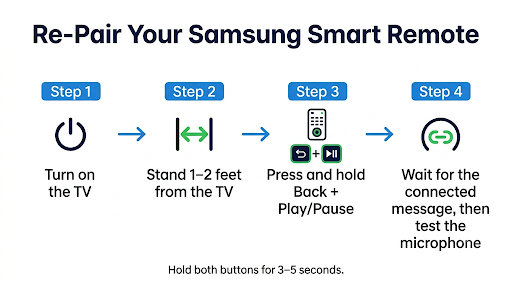
Re-pairing restores the Bluetooth connection that voice commands depend on. Samsung’s own community moderators and many users report this as the fix that finally worked.
- Turn on the TV.
- Stand about 1 to 2 feet away and point the remote at the TV.
- Press and hold the Back (Return) and Play/Pause buttons at the same time for 3 to 5 seconds.
- Release when the TV shows a pairing or “connected” message.
- Press and hold the mic button and say “Guide” to test it.
On some older Smart Remotes, the combo is Back + Extra (or the … button). If Back + Play/Pause does nothing, try that. If you just swapped batteries and the remote still won’t link up, see our guide on fixing a Samsung TV remote that won’t pair after a battery change.
2. Replace the Batteries or Charge the SolarCell Remote
Low power can keep IR buttons working while Bluetooth and the mic fail. This trips up a lot of people because the remote “seems fine.”
- Battery Smart Remote: Put in fresh AA batteries. A handy reset trick from Samsung support is to remove the batteries, wait 30 seconds, then reinsert them before re-pairing.
- SolarCell remote: Samsung’s SolarCell Remote guide covers both charging methods. Plug a USB-C cable into the port at the bottom for faster charging, or leave it solar panel up under a bright light for a while. You can check the charge level under Settings > General > Power and Energy Saving on many models.
3. Make Sure the TV Microphone Is On
If your TV shows a message saying the microphone is off, voice input won’t work at all. Many recent Samsung TVs have a physical microphone switch, usually on the bottom edge near the power button. Samsung notes that the switch location varies by model and region.
Flip the switch and watch for an on-screen message confirming the mic is on. This matters most if you have a model with hands-free “Hi Bixby” voice wake-up, since that uses the TV’s built-in mic. Samsung explains the switch in its guide on troubleshooting voice recognition on Samsung TVs.
4. Check Your Voice Assistant Settings
If no assistant is selected, the mic button has nothing to send your voice to. Here’s how to check:
- Press Home on the remote.
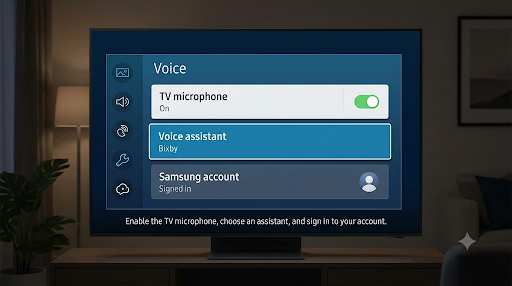
- Go to Settings > All Settings > General & Privacy > Voice (on older models, Settings > General > Voice).
- Select Voice Assistant.
- Choose Bixby or another assistant your model supports, such as Alexa.
- Follow any setup prompts that appear.
Tip: If one assistant isn’t responding, switch to the other and test again. Switching from Alexa to Bixby (or the reverse) often clears a stuck voice service.
5. Sign In to Your Samsung Account
Bixby only works when you’re signed in to a Samsung account on the TV. Go to Settings > General > System Manager > Samsung Account and sign in.
Here’s an edge case worth knowing. One user on the Samsung Community found their voice assistant menu wouldn’t even open after a power outage. The real problem turned out to be a Samsung account locked after too many wrong password attempts. Resetting the password fixed it. If the assistant menu won’t load, log in to your Samsung account on a phone or computer to check its status.
6. Check the Internet Connection
Voice commands are processed online, so your TV must be connected to the internet. If you see “You can use voice recognition after setting up a network connection,” the TV isn’t reaching Samsung’s servers.
- Open YouTube or Netflix to confirm the internet works.
- Go to Settings > General > Network > Network Status and run the test.
- Restart your router and the TV.
Samsung also notes that Bixby may not respond even with a good connection if its voice server has an error. If everything checks out, wait a few hours and try again.
7. Power Cycle (Soft Reset) the TV
A soft reset clears temporary glitches in the TV’s Bluetooth and voice modules.
- Unplug the TV from the wall outlet.
- Wait at least 60 seconds. Pressing the TV’s physical power button during this time helps drain leftover power.
- Plug it back in, turn it on, and test the mic button.
A faster version: with the TV on, hold the power button on the remote until the TV turns off and back on with the Samsung logo.
8. Update the TV Software
Samsung recommends checking for updates whenever you have a TV problem, since updates often include fixes. Go to Settings > Support > Software Update > Update Now. You can also turn on Auto Update so you don’t miss future fixes.
9. Test Voice Using the SmartThings App
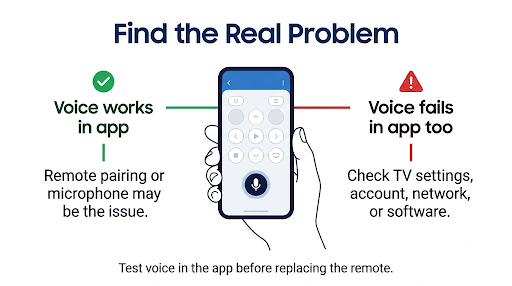
The SmartThings app tells you whether the problem is the remote or the TV. Open the app, select your TV, and use the virtual remote’s voice feature.
- If voice works in the app: The TV is fine. The physical remote’s pairing or mic is the issue.
- If voice fails in the app too: The problem is on the TV side (settings, account, network, or software).
This one test can save you from buying a new remote you don’t need.
10. Reset Smart Hub or Factory Reset the TV
Only use this as a last step. Resetting removes your apps, sign-ins, and settings.
- Reset Smart Hub: Settings > Support > Device Care > Self Diagnosis > Reset Smart Hub (default PIN is usually 0000).
- Factory reset: Settings > General > Reset.
After a reset, set up the voice assistant and sign in to your Samsung account again during setup.
Does Your Samsung Remote Even Support Voice?
Not every Samsung remote has a microphone. If your remote has no mic button, voice control won’t work no matter what settings you change.
| Remote Type | Voice Support | How to Tell |
| SolarCell Remote (2021 and newer select models) | Yes | Solar panel on the back, USB-C port at the bottom, mic button |
| Samsung Smart Remote (battery powered) | Yes, on most models | Slim remote with a mic button near the top |
| Standard IR remote (number pad style) | No | Full number pad, no mic button |
| Universal or cable box remote | Usually no for Samsung voice | Branded by the cable or remote maker |
Many Samsung remotes carry a part number starting with BN59. That prefix alone doesn’t tell you about voice, though. Some BN59 remotes are basic IR models. If you’re dealing with a BN59 remote where several buttons fail, check out what to do when BN59 remote buttons stop working but the TV still turns on.
Why Is the Samsung SolarCell Remote Voice Control Not Working?
On a SolarCell remote, voice usually fails because of a low charge or a dropped Bluetooth link. Solar remotes kept in a dark room or a drawer slowly lose charge. Bluetooth and the mic feel the drop first.
To fix it:
- Charge it with a USB-C cable for 30 minutes or more.
- Re-pair it with Back + Play/Pause. One Samsung Community user with a solar remote confirmed this exact combo worked after other guides suggested different buttons.
- Test the mic again.
If the remote keeps losing its connection every few days, that points to a separate pairing issue. Our guide on a Samsung smart TV remote that keeps disconnecting covers the usual causes, like Bluetooth interference and power-saving settings.
What If Bixby Is Not Working on Samsung TV?
If Bixby is not working on your Samsung TV, first confirm it’s selected as your voice assistant and that you’re signed in to your Samsung account. Those two steps solve most Bixby problems.
Also try these:
- Hold the button while speaking. Press and hold the mic button, say your command, then release. A quick tap won’t capture your voice on most models.
- Speak clearly and close to the remote. Background noise, a loud TV, or speaking too far away can cause “I didn’t catch that” errors.
- Avoid symbols and odd phrasing. Samsung notes that special characters and some numbers may not be recognized correctly.
- Finish provider setup for channel commands. Changing channels by voice requires completing the Service Provider settings on the TV.
Why Is YouTube Voice Search Not Working on Samsung TV?
YouTube voice search on a Samsung TV uses the same remote mic and voice system as Bixby. So if the mic doesn’t work anywhere, fix the pairing and voice assistant settings first.
If voice works in the TV menus but not inside YouTube:
- Update the YouTube app from the Samsung Apps store.
- Close the app fully and reopen it.
- Check that the microphone permission is allowed if your model shows app permissions.
- Restart the TV to reset the app.
How Do You Set Up and Turn On the Samsung TV Voice Assistant?
To turn on the voice assistant on a Samsung TV, go to Settings > General > Voice > Voice Assistant and choose your assistant. Then press and hold the mic button to start the setup.
For a full Samsung Smart TV voice remote control setup:
- Pair the remote (Back + Play/Pause).
- Connect the TV to Wi-Fi.
- Sign in to your Samsung account.
- Pick your voice assistant and accept the terms.
- If your TV supports it, turn on Voice Wake-up for hands-free commands.
Menu names shift a little between model years, so if you don’t see “General & Privacy,” look for “General” instead.
How Do You Turn Off the Samsung TV Voice Assistant?
To turn off the voice assistant, go to Settings > General > Voice and turn off Voice Wake-up, or set the assistant to none if your model allows it. You can also flip the TV’s microphone switch off to stop all hands-free listening.
People often mix this up with Voice Guide, which is the narrator that reads menus aloud. That’s an accessibility feature, not the voice assistant.
What If Samsung TV Voice Guide Won’t Turn Off?
If the TV keeps talking over menus, Voice Guide is on. Here’s how to turn it off:
- With buttons (fastest): On a Smart Remote, press and hold the Volume button for 2 seconds or longer. The Accessibility Shortcuts menu opens, and you can turn off Voice Guide there. On standard remotes, press and hold Mute instead.
- Through settings: Go to Settings > All Settings > General & Privacy > Accessibility > Voice Guide Settings and turn it off.
- By voice: Hold the mic button and say “Turn off Voice Guide.”
Heads up: Even with Voice Guide off, the Accessibility Shortcuts menu itself still reads aloud. That’s normal, and it confuses a lot of people into thinking Voice Guide turned itself back on. Samsung covers this in its guide to disabling Voice Guide on Samsung TVs.
Common Mistakes That Keep the Voice Button From Working
- Tapping instead of holding the mic button. You need to hold it while you talk.
- Pairing from across the room. Stay within a couple of feet of the TV while pairing.
- Assuming the remote is broken because only voice fails. That usually means a Bluetooth issue, not hardware damage.
- Forgetting the TV mic switch after cleaning or moving the TV.
- Using a remote that has no mic. Check the button layout first.
- Factory resetting too early. Try pairing, settings, and network checks before wiping the TV.
Also, if your Samsung remote is linked to a soundbar through Anynet+ (HDMI-CEC), that setup can affect how some buttons behave. If volume or other commands go to the wrong device, see our guide on a Samsung TV remote not controlling the soundbar.
Frequently Asked Questions
Why does my Samsung remote work but the voice button doesn’t?
Your remote is likely sending only infrared signals. Regular buttons use IR, but voice needs a Bluetooth connection. Re-pair the remote with Back + Play/Pause to bring the mic back.
Can I use voice control on a Samsung TV without the Smart Remote?
Yes. The SmartThings app on your phone has a virtual remote with voice input. On models with a built-in far-field mic, you can also use hands-free “Hi Bixby” commands once Voice Wake-up is turned on.
Why does my Samsung TV say “I didn’t catch that” every time?
The mic is working, but the command isn’t being understood. Background noise, speaking too fast, releasing the button too early, or a voice server issue can cause this. Hold the button the whole time you speak and try a simple command like “Guide.”
Does Alexa work with the Samsung TV remote mic button?
On many recent Samsung TVs, yes. You can pick Alexa as your voice assistant under Settings > General > Voice > Voice Assistant and link your Amazon account. Supported assistants vary by model year and region.
How do I know if my Samsung remote mic is broken?
Test voice in the SmartThings app. If it works there but not with your remote after charging and re-pairing, the remote’s mic or Bluetooth hardware may be faulty. At that point, a replacement Smart Remote that matches your TV model is the next step.
Will a factory reset fix the voice button?
It can, but it’s rarely needed. A reset clears software and account glitches, yet it also deletes your apps and settings. Try pairing, the mic switch, voice settings, and a software update first.
Final Recommendation
Start with the quickest fix: re-pair your remote by holding Back and Play/Pause for 3 to 5 seconds while standing close to the TV. If the voice button still doesn’t respond, charge or replace the batteries, check that the TV microphone switch is on, and confirm Bixby or Alexa is selected with your Samsung account signed in.
Still stuck? Use the SmartThings app to find out whether the remote or the TV is at fault. If voice works in the app but never with the remote, contact Samsung support or get a compatible replacement Smart Remote for your model.